







Check the dongle or connector
Assuming you’re using a wired mouse or a wireless mouse that requires a USB dongle, unplug the dongle and wait a few seconds before plugging it back in. This resets the connection and is sometimes enough to fix an unresponsive mouse. On Windows, you should hear a ‘ding’ when the device is plugged in.
Check Bluetooth
In case you’re using a Bluetooth mouse, check that the PC’s Bluetooth connection is turned on. You might want to reset your Bluetooth connection and your mouse as well just to be sure.
Turning it off and on again
This age-old piece of advice holds true for all electronics. Reset your mouse and laptop and try connecting the devices again. If there are any software or driver issues, this step will usually resolve them.
Use a different laptop
If none of the above works, connect your mouse to a different laptop or PC or any mouse-compatible device and check if the mouse works. If the mouse is working, your laptop’s at fault. If not, there’s something wrong with your mouse.
Charge your mouse
An oft-overlooked step is battery replacement or charging. Wireless mice these days are so efficient that their batteries last weeks, if not months. Charge your mouse for about 20 minutes per the manufacturer’s instructions (or replace the battery if it uses AA).
ALSO READ: How to connect a wireless mouse to your laptops?
If the mouse only works for a little while after charging, it’s possible that the battery is dead. For mice with internal Li-ion batteries, servicing is challenging.
In case of a AA or AAA battery, swap out batteries but check that the old batteries didn’t leak and damage the internals of the mouse.
Disconnect other USB devices
If you’re using a USB hub or have a lot of connected USB devices, try disconnecting them and then checking if the mouse works. Hubs usually can’t deliver enough power when a lot of devices are connected and in rare cases your mouse might be unpowered despite being connected.
Re-install drivers
If your mouse uses proprietary drivers or software, consider re-installing said drivers and software. Instructions will be found on the manufacturer’s website. It’s possible that an older version isn’t compatible with your operating system, or that there was some kind of bug that was patched out. While you’re at it, update the mouse’s firmware if there’s an update.
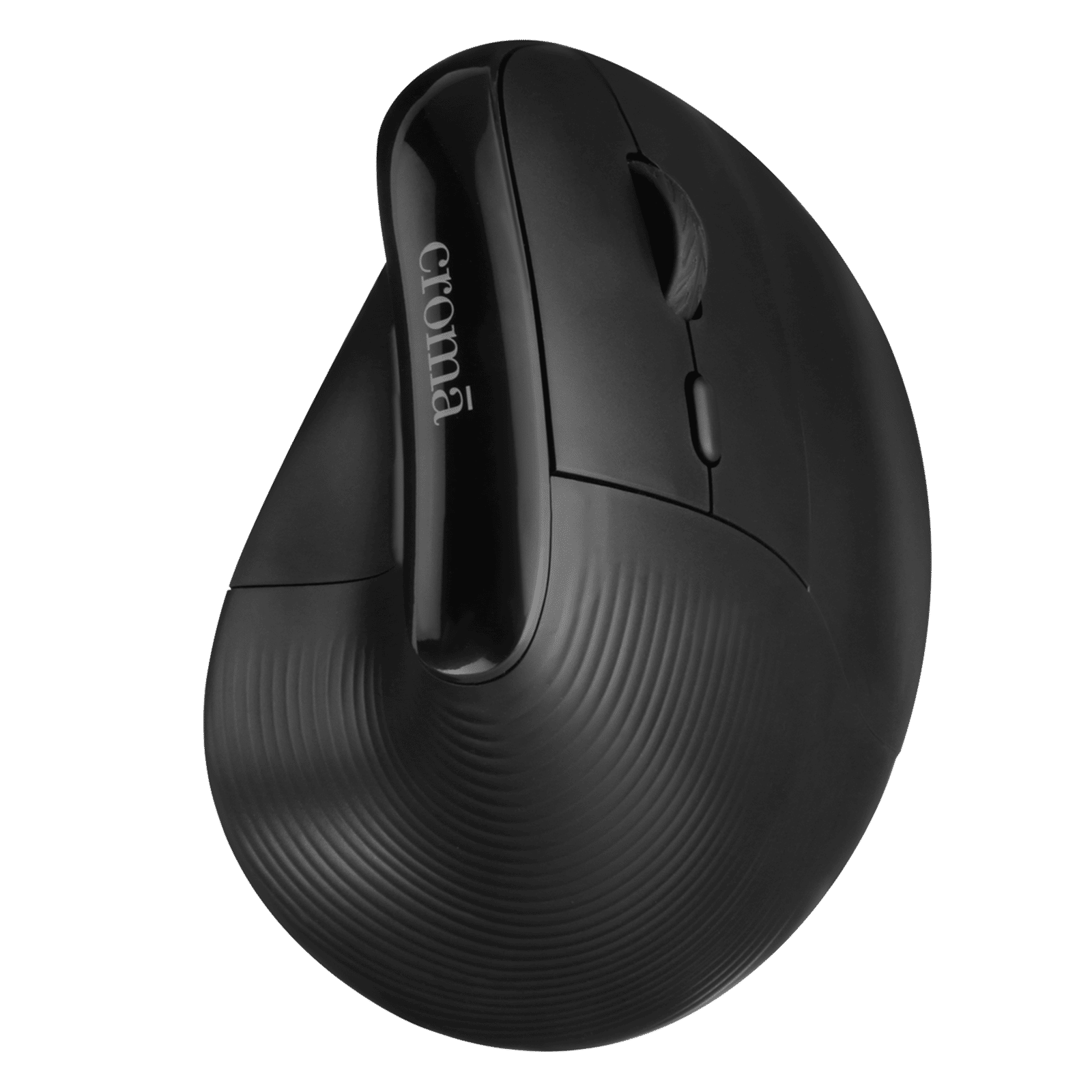
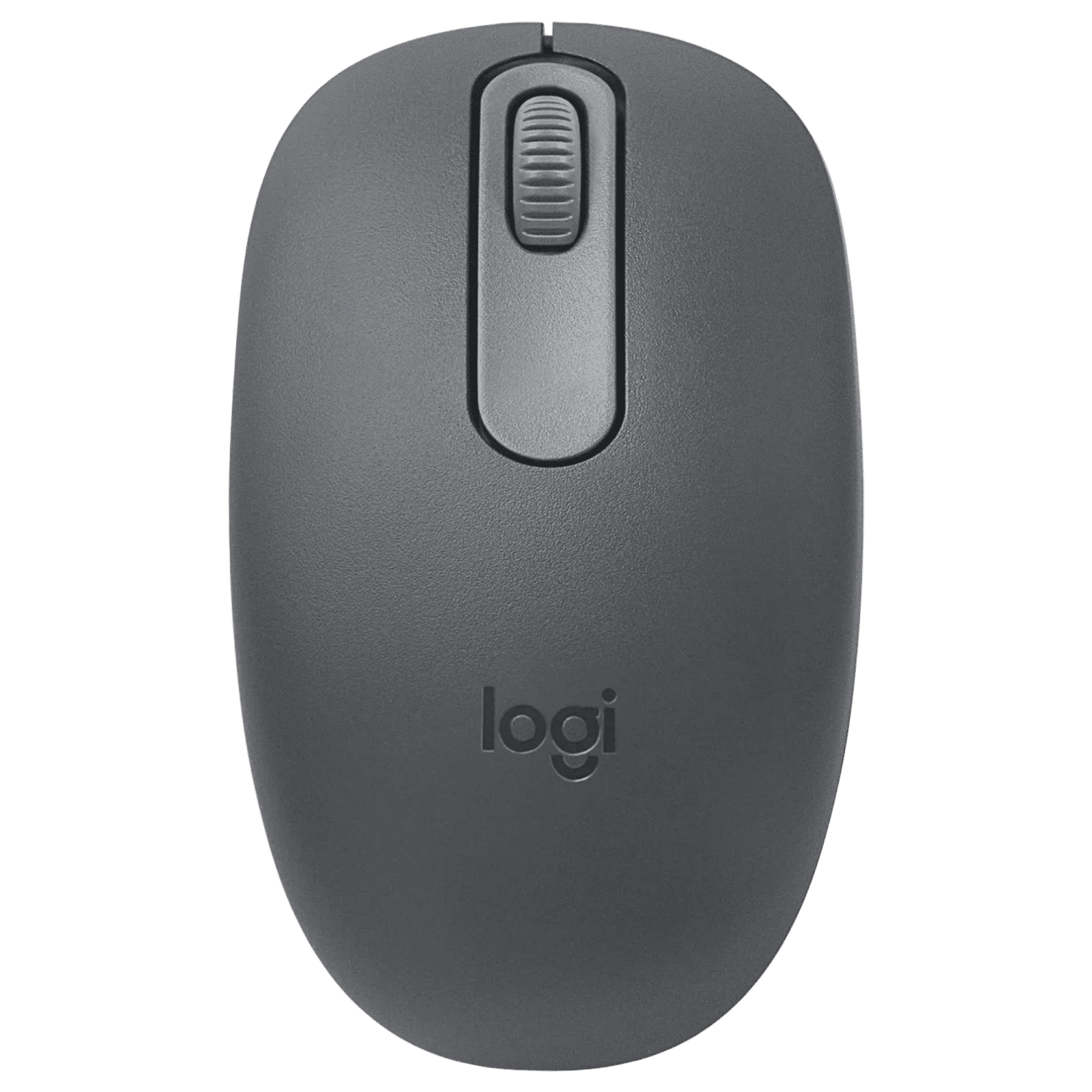
Clean your mouse (and port)
If your mouse is showing up as connected but is unable to track your movements or is erratic, check that the sensor is clean. Dust and debris can sometimes get caught in there, preventing the sensor from getting a reading.
ALSO READ: The best gaming mouse for 2025
Try a different mouse pad or surface
Also try using a different surface for the mouse, preferably a good mouse pad, as certain surfaces can interfere with a mouse’s tracking. A surface that is non reflective and with a textured finish is best.
Compressed air
When mice have click issues, it’s usually because a bit of dust or debris is lodged in the switch. If this is the case, simply raise the mouse buttons as high as you think you can safely, and blow some compressed air into the inner compartment. This helps clear lodged debris. Don’t blow into the mouse yourself as you could accidentally introduce moisture and damage the mouse.
If the mouse still isn’t working it will need replacing. In such a case, simply head to croma.com or the nearest Croma retail store for finding a replacement.

Unleash your inner geek with Croma Unboxed
Subscribe now to stay ahead with the latest articles and updates
You are almost there
Enter your details to subscribe

Happiness unboxed!
Thank you for subscribing to our blog.
Disclaimer: This post as well as the layout and design on this website are protected under Indian intellectual property laws, including the Copyright Act, 1957 and the Trade Marks Act, 1999 and is the property of Infiniti Retail Limited (Croma). Using, copying (in full or in part), adapting or altering this post or any other material from Croma’s website is expressly prohibited without prior written permission from Croma. For permission to use the content on the Croma’s website, please connect on contactunboxed@croma.com
- Related articles
- Popular articles
Anirudh Regidi
Comments