







I was once a firm believer in a clean install or setup of every new device, but smartphone makers have made it extremely easy to switch between their own products and to switch to a competitor. The idea of moving your data can be overwhelming is fast becoming a relic, and if you are looking to switch from an old Samsung phone to a new Samsung phone, here is a look at easy ways to transfer data.
How to transfer data from Samsung to Samsung
From wireless data transfer to a reliable wired connection, here is how to transfer data from Samsung to Samsung in a few minutes.
– Method 1: Using Samsung Smart Switch
– Method 2: Using a USB cable
– Method 3: Samsung Cloud Backup
Method 1: Using Samsung Smart Switch
Samsung Smart Switch is the most seamless way to transfer data from Samsung to Samsung. It effortlessly transfers your photos, videos, contacts, calendars and alarms across devices while preserving most of your apps, call logs, Wi-Fi settings, and even home screen layout. Here’s how it works:
– Step 1: Install Smart Switch on both phones
– Step 2: Open the app on both devices
– Step 3: Select Send data on the old phone and Receive data on the new phone
– Step 4: Choose Wireless or Cable
– Step 5: Select what you want to transfer (apps, contacts, photos, messages, settings)
– Step 6: Start the transfer
Method 2: Using a USB cable
If you have many photos, videos, or apps, then transferring data using a USB cable will be fastest. To do this, you will need a USB-C to USB-C cable or a relevant adapter. Here’s how to transfer data between Samsung phones using a USB cable:
– Step 1: Connect both phones using the USB-C cable
– Step 2: Open Smart Switch and follow the on-screen instructions
– Step 3: Choose data and begin transfer
Method 3: Samsung Cloud Backup
You can also transfer data from your old Samsung phone to a newer one using Samsung Cloud. Here are the steps to follow:
– Step 1: On the old phone, go to Settings
– Step 2: Choose Accounts and navigate to Samsung Cloud
– Step 3: Select Backup
– Step 4: On the new phone, sign in to Samsung Cloud and select Restore
Transfer data Samsung to Samsung
While the above methods are among the easiest ways to transfer data from Samsung to Samsung, there are other methods, like Google Account Sync or nearby share, for moving a specific type of data. Here is a look at these methods in detail:
Google Account Sync
If you rely extensively on Google apps, then this method is best suited to restore contacts, apps, calendar, and settings. On your old phone, go to Settings >> Google >> Backup. On your new phone, sign in with the same Google account during setup, and your data will be restored automatically.
Nearby Share
If you want to move only a small number of files from Samsung to Samsung, then Nearby Share will be more effective. Enable Nearby Share on both Samsung phones, select the file you want to share and tap Nearby Share. Wait for the target device to appear and select once it pops up.
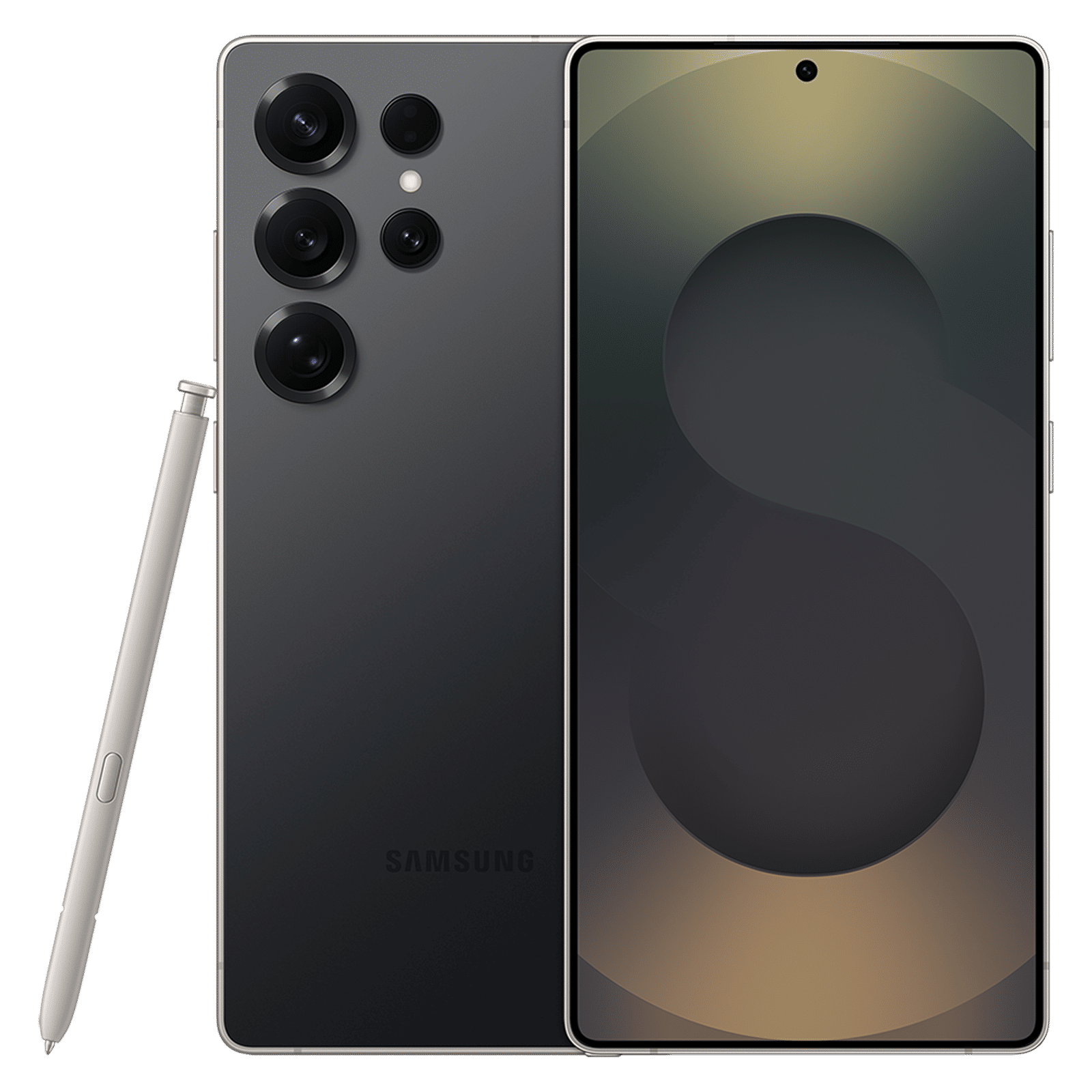
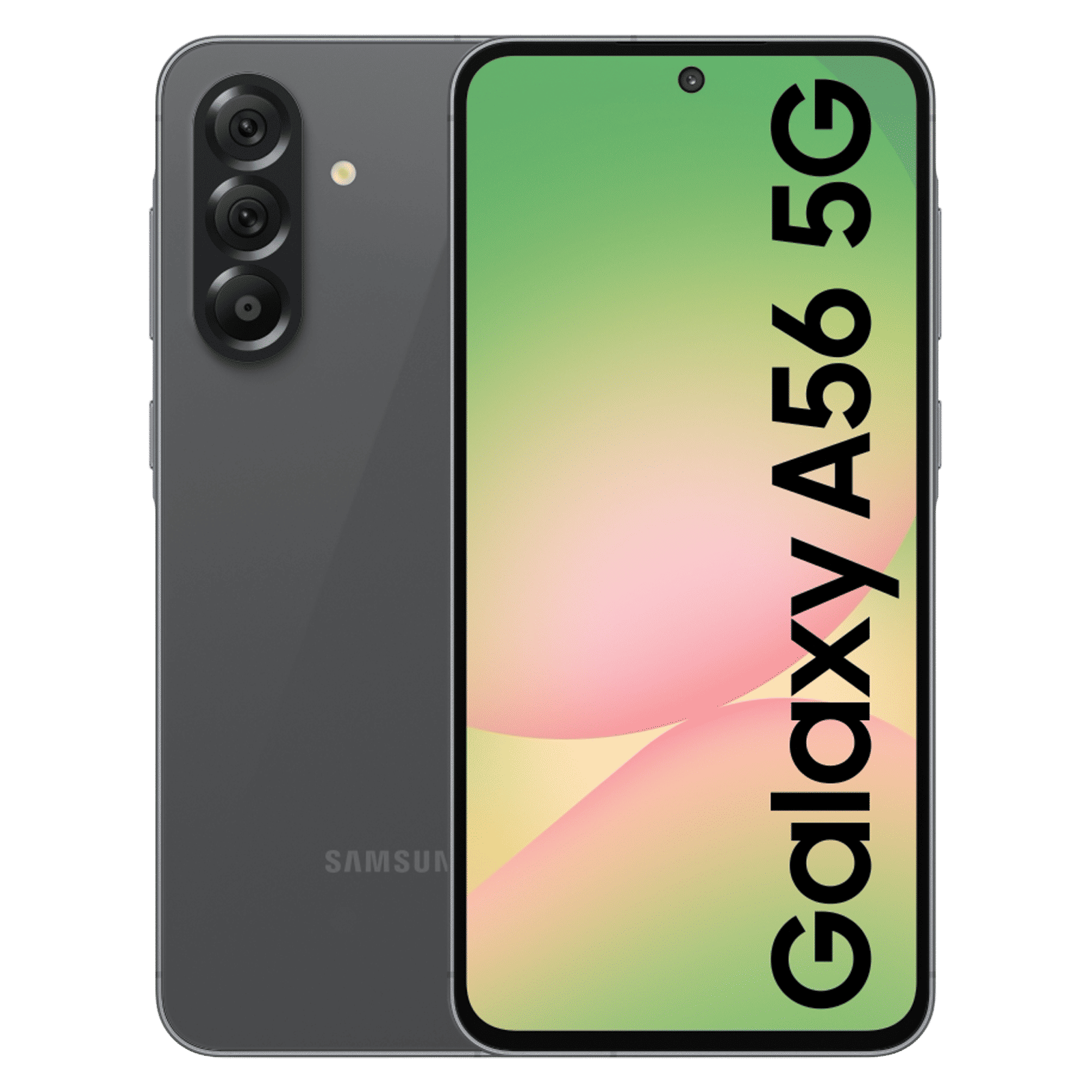
The process of transferring data between Samsung smartphones is now effortless thanks to Smart Switch and Samsung Cloud. It eliminates manual copying and to make it work, ensure both devices have over 50 per cent charge, connected to a stable Wi-Fi.
ALSO READ: A guide to using the Camera Assistant app on Samsung Galaxy smartphones
Once the data transfer begins, do not interrupt the process and choose the method based on the type or amount of data you plan to transfer.

Unleash your inner geek with Croma Unboxed
Subscribe now to stay ahead with the latest articles and updates
You are almost there
Enter your details to subscribe

Happiness unboxed!
Thank you for subscribing to our blog.
Disclaimer: This post as well as the layout and design on this website are protected under Indian intellectual property laws, including the Copyright Act, 1957 and the Trade Marks Act, 1999 and is the property of Infiniti Retail Limited (Croma). Using, copying (in full or in part), adapting or altering this post or any other material from Croma’s website is expressly prohibited without prior written permission from Croma. For permission to use the content on the Croma’s website, please connect on contactunboxed@croma.com
- Related articles
- Popular articles
Karthekayan Iyer
Comments