







Google’s official blog has confirmed that it has introduced a new feature that allows smoother cross-platform sharing with Apple. The updated version of Android’s Quick Share feature can now work with Apple’s AirDrop, starting with the Pixel 10 series.
The new update makes it possible to reduce the friction users encounter when exchanging photos, videos, and documents between Android and Apple devices, as they run on different operating systems. After the Pixel phones, the new feature is expected to trickle down to other Android phones in the coming days.
What the new compatibility brings
Starting today, Pixel 10 users can share files directly with Apple devices like iPhone, iPad, and macOS. The file sharing relies on a peer-to-peer connection, which means there is no data exposure as it does not pass through any server.
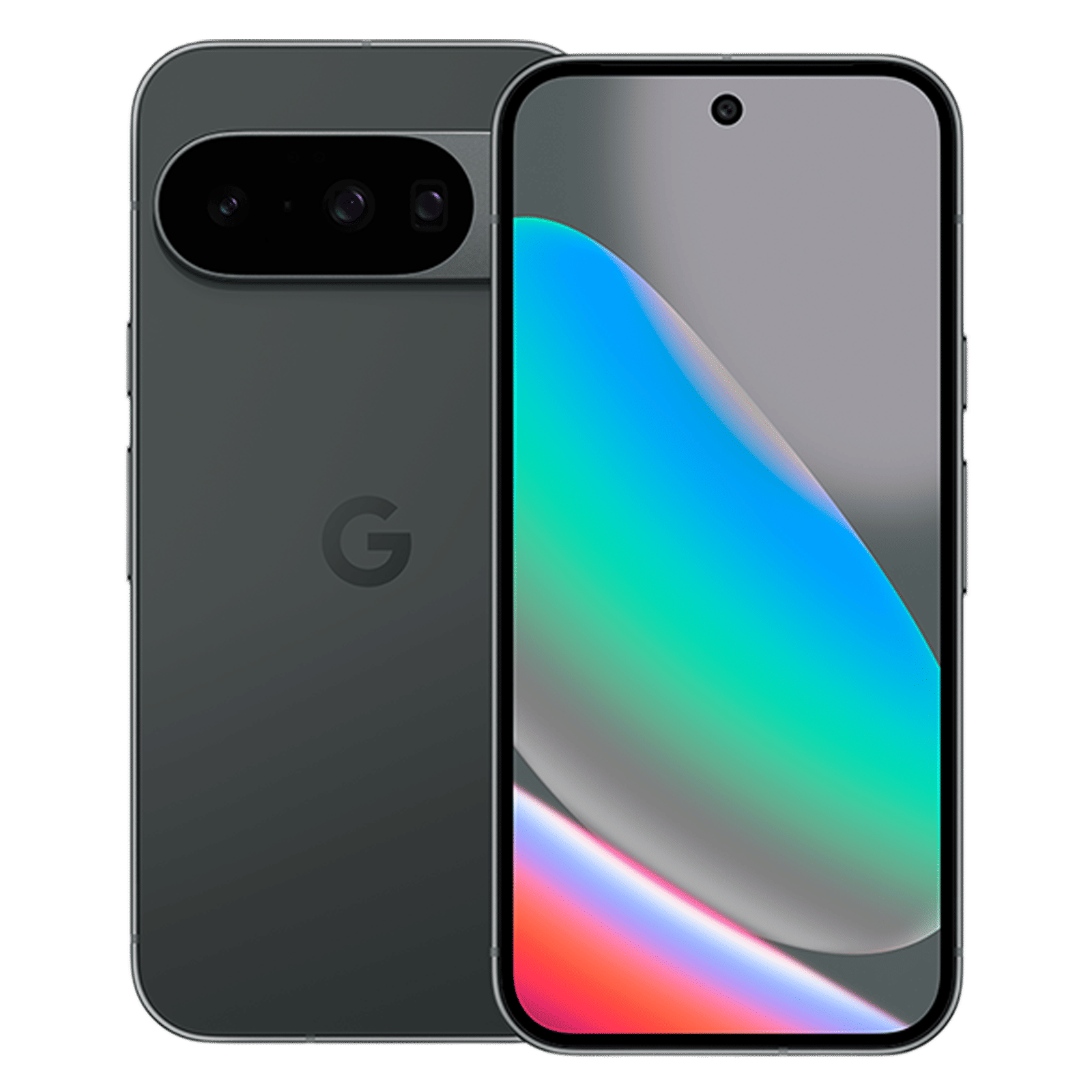
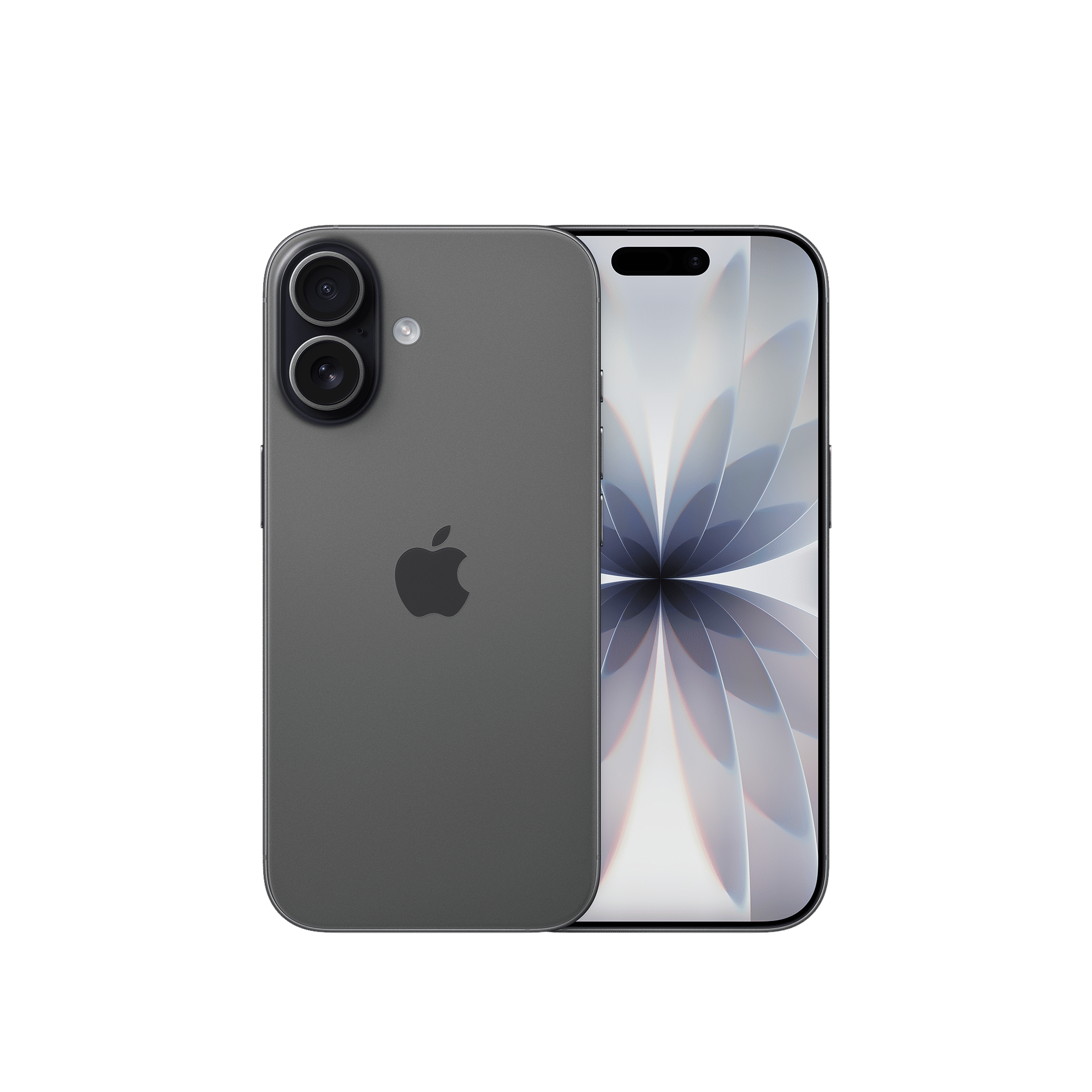
Google claims that it has mainly focused on safeguarding user privacy, with internal checks supported by independent security experts. Early users will need to adjust a setting on the iPhone side because the current implementation only works when AirDrop is set to “Everyone for 10 minutes.” Once enabled, the Pixel device can detect the Apple device through the Quick Share menu.
Since the update supports two-way sharing, iPhone owners can also send files to Pixel 10 devices as long as the Pixel 10 is discoverable. Google has confirmed that this is only the first stage, with plans to support the “Contacts only” mode in the future and expand compatibility to more Android devices.
How to use Android’s Quick Share to exchange files with an iPhone
To try the new feature, Pixel 10 users should make sure they have the latest version of Quick Share. This can be done through the Google Play Store, followed by a phone restart.
On the iPhone side, navigate to Settings > AirDrop and change the discoverability mode to “Everyone for 10 minutes.” Keep both devices unlocked and within close range. Once both are discoverable, choose Quick Share on the Pixel, select the file, and tap the iPhone’s device name to complete the transfer.
ALSO READ: Gemini 3 rolls out across Google products with major intelligence upgrades
Stay tuned to Unboxed by Croma for all the latest news from the world of tech.

Unleash your inner geek with Croma Unboxed
Subscribe now to stay ahead with the latest articles and updates
You are almost there
Enter your details to subscribe

Happiness unboxed!
Thank you for subscribing to our blog.
Disclaimer: This post as well as the layout and design on this website are protected under Indian intellectual property laws, including the Copyright Act, 1957 and the Trade Marks Act, 1999 and is the property of Infiniti Retail Limited (Croma). Using, copying (in full or in part), adapting or altering this post or any other material from Croma’s website is expressly prohibited without prior written permission from Croma. For permission to use the content on the Croma’s website, please connect on contactunboxed@croma.com
- Related articles
- Popular articles
Anvinraj Valiyathara
Comments