







In February, Amazon introduced Alexa+, a new version of its digital assistant powered by generative AI. The new Alexa+ is smarter, personalised, and more conversational than before, and with its release, Amazon made sure Alexa doesn’t fade out of conversation amidst the rise of ChatGPT and Gemini.
Today, Alexa can do things like control your smart home devices, manage your calendar events, and play music. However, to take full advantage of Amazon’s personal voice assistant, you need to connect Alexa to your phone and here’s how.
How to connect Alexa with phone
Once you connect Alexa with your phone, you get seamless access to features wherever you go. Whether you use an Android phone or an iPhone, the setup process is simple and quick. All you need is a stable internet connection and the Alexa app. Here’s a step-by-step guide to connect Alexa with your phone.
ALSO READ: Can you connect Alexa to a Bluetooth speaker?
– Step 1: Download the Amazon Alexa app from the Google Play Store or Apple App Store.
– Step 2: Sign in using your Amazon account.
– Step 3: Now, plug in your Amazon Echo or Alexa-enabled device.
– Step 4: Wait for the light ring to turn orange, indicating the device is in setup mode. If not, press the Action – button for 10 seconds to enter setup mode.
– Step 5: Open the Alexa app and tap Devices.
– Step 6: Select “Add Device” and then choose “Echo” or another Amazon Echo device.
– Step 7: Choose your Wi-Fi network and enter the Wi-Fi password.
Once connected, your Alexa device will confirm with a voice message.
Once connected, your Alexa device will confirm with a voice message.
Connect Alexa to your phone: Other features
Connecting Alexa to your phone is just the first step, and to play your phone’s audio or make calls through an Alexa-enabled device like the Echo speaker, you need to enable Bluetooth pairing with your phone. You also need to enable Alexa hands-free to use Alexa directly from your phone. Here is a step-by-step guide:
Enable Bluetooth pairing with your phone
– Step 1: Open the Alexa app and go to Devices.
– Step 2: Select your Echo or Alexa device.
– Step 3: Tap Bluetooth Devices and choose Pair a New Device.
– Step 4: On your phone, open Bluetooth settings and select your Echo.
Enable Alexa hands-free on your phone
– Step 1: Open the Alexa app on your smartphone.
– Step 2: Tap More and navigate to Settings.
– Step 3: Select Alexa App Settings.
– Step 4: Enable Hands-Free.
Once you have enabled these two features, you can also link your contacts for calling and messaging, select your music streaming app, and link your calendar for reminders and scheduling.
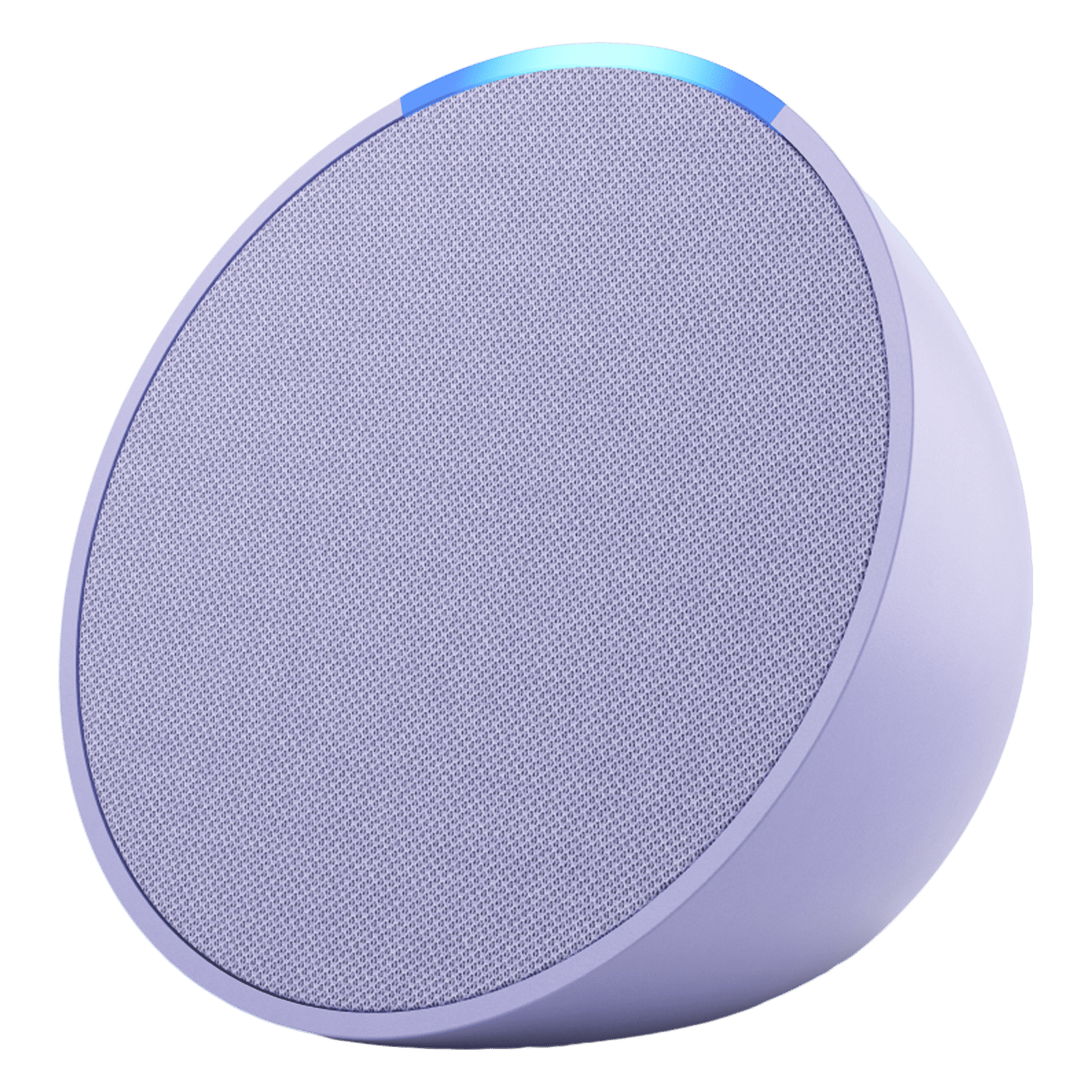
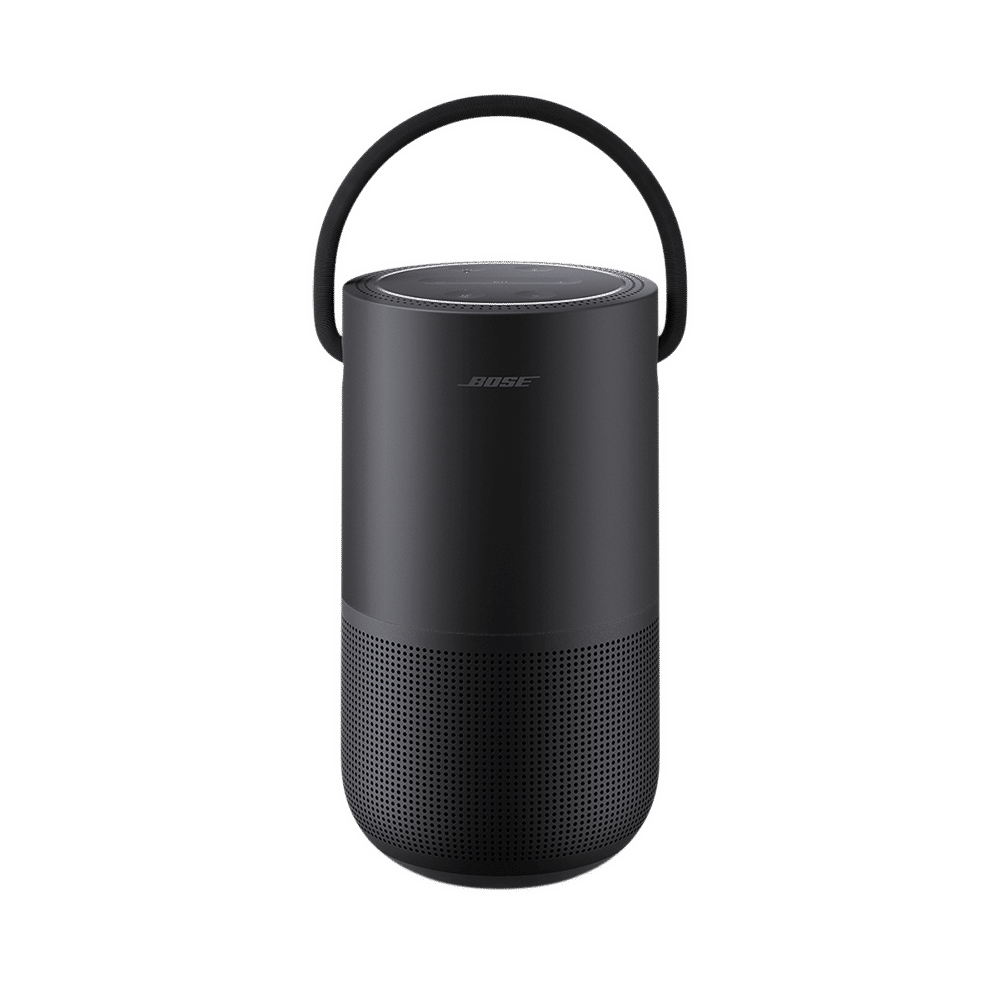
Alexa can be a powerful way to accomplish things on your phone. Once connected, Alexa can manage your tasks, control smart devices, and deliver hands-free convenience. You don’t need an Alexa-enabled device all the time since you can speak to Alexa directly from your smartphone. All it takes to connect Alexa to your phone is a few taps, and you can use Alexa on your Echo speaker as well as your phone.

Unleash your inner geek with Croma Unboxed
Subscribe now to stay ahead with the latest articles and updates
You are almost there
Enter your details to subscribe

Happiness unboxed!
Thank you for subscribing to our blog.
Disclaimer: This post as well as the layout and design on this website are protected under Indian intellectual property laws, including the Copyright Act, 1957 and the Trade Marks Act, 1999 and is the property of Infiniti Retail Limited (Croma). Using, copying (in full or in part), adapting or altering this post or any other material from Croma’s website is expressly prohibited without prior written permission from Croma. For permission to use the content on the Croma’s website, please connect on contactunboxed@croma.com
- Related articles
- Popular articles
Karthekayan Iyer
Comments