







Exchanging your laptop might seem like a simple affair – back up a few files, hit delete, box it up, and off it goes. But in the digital age, a used laptop is more than just a piece of hardware. It’s a capsule of your personal life; home to your saved passwords, bank logins, private documents, photos, conversations, and browsing history. Unless you properly wipe your device, much of that digital footprint stays behind, vulnerable to whoever gets their hands on it next.
Unfortunately, many people assume that deleting files or logging out of accounts is enough. It isn’t. Files can be recovered with the right tools, and accounts can sometimes be accessed if session data hasn’t been properly cleared. If your device is heading to a stranger, whether via exchange, resale, or donation, you owe it to yourself to ensure it’s thoroughly and irreversibly clean. Here’s how you can go about safeguarding your data before you exchange your laptop.
Start with a full backup
Before you do anything destructive, give your memories a safe home. Backing up your laptop is like packing up a house before a renovation; it ensures that nothing valuable gets lost in the process. Whether you’re saving work documents, years of photos, or the dozens of browser tabs you’ve been hoarding as if they were a to-do list, everything must go somewhere safe.
ALSO READ: Top free cloud storage services for backup in 2024
There are a few good ways to do this. External hard drives offer a physical backup that stays with you and doesn’t depend on an internet connection. Cloud services like Google Drive, OneDrive, and iCloud are more flexible and let you access files from anywhere, but they can be slow if you’re uploading a lot of data.
Then there are full-disk backup programs like Acronis True Image or Macrium Reflect, which let you preserve your entire system, including programs and settings, in case you want to set up a new device just like the old one.
A good rule of thumb? Use both a physical backup and a cloud backup, especially for irreplaceable data. That way, if one fails, you have a fallback.
Reset isn't enough; you need to wipe it clean
Most people know to do a factory reset before they hand over a device. And yes, that’s an essential step. It clears out your user profile, deletes most files, and returns the laptop to its out-of-the-box state.
On Windows machines, this is relatively easy to do through the Settings > System > Recovery menu. For MacBooks, the Erase All Content and Settings tool makes it just as straightforward. And Chromebooks? Even easier! They’re designed with cloud-first storage and can be power-washed in minutes.
ALSO READ: How to factory reset a Chromebook
But here’s the catch. A factory reset doesn’t always mean total erasure. On many machines, it simply marks files as “ready to be overwritten”, meaning they can still be recovered using data recovery software. So if your laptop ever stored anything sensitive, such as bank statements, identity documents, client files, private photos, and more, then you’ll want to take an extra step.
This is where disk-wiping tools come in. Programs like DBAN or BitRecover Disk Wipe overwrite your hard drive multiple times with random data, making recovery virtually impossible. It’s the digital equivalent of shredding documents instead of just throwing them in the trash.
Sign out, deauthorise, detangle
Data isn’t the only thing that sticks around. Accounts do too. Before you wipe your machine, make sure you’ve signed out of everything – Google, Microsoft, Adobe, iCloud, Steam, Discord, iTunes, your browser accounts, and even your Spotify. Many apps tie licenses to a specific device, and failing to deauthorise them could make reinstallation difficult later.
Also, unlink the device from services that track your gadgets, like Apple’s Find My or Google’s Device Manager. It’s not just about security; it’s about courtesy. You wouldn’t want the next user to see “Dhriti’s MacBook” every time they boot up.
Respect the reset
Think doing all of this is being too paranoid? Consider this – identity theft is often made possible by leftover data on discarded electronics. In many cases, it isn’t hackers cracking firewalls; it’s someone finding an old laptop that still contains a browser with saved passwords and cookies, or a PDF folder labelled “income_tax_2024”.
Your old laptop has served you well. It’s where you wrote essays, browsed endlessly, made late-night purchases, attended Zoom calls, edited photos, and maybe even built a career. As you hand it over, treat the transition with the respect it deserves. Backup, reset, wipe, and let it go clean.
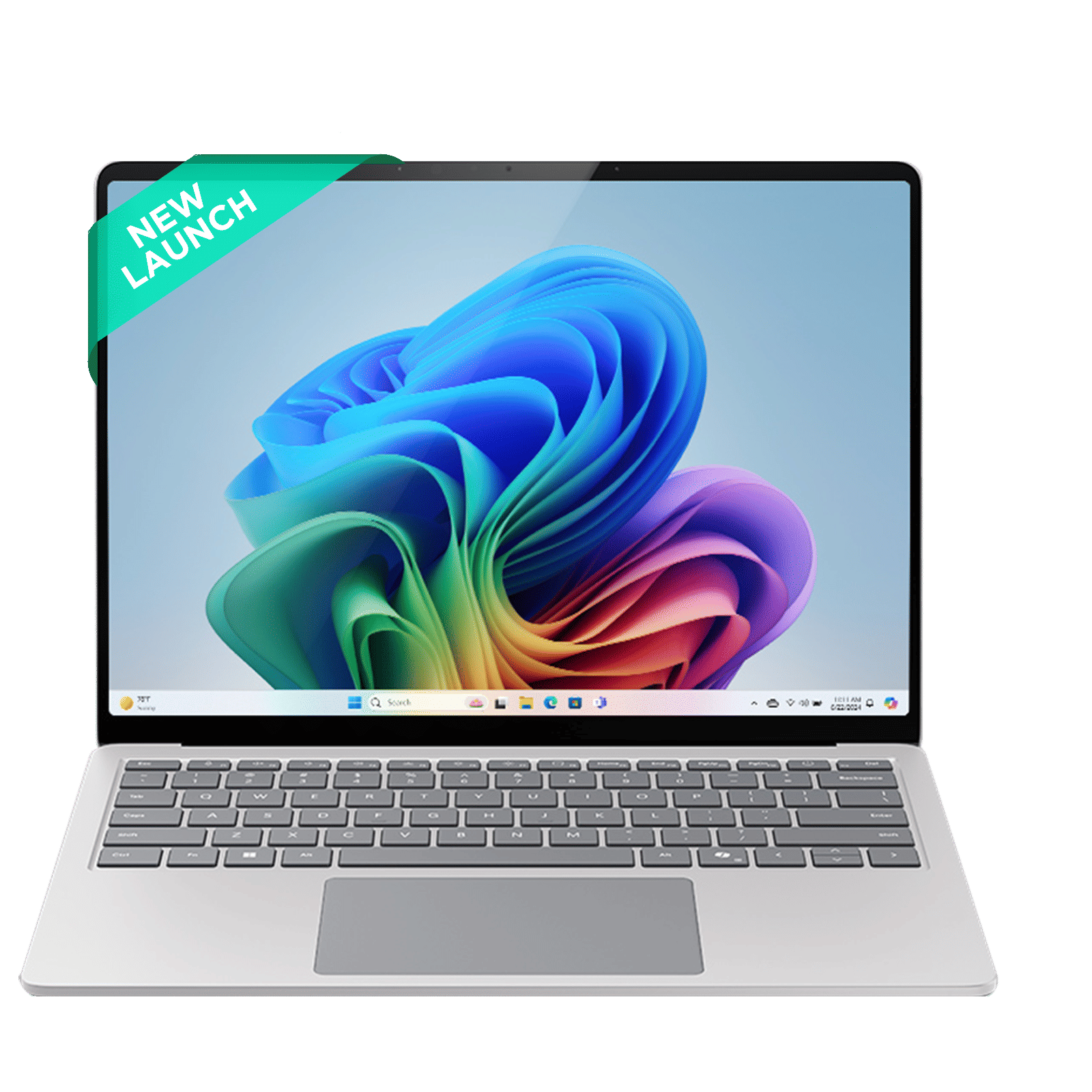

And when you’re ready to upgrade, consider exchanging your old device with a trusted platform like Croma, where you can trade in your used gadget for instant value toward your next purchase, securely and seamlessly.

Unleash your inner geek with Croma Unboxed
Subscribe now to stay ahead with the latest articles and updates
You are almost there
Enter your details to subscribe

Happiness unboxed!
Thank you for subscribing to our blog.
Disclaimer: This post as well as the layout and design on this website are protected under Indian intellectual property laws, including the Copyright Act, 1957 and the Trade Marks Act, 1999 and is the property of Infiniti Retail Limited (Croma). Using, copying (in full or in part), adapting or altering this post or any other material from Croma’s website is expressly prohibited without prior written permission from Croma. For permission to use the content on the Croma’s website, please connect on contactunboxed@croma.com
- Related articles
- Popular articles
Dhriti Datta
Comments