







The Recycle Bin is a staple of the Windows Operating System and has been around for decades. Mac and Linux systems, not to mention other desktop operating systems, have a similar system in place for managing deleted files, just with different names.
You’ll be happy to hear that an iPhone does as well. But it works differently than you would expect if you’re familiar only with Windows. Here’s what you need to know about the Recycle Bin on an iPhone, and how you can recover deleted files.
How does the Recycle Bin work?
The Recycle Bin on Windows is a receptacle for all your deleted files. Any time you delete a file or drag it into the Recycle Bin the file isn’t permanently lost. Windows puts the file on a timer of sorts and automatically removes it permanently from your system after a set period, usually 30 days.
ALSO READ: How to recover deleted pictures on your Android smartphone
Note that deleted files are still occupying space on your drive but are not listed as occupying storage space. When your PC is running low on space, the Recycle Bin is “emptied” i.e. the data is permanently deleted. Files still in the Recycle Bin can be restored to their original location fully intact.
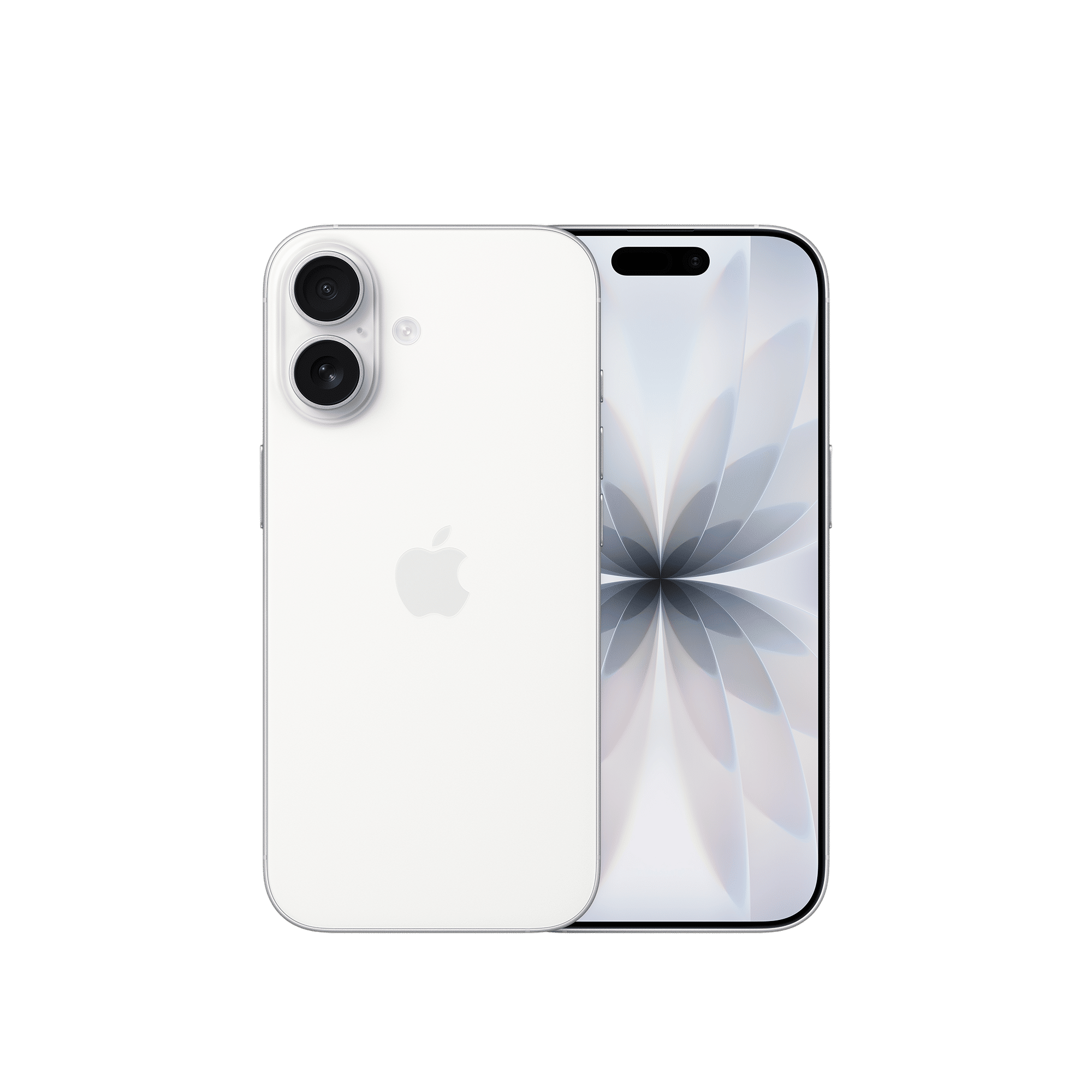
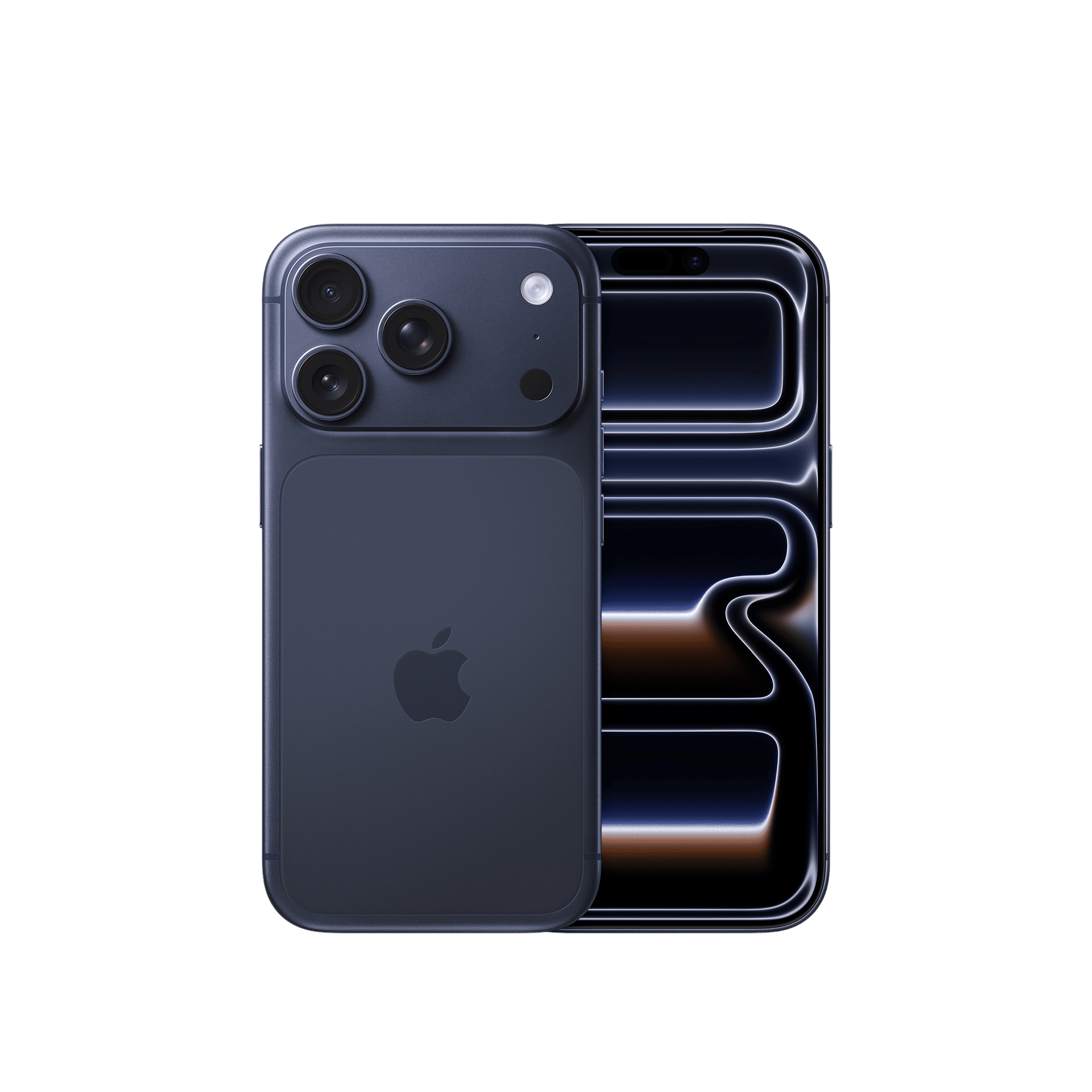
Deleted files on iPhone
On an iPhone you have two bins: one for Photos and Video, and one for files. Any photo or video that you delete from your Photo Library ends up in the Recently Deleted folder in your Photos app.
Like the Recycle Bin, all content in this folder is deleted automatically after 30 days or restored while still in the Bin. The deleted files bin can also be emptied manually.
The Files app has a similar ‘Recently Deleted’ folder that functions much in the same way. However, there are some caveats. This folder is often synced via iCloud and can be synced to your Mac as well. You can sometimes permanently delete a file by deleting it from the bin in your macOS taskbar.
The same applies to the Photos app as its contents can be managed via the Photos app in macOS.
Just be careful when deleting or restoring files, especially when you’re on iCloud and synced to multiple devices. All cloud storage is shared across all devices on the same account so sometimes unwanted files can also get synced.
To recover files or photos, simply open the respective ‘Recently Deleted’ folder, press and hold the file or photo icon, and select ‘Restore’.
While the iPhone doesn’t have a traditional Recycle Bin, understanding how deleted files are treated on an iPhone will certainly help manage your data better.

Unleash your inner geek with Croma Unboxed
Subscribe now to stay ahead with the latest articles and updates
You are almost there
Enter your details to subscribe

Happiness unboxed!
Thank you for subscribing to our blog.
Disclaimer: This post as well as the layout and design on this website are protected under Indian intellectual property laws, including the Copyright Act, 1957 and the Trade Marks Act, 1999 and is the property of Infiniti Retail Limited (Croma). Using, copying (in full or in part), adapting or altering this post or any other material from Croma’s website is expressly prohibited without prior written permission from Croma. For permission to use the content on the Croma’s website, please connect on contactunboxed@croma.com
- Related articles
- Popular articles
Anirudh Regidi
Comments