







If your smart TV suddenly looks different, your apps are missing, or your settings won’t save, it might be stuck in Safe Mode. In a nutshell, Safe Mode is a built-in troubleshooting feature that loads only the basic software, turning off all third-party apps and custom settings.
It is designed to help fix system issues, especially after a crash, a failed update, or even a random button press on the remote. While Safe Mode can help you figure out what is going wrong, it also disables a lot of what makes your TV useful, like apps and personalised settings. If things feel limited or your home screen looks stripped down, Safe Mode is probably the reason. Here is how to turn it off and get your TV back to normal.
How to turn off safe mode on your Smart TV?
If your smart TV is stuck in Safe Mode, there are a few ways to get it back to normal. Depending on the brand and operating system, you can try restarting the device, using a button combination on the remote, or resetting the TV.
Here are the steps to exit Safe Mode on your smart TV and restore full functionality.
1. Start by restarting your TV
The first and easiest fix is a full restart. Turn off the TV using the remote or the power button, then unplug it from the wall completely. Wait for about 30 seconds before plugging it back in and turning it on. This kind of power cycle can reset any temporary glitches and often kicks the TV out of Safe Mode automatically.
2. Try a button combo on the remote
If a restart does not work, the next thing to try is a button combination. Many smart TVs, especially Android TVs, have a built-in shortcut to force a reboot and exit Safe Mode. Hold down the Volume Down button and the Power button on the remote at the same time for around 10 seconds. The TV should restart and load normally.
ALSO READ: Signs your TV is infested with virus
Some TVs use a different button combination, like Menu and Volume Up, so if this does not work, check the user manual or the brand’s support website to find the right combination for your model.
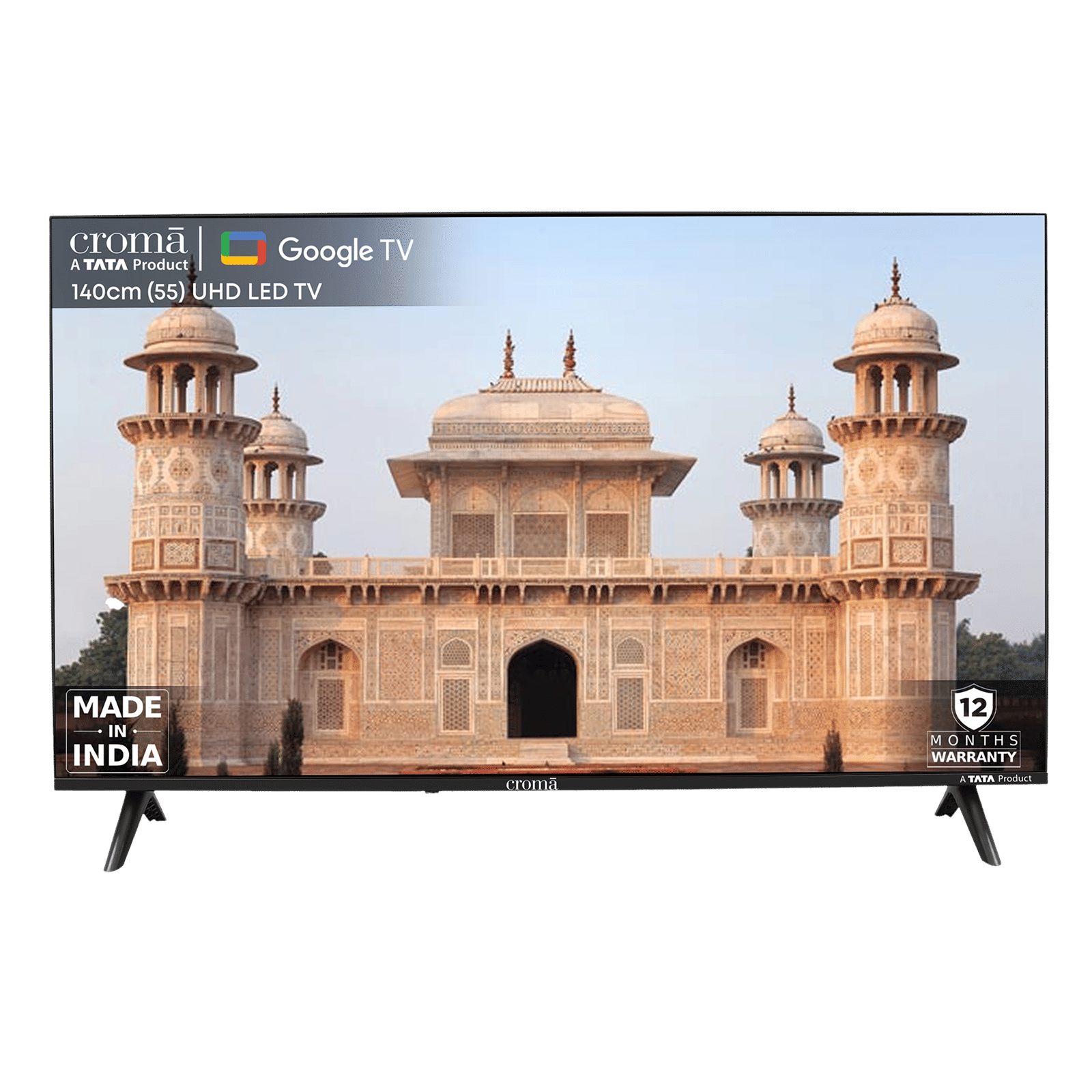

3. Check the buttons on the TV remote
If you’re still stuck, it is worth checking the physical buttons on the TV. Sometimes, a stuck power or volume button can cause the system to boot into Safe Mode on its own. Press each button on the TV’s frame to make sure they are all working and nothing is jammed. If there is any dust or debris, give the area a quick clean. Once everything looks fine, try restarting the TV again.
4. Do a factory reset
If you have tried everything and the TV is still in Safe Mode, a factory reset is your last option. This will erase all your apps, saved logins, and custom settings, but it also gives the TV a clean start.
ALSO READ: 5 quick ways to fix the TV green screen issue
On most Android TVs, go to the Settings menu, select Device Preferences, then choose the “Reset” option. Follow the prompts to complete the factory reset. Once it restarts, the TV should boot up normally, without Safe Mode.
Once you are out of Safe Mode, your apps should reappear, settings will start saving again, and your TV will behave like it used to. If Safe Mode keeps turning on frequently, though, it might be a sign of a deeper software or hardware issue worth checking with the manufacturer’s service centre.

Unleash your inner geek with Croma Unboxed
Subscribe now to stay ahead with the latest articles and updates
You are almost there
Enter your details to subscribe

Happiness unboxed!
Thank you for subscribing to our blog.
Disclaimer: This post as well as the layout and design on this website are protected under Indian intellectual property laws, including the Copyright Act, 1957 and the Trade Marks Act, 1999 and is the property of Infiniti Retail Limited (Croma). Using, copying (in full or in part), adapting or altering this post or any other material from Croma’s website is expressly prohibited without prior written permission from Croma. For permission to use the content on the Croma’s website, please connect on contactunboxed@croma.com
- Related articles
- Popular articles
Shubhendu Vatsa
Comments