







Apple’s latest macOS update, macOS 26.2, adds a new video lighting feature called Edge Light. It uses your Mac’s display as a soft light source, helping you look better and brighter during video calls, especially in low-light rooms. Edge Light works on Macs powered by Apple silicon and is available inside supported video calling apps. Here’s how you can use the new video effects during a video call on your macOS 26.2 machine.
How to enable Edge Light on your Mac
Edge Light comes with macOS 26.2, and it detects your face and adds a subtle glow around the edges of the screen, improving visibility without making things look artificial. This feature works quite well with the built-in camera on your MacBook, and also with a good third-party webcam. However, the results may differ due to the camera quality.
Follow these steps to enable Edge Light on your Mac.
Step 1: First up, update your Mac to macOS 26.2.
Step 2: Once you are on the latest macOS version, launch FaceTime or any other supported video calling app and begin a call.
Step 3: Once the call is live, click the video icon in the menu bar to access video effects.
Step 4: Select Edge Light from the list of effects to activate screen-based lighting.
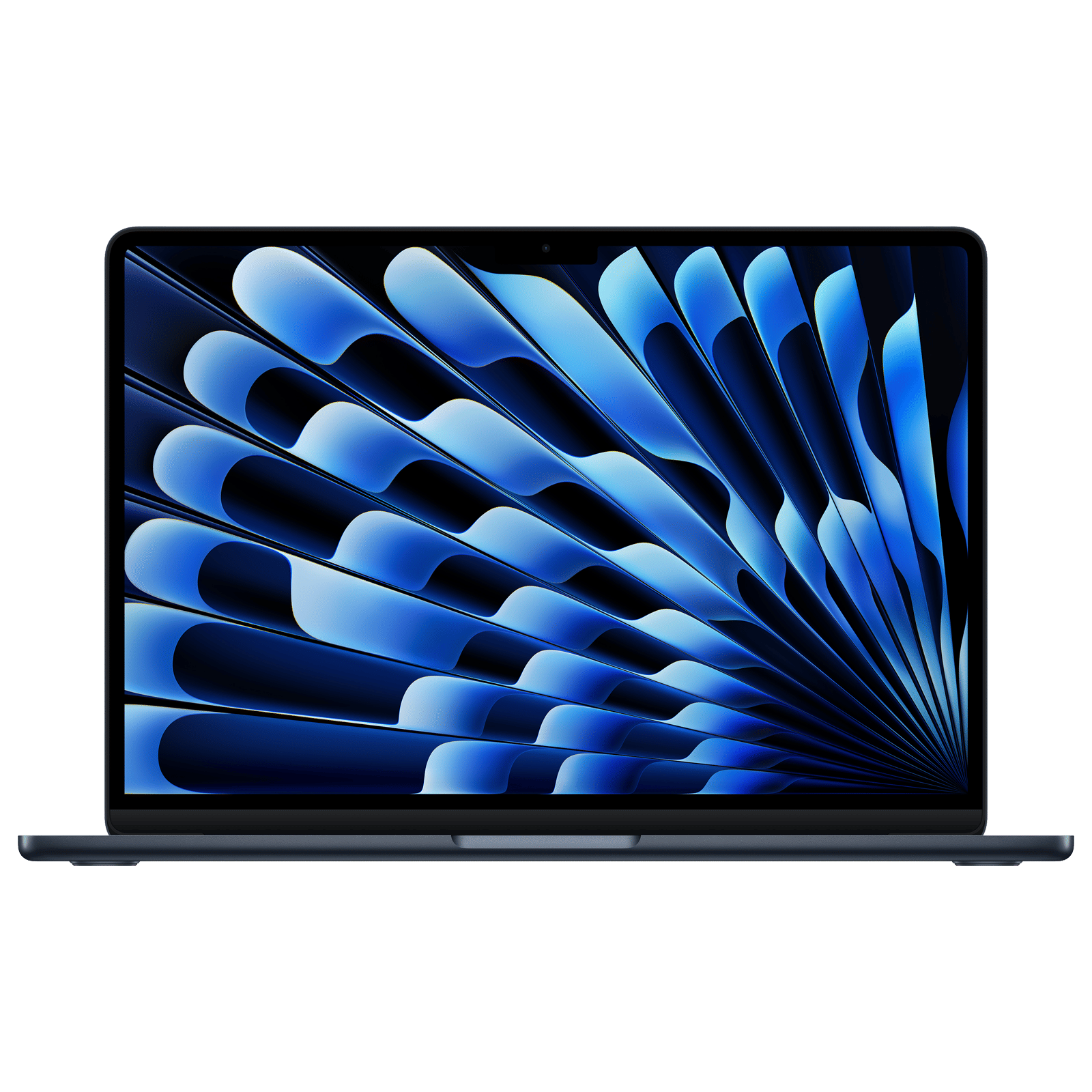

That’s how you can easily turn on Edge Light on your Mac. Once enabled, Edge Light enhances your appearance on camera without needing a separate ring light or desk lamps.
ALSO READ: 5 unique macOS 26 features you need to check out
What do you think about this feature? Let us know in the comments below.

Unleash your inner geek with Croma Unboxed
Subscribe now to stay ahead with the latest articles and updates
You are almost there
Enter your details to subscribe

Happiness unboxed!
Thank you for subscribing to our blog.
Disclaimer: This post as well as the layout and design on this website are protected under Indian intellectual property laws, including the Copyright Act, 1957 and the Trade Marks Act, 1999 and is the property of Infiniti Retail Limited (Croma). Using, copying (in full or in part), adapting or altering this post or any other material from Croma’s website is expressly prohibited without prior written permission from Croma. For permission to use the content on the Croma’s website, please connect on contactunboxed@croma.com
- Related articles
- Popular articles
Pranav Sawant
Comments