







You can disable background apps in Windows 11 directly from the Settings app. Background apps can be a curse for system resources, draining battery life and slowing down performance even when you are not actively using them. Windows 11 allows users to control background activity for every app on their device, making it easier to stop apps from running in the background.
How to disable background apps in Windows 11
There are two ways to disable background apps in Windows 11. The first one is through the Settings app, while the other option is to stop them from running at startup. Here’s how to disable background apps in Windows 11:
Method 1: Using the Settings app
– Step 1: Click Start and go to Settings.
– Step 2: Go to Apps and select Installed apps.
– Step 3: Find the app whose background activity you want to restrict.
– Step 4: Select Advanced options from the three dots in the right corner.
– Step 5: Under Background app permissions, change “Power optimized (Recommended) to Never.
This will prevent the app from running updates or syncing data in the background.
ALSO READ: Evolution of Windows operating system: How Microsoft created the world’s most popular OS
Method 2: Stop Startup apps
– Step 1: Press Ctrl + Shift + Esc to open Task Manager.
– Step 2: Click the Startup apps tab.
– Step 3: Select the app you want to disable at startup.
– Step 4: Click the Disable button in the top-right corner.
You can safely disable background apps using the above methods, and it is recommended for messaging, weather, gaming, and social media apps. However, avoid disabling system apps like Windows Security.
FAQs
Q1: Can I disable all background apps at once?
A: No, Windows 11 supports disabling background activity on a per-app basis.
Q2: Will disabling background apps improve battery life?
A: Yes, it can noticeably reduce battery drain on laptops.

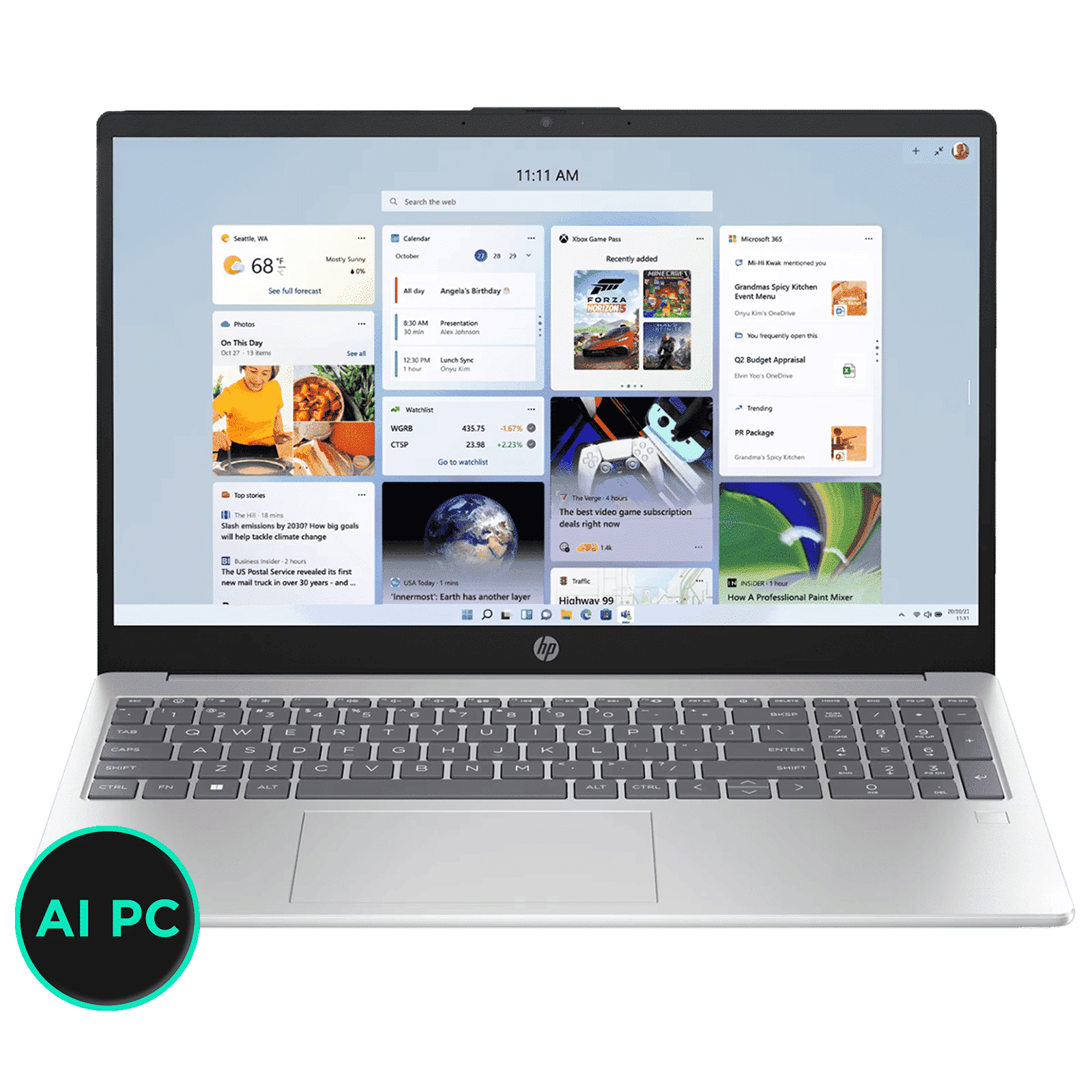
Windows 11 makes it easier to disable background apps through Settings or Task Manager, allowing users to recover system resources and extend battery life.

Unleash your inner geek with Croma Unboxed
Subscribe now to stay ahead with the latest articles and updates
You are almost there
Enter your details to subscribe

Happiness unboxed!
Thank you for subscribing to our blog.
Disclaimer: This post as well as the layout and design on this website are protected under Indian intellectual property laws, including the Copyright Act, 1957 and the Trade Marks Act, 1999 and is the property of Infiniti Retail Limited (Croma). Using, copying (in full or in part), adapting or altering this post or any other material from Croma’s website is expressly prohibited without prior written permission from Croma. For permission to use the content on the Croma’s website, please connect on contactunboxed@croma.com
- Related articles
- Popular articles
Karthekayan Iyer
Comments