







Google gave Pixel phones an AI boost with Gemini. Now, Gemini’s cool AI features are coming to Google TV, letting users get the best of AI features right in their living room.
Gemini on TV can recommend shows, movies, and even be your travel planning assistant. Sounds good? Here’s how you can activate it on your Google TV.
How to activate Gemini on your Google TV
Before you get excited and try to activate Gemini on your TV, note that it’s currently only available on the TCL QM9K series of Google TVs. However, Google plans to extend its availability to more Google TVs later this year. Once it arrives on your Google TV, you can activate it by following the steps below.
Step 1: Press the microphone button on your Google TV’s remote control.
Step 2: Say “Hey Google,” and Gemini should show up. That’s when you get it on your device. If you don’t have it, you may see the old Google Assistant.
Step 3: Now, just set up as usual, and you should be good to go.
ALSO READ: Google Gemini: A tutorial for beginners
Notably, Gemini is the new assistant on smartphones, and the same is about to happen on Google TVs. Gemini is smarter and helps you get movie and show recommendations. Users can also ask their random queries to Gemini, and can simply chat with it for hours.
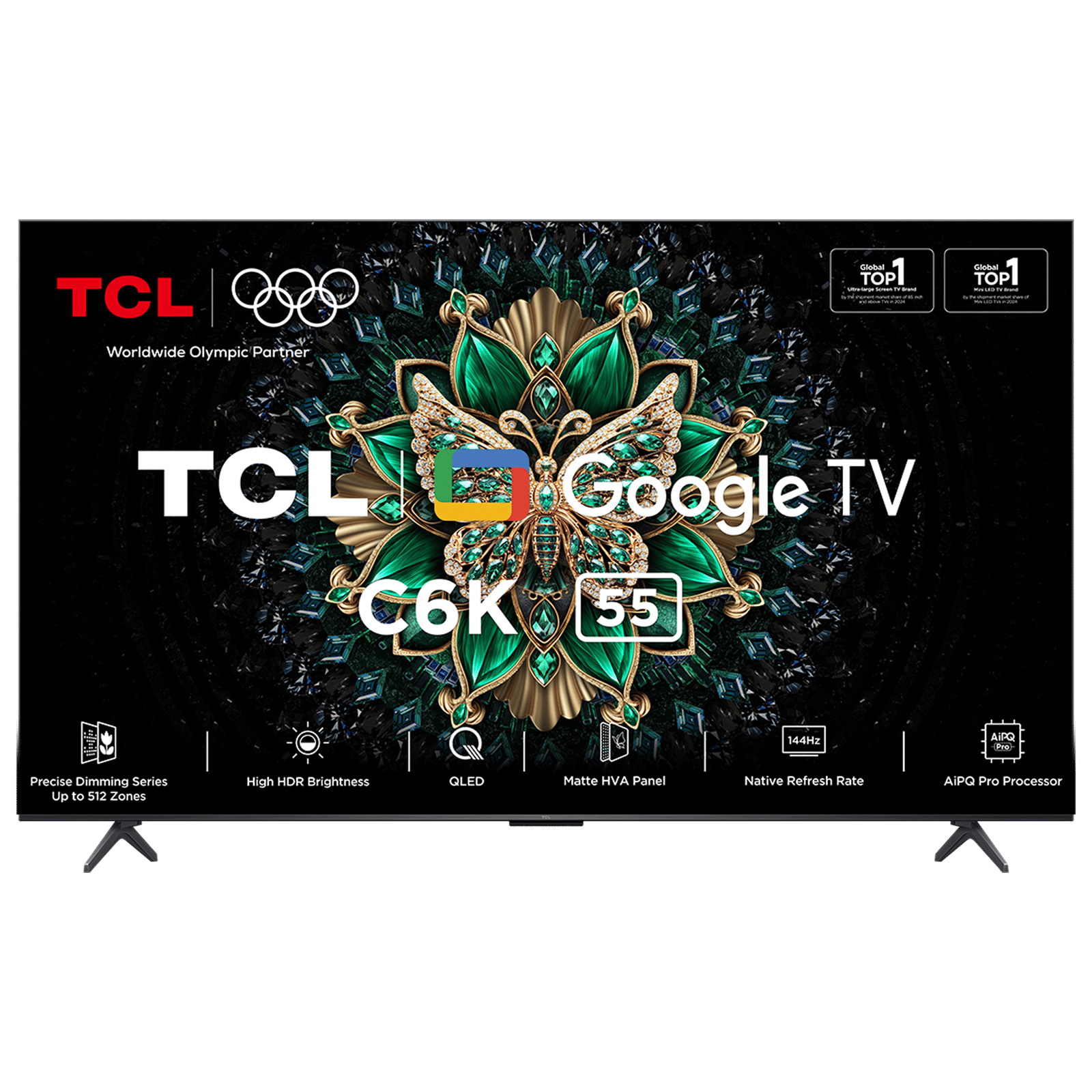
Gemini on Google TV is a smarter move, and we are all in for it. What do you think about Gemini’s arrival on Google TV? Do let us know in the comments below.

Unleash your inner geek with Croma Unboxed
Subscribe now to stay ahead with the latest articles and updates
You are almost there
Enter your details to subscribe

Happiness unboxed!
Thank you for subscribing to our blog.
Disclaimer: This post as well as the layout and design on this website are protected under Indian intellectual property laws, including the Copyright Act, 1957 and the Trade Marks Act, 1999 and is the property of Infiniti Retail Limited (Croma). Using, copying (in full or in part), adapting or altering this post or any other material from Croma’s website is expressly prohibited without prior written permission from Croma. For permission to use the content on the Croma’s website, please connect on contactunboxed@croma.com
- Related articles
- Popular articles
Pranav Sawant
Comments