







Activating noise-cancelling or ANC on AirPods Pro is straightforward, but not readily apparent to those not familiar with Apple’s ecosystem. This guide should help you activate noise cancelling on AirPods.
Using the AirPods
Pressing and holding the left stem of the AirPods will usually toggle the three listening modes. You’ll hear a chime when you switch to a different mode – ANC, transparency, and ANC off – and ambient sound levels should change.
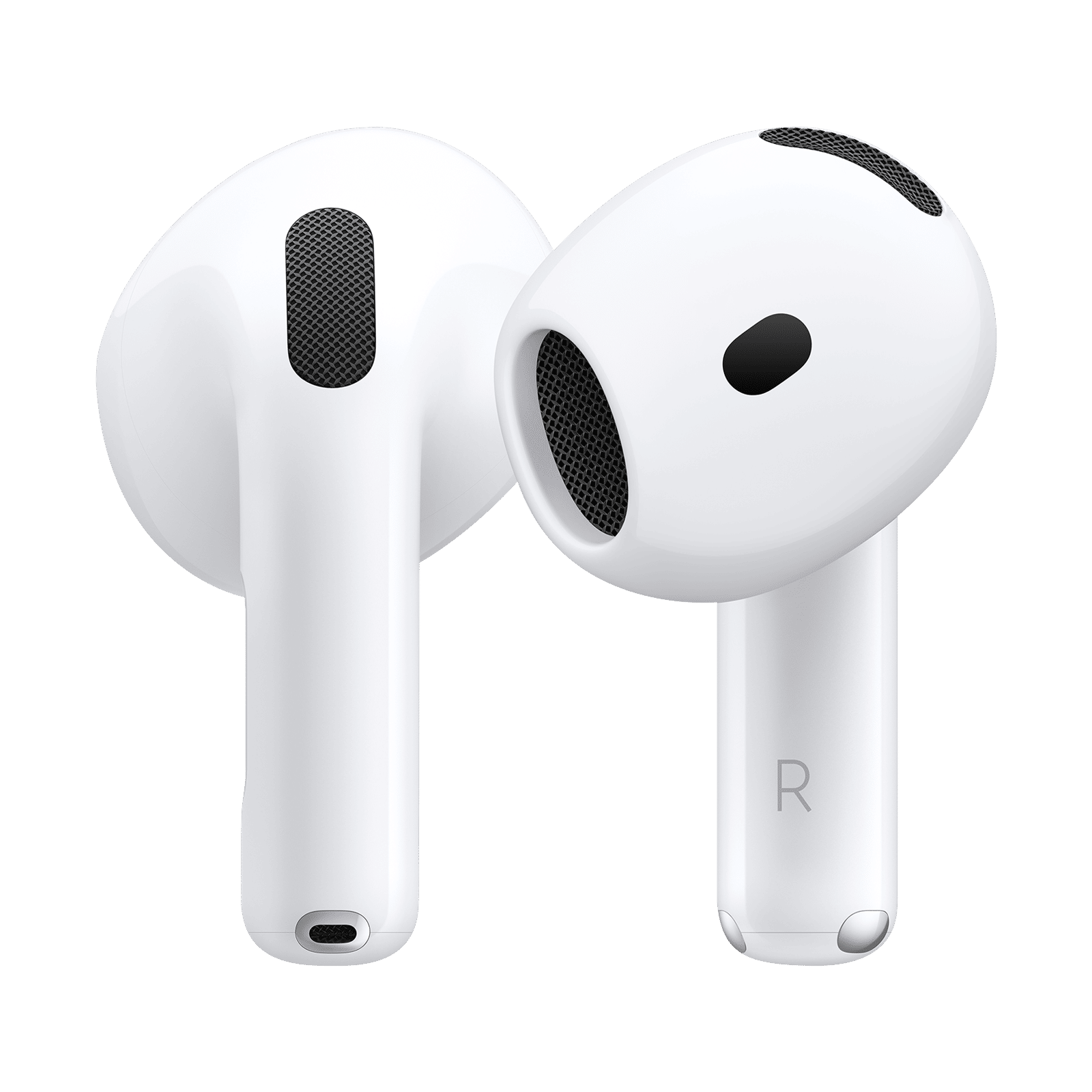
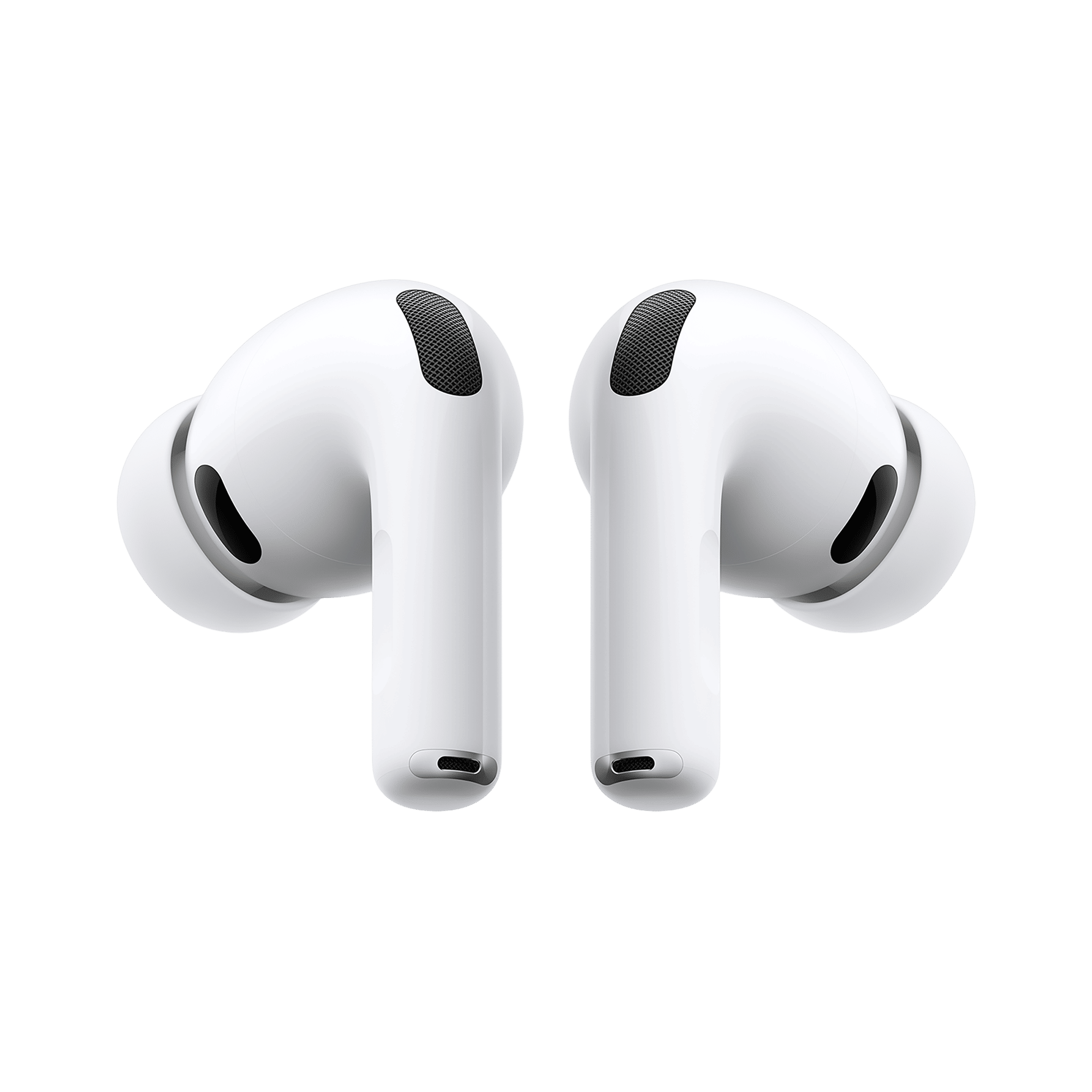
The setting for pressing the stem can sometimes be disabled but re-enabling the setting is quite simple.
– With AirPods connected and in your ears, open Settings>Bluetooth, and then tap on the blue exclamation icon next to your connected AirPods. Here you’ll see the current listening mode of your AirPods, and below that a setting for ‘Press And Hold AirPods’.
– You can then tap on the ‘Left’ or ‘Right’ option to assign a Listening Mode to it. You can also select which listening modes to toggle between in case you don’t use all the modes.
Note that you can also switch the AirPods listening mode from this setting, but there are faster options for when you don’t want to press and hold one of the AirPod stems.
From the Control Centre
– Open up the Control Centre on your iPhone, iPad, or Mac by swiping down – clicking, in the case of the Mac – from the top-right corner of the device.
– On an iPhone or iPad, press and hold the volume meter. If the AirPods are paired and connected, the volume meter will have an AirPods icon.
– On pressing and holding, you will be presented with options to choose between listening modes, toggling Conversation Awareness (audio will be muted when someone speaks), and a Spatial Audio toggle (for music and movies). Tapping on the ‘Listening Mode’ icon will present you with options for ‘Transparency’, ‘Adaptive’, and ‘Noise Cancellation’.
ALSO READ: How to reset your AirPods and AirPods Pro
– On a Mac, tapping on the AirPods icon in the menu bar or control centre will present similar options.
And there you have it! A few simple taps to enable ANC on any compatible AirPods. Do make sure you run the Ear Tip Fit Test in Settings>Bluetooth to ensure that you’re using the right size ear tips for comfort and effective ANC.

Unleash your inner geek with Croma Unboxed
Subscribe now to stay ahead with the latest articles and updates
You are almost there
Enter your details to subscribe

Happiness unboxed!
Thank you for subscribing to our blog.
Disclaimer: This post as well as the layout and design on this website are protected under Indian intellectual property laws, including the Copyright Act, 1957 and the Trade Marks Act, 1999 and is the property of Infiniti Retail Limited (Croma). Using, copying (in full or in part), adapting or altering this post or any other material from Croma’s website is expressly prohibited without prior written permission from Croma. For permission to use the content on the Croma’s website, please connect on contactunboxed@croma.com

- Related articles
- Popular articles
Daniel Arv
Can u give me for free