







Connecting a hard disk to a laptop is usually a straightforward affair. Laptops have USB ports and hard drives a plug. Plug one into the other and you’re set. Sometimes, though, there can be some complications, especially with powered or high capacity drives. Let’s take a closer look at what to do in those scenarios.
Power requirements
Connecting a hard drive directly to a laptop’s USB port isn’t usually an issue. Regardless of whether that port is USB-A or USB-C, as long as the HDD has a compatible cable, you’re fine.
Issues can emerge when you’re using an external USB dock or hub. Hard drives contain mechanical parts and tend to require more power than a thumb drive or SSD. Hubs that are powering other devices can sometimes struggle to deliver sufficient power to a high-capacity HDD. To avoid this issue, plug high-capacity HDDs (with 4 TB or more capacity) into a dedicated USB port on the laptop and not into a hub.
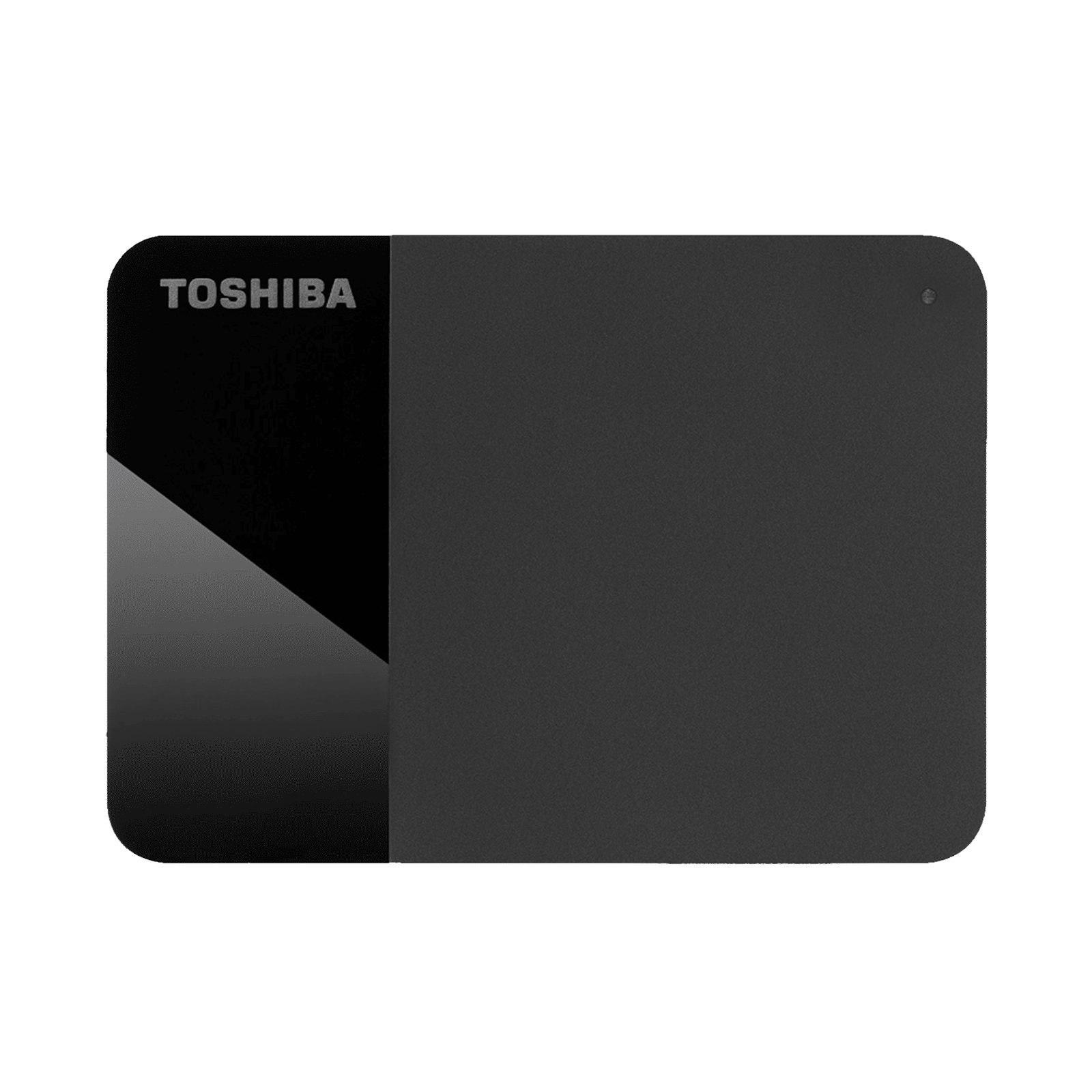
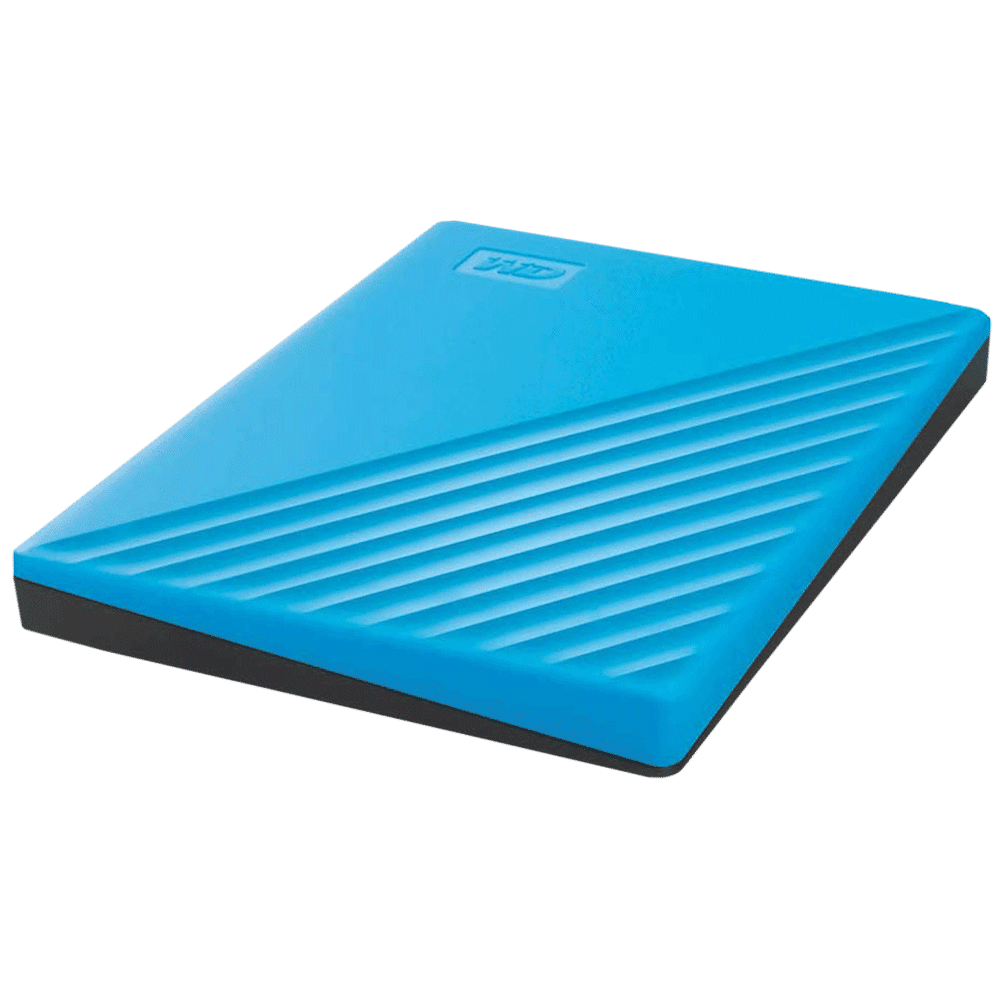
External hard drives that require external power must also be powered on before being plugged in. This ensures that the disk connects safely and with minimal risk.
Check for physical damage
Always check for physical damage on the data and/or cable you’re using to connect your HDD to a laptop. Small children and pets (especially cats) tend to chew on cables and can damage them. Cables can also get kinked in bags and short connections. Connecting an external HDD to a laptop with a damaged cable can result in a short that fries your HDD or damages your laptop.
If there’s any sign of damage, or even a hint of one, swap the cable out immediately.
Use the correct port
Some laptops have USB 2.0 rated ports designed for connecting mice and other peripherals. Connecting an external HDD to these ports will result in the drive underperforming badly and thus very slow data transfers.
Check your laptop model to confirm which ports are rated for data transfer at USB 3.0 spec or greater. Note that some laptops offer Thunderbolt ports that may not be compatible with certain USB-C hubs, creating issues with external HDDs connected to such hubs.
ALSO READ: How to check your hard drive’s health
That’s it! Safely connecting your HDD to your laptop isn’t much harder than this. A few simple checks before connecting are all you need to ensure that the drive is connected safely.

Unleash your inner geek with Croma Unboxed
Subscribe now to stay ahead with the latest articles and updates
You are almost there
Enter your details to subscribe

Happiness unboxed!
Thank you for subscribing to our blog.
Disclaimer: This post as well as the layout and design on this website are protected under Indian intellectual property laws, including the Copyright Act, 1957 and the Trade Marks Act, 1999 and is the property of Infiniti Retail Limited (Croma). Using, copying (in full or in part), adapting or altering this post or any other material from Croma’s website is expressly prohibited without prior written permission from Croma. For permission to use the content on the Croma’s website, please connect on contactunboxed@croma.com
- Related articles
- Popular articles
Anirudh Regidi
Comments