







Ever found yourself in a situation where you are watching a movie or scrolling through photos on your iPhone, and wished there was a way to mirror your iPhone screen to a bigger display? Well, there is a solution.
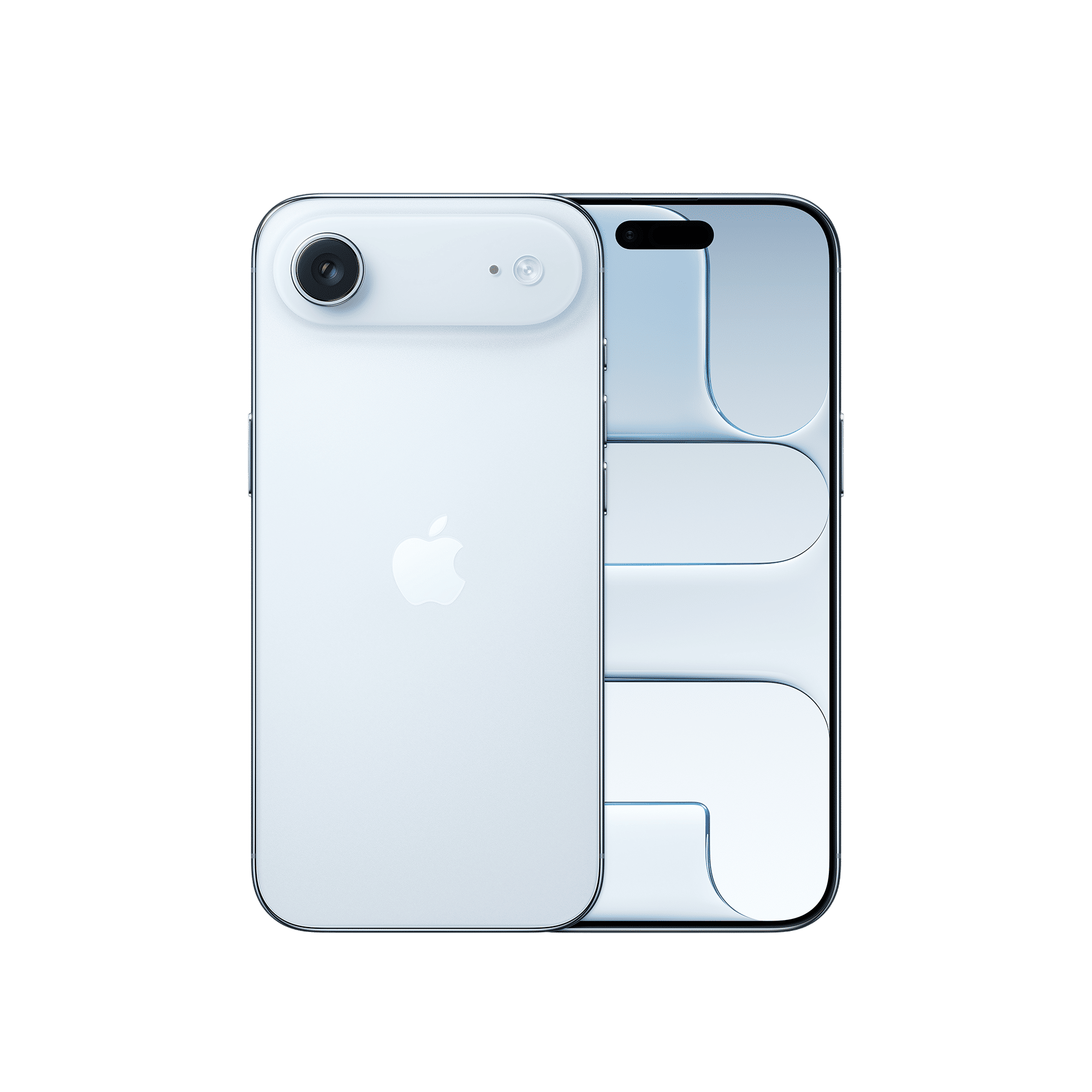
Apple has designed iOS for seamless connectivity, and AirPlay – Apple’s version of screen mirroring – lets you easily mirror your iPhone’s screen to a compatible smart TV, Mac or Apple TV in seconds. If you have never done it before, here’s a step-by-step guide on how to do screen mirroring on an iPhone.
How to do screen mirroring on iPhone
If you are trying screen mirroring on iPhone for the first time, it may look confusing, but it becomes intuitive immediately. Here are the steps to enable screen mirroring on iPhone:
Step 1: Make sure your devices are on the same Wi-Fi network
AirPlay only works when your iPhone and the compatible receiving device are connected to the same Wi-Fi network. If the receiving device and your iPhone aren’t on the same network, then it may not appear in the mirror list.
Step 2: Open Control Centre
Once your devices are connected to the same Wi-Fi network, open the Control Centre on your iPhone.
Step 3: Tap the screen mirroring icon
On your iPhone’s control centre, look for a rectangle-within-a-rectangle symbol and tap on it. This will bring up a list of available AirPlay-compatible devices around you.
Step 4: Select the receiving device
Choose the device you want to mirror your screen to. When connecting for the first time, you might receive a four-digit AirPlay code on your TV or Mac. Enter this code on your iPhone to establish the connection.
Step 5: Your iPhone screen mirroring is enabled
Your iPhone’s screen should now appear on the receiving device. Whether you are scrolling, browsing, opening apps, or playing videos, all these activities will now appear on the connected device. Keep your iPhone unlocked while mirroring.
Stop 6: Stop mirroring
When you are done, you can stop mirroring your iPhone by opening Control Centre > Screen Mirroring > Stop Mirroring.
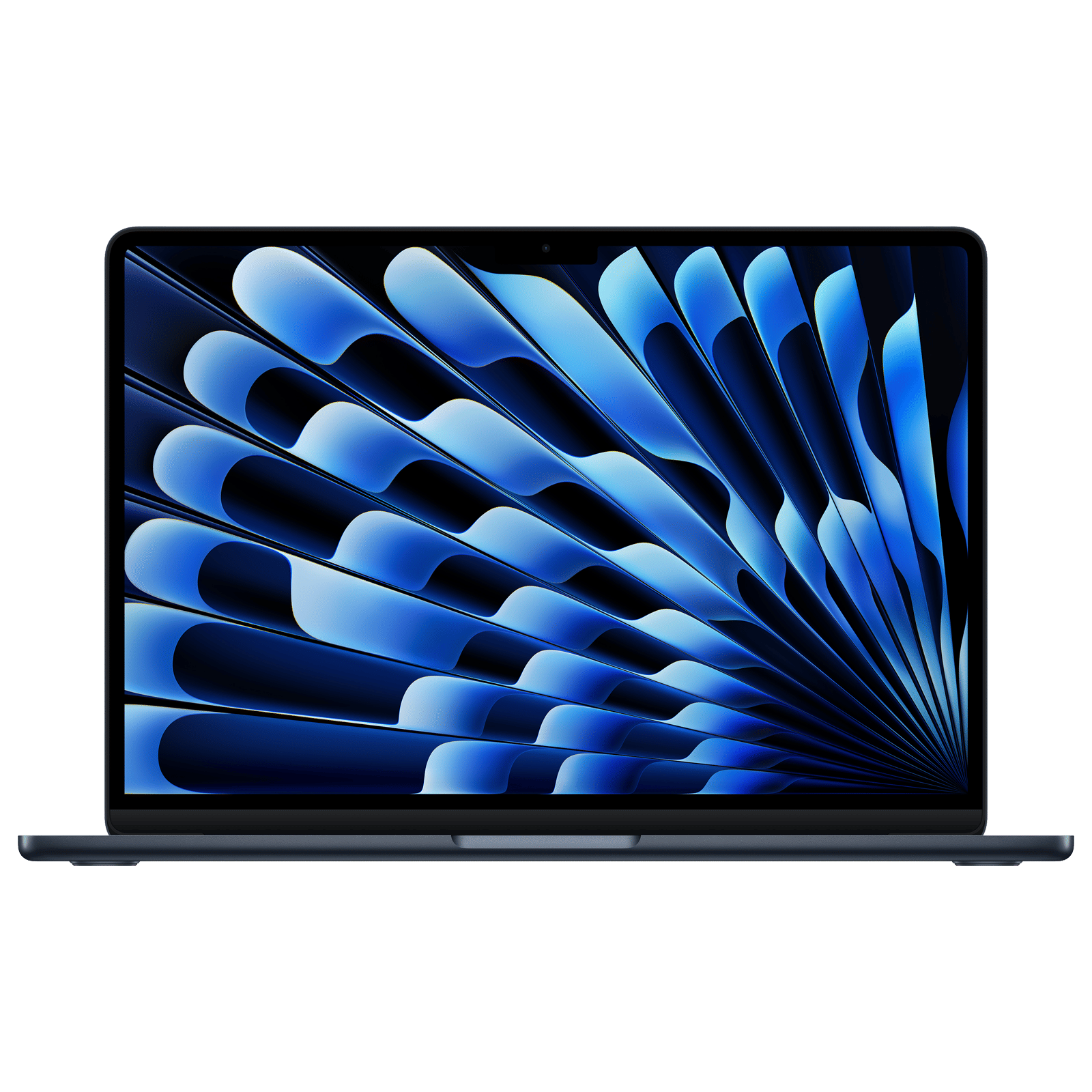
If you want to mirror your iPhone to a Mac, you can do so effortlessly with iPhone Mirroring. With macOS Sequoia 15 or later, click iPhone Mirroring in the Dock or open it from the Applications folder or Spotlight. If your Mac asks you to unlock your iPhone, enter your passcode on your iPhone.
ALSO READ: Best Smart TVs compatible with Apple AirPlay
When connecting for the first time, your Mac will ask whether you want to allow notifications from your iPhone and whether to require Mac login to access your iPhone. Once selected, the iPhone Mirroring app will show your iPhone screen, and you can interact with your iPhone directly from your Mac. To stop mirroring, quit the iPhone Mirroring app or unlock your iPhone.
How to share screen on iPhone
In addition to screen mirroring, you can also share your iPhone screen, which is particularly useful during video calls and works well with apps like FaceTime, Zoom, Microsoft Teams, and Google Meet. Here’s how to share screen across these apps:
Share screen via FaceTime
– Step 1: Start a FaceTime call
– Step 2: Tap the Share Content button
– Step 3: Choose Share My Screen
After a short countdown, your screen becomes visible to others on the call.
Share screen via Zoom or Teams or Meet
– Step 1: Start or join a meeting
– Step 2: Tap Share (Zoom) or Share Screen (Teams) or Share Screen > Start Broadcast (Meet)
This will allow all the participants to see everything on your screen.
ALSO READ: How to view photos from an iPhone on a smart TV using AirPlay
While Apple makes screen mirroring effortless on iPhone, it also restricts it with compatibility. If screen mirroring doesn’t work, restart your Wi-Fi router, update your iPhone, and restart your TV or Apple TV. With screen mirroring and screen sharing, you can mirror or share your work, entertainment, and collaborate effortlessly.

Unleash your inner geek with Croma Unboxed
Subscribe now to stay ahead with the latest articles and updates
You are almost there
Enter your details to subscribe

Happiness unboxed!
Thank you for subscribing to our blog.
Disclaimer: This post as well as the layout and design on this website are protected under Indian intellectual property laws, including the Copyright Act, 1957 and the Trade Marks Act, 1999 and is the property of Infiniti Retail Limited (Croma). Using, copying (in full or in part), adapting or altering this post or any other material from Croma’s website is expressly prohibited without prior written permission from Croma. For permission to use the content on the Croma’s website, please connect on contactunboxed@croma.com
- Related articles
- Popular articles
Karthekayan Iyer
Comments