







While not as easy as transferring data within their respective ecosystems, it is possible to transfer files from Android to iPhone and vice versa, but note that it’s not a straightforward process and you will need to download additional apps or use a cable.
Here’s how to send files from an Android phone to an iPhone:
ALSO READ: What is stock Android?
WhatsApp or Telegram
WhatsApp and Telegram are very popular in India and are easy to use for sharing files. WhatsApp and Telegram both will compress photo and video files, but if you upload them as ‘Documents’ (you’ll find the option in the share menu), you can send the originals.
Both WhatsApp and Telegram have a 2 GB file size limit (you can send 4 GB via Telegram Premium).
Cloud services
One option for a relatively easy transfer is to use a cloud-based file sharing service like Google Drive, iCloud, or Dropbox. Simply upload the files to a service of your choosing and then share them via the built-in share function of the service. This provides a download link that can usually be accessed without logging in.
Third-party apps
If the above options don’t work for you, then you’ll need to use a third-party app like Xender or SHAREit. These apps require Wi-Fi, file-system, and media library access so we’d advise using them with caution. Usually, they require that the app be installed on both devices, which can be problematic in some cases.
ALSO READ: How to transfer data from iPhone to Android
Using a USB cable
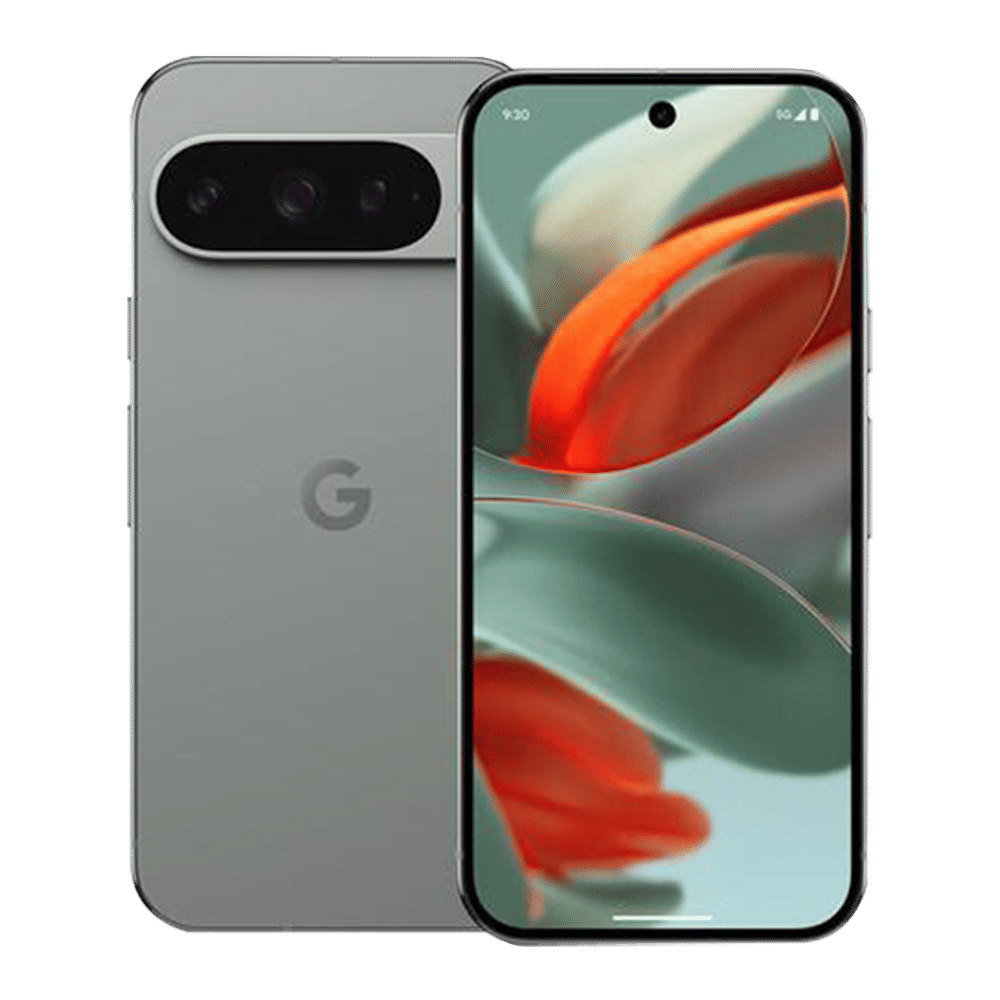
Android devices can be detected on iOS devices as storage class devices (i.e. no different than a USB drive). This makes it convenient when transferring a large volume of data as one could simply connect both phones via a USB cable (preferably USB-C @ 5 GBps). You can then either share files directly to the iPhone via the Android device, or use the iPhone’s built-in Files app to explore the Android device’s internal storage.

Using a USB drive
Another option is to simply use a compatible USB drive. Format the drive to exFAT and then simply plug it into your Android phone. Transfer all the relevant data to the pen drive via a file management app and then plug the same drive into your iPhone and access the files via the Files app on iOS.
Note that while this works best with USB-C compatible phones, you can get a Lightning or microUSB adapter if needed.
ALSO READ: How to transfer contacts from an iPhone to an Android device
Android phones and iPhones don’t talk to each other directly so the transfer process is more convoluted than it needs to be, but as you can see there are plenty of options available to those who must transfer data regularly.

Unleash your inner geek with Croma Unboxed
Subscribe now to stay ahead with the latest articles and updates
You are almost there
Enter your details to subscribe

Happiness unboxed!
Thank you for subscribing to our blog.
Disclaimer: This post as well as the layout and design on this website are protected under Indian intellectual property laws, including the Copyright Act, 1957 and the Trade Marks Act, 1999 and is the property of Infiniti Retail Limited (Croma). Using, copying (in full or in part), adapting or altering this post or any other material from Croma’s website is expressly prohibited without prior written permission from Croma. For permission to use the content on the Croma’s website, please connect on contactunboxed@croma.com
- Related articles
- Popular articles
Anirudh Regidi
Comments