







Transferring photos from an iPhone to an Android device is easier than you’d think. In most cases, simply connecting the two devices via a cable is enough. On rare occasions you might need to get more creative, however, especially when dealing with older Android devices. Here’s what you need to know about transferring pictures from an iPhone to an Android phone.
Enabling battery sharing on iPhone
By default, you can share power from your iPhone via a single USB-C cable. Connect one end of the cable to the iPhone’s USB-C port, and the other end into the device that needs to be charged. Devices that can be charged include other iPhones, wireless earbuds like the AirPods, and many other USB devices such as Android phones and Bluetooth headsets, wireless mice, and more. It’s that simple!
No buttons, no toggles. Your Apple Watch can also be charged in this fashion provided you have the Watch’s wireless charging adapter. There are some caveats, however.
When does battery sharing work?
The iPhone can only charge another device that’s reporting lower voltages than that of the iPhone you’re charging with. If you have two identical iPhones and both are at 50%, they will not charge. However, if one is at 70% and one is at 60%, the iPhone with the higher capacity will charge the lower capacity iPhone till both phones level out their charge.
You cannot discharge one phone fully to charge another iPhone, but it might be possible to have your iPhone discharge significantly when charging certain third-party devices if they don’t properly share their power state.
USB-PD is supported
The iPhone supports the universal and open USB-PD or Power Delivery standard only. Devices that charge via QuickCharge, VOOC, WARP, and other proprietary charging technologies can be charged via your iPhone, but only as long as they support at least the base USB-PD 5W charging spec. These devices will not charge quickly, but at least they can charge via an iPhone.
ALSO READ: Best MagSafe power banks for your iPhone
The iPhone won’t completely drain its battery
When charging another device, an iPhone will only deliver charge until power drops below a certain threshold, usually 20%. This way you can rest assured that there is at least some charge in your device left in case you forgot to unplug your devices.
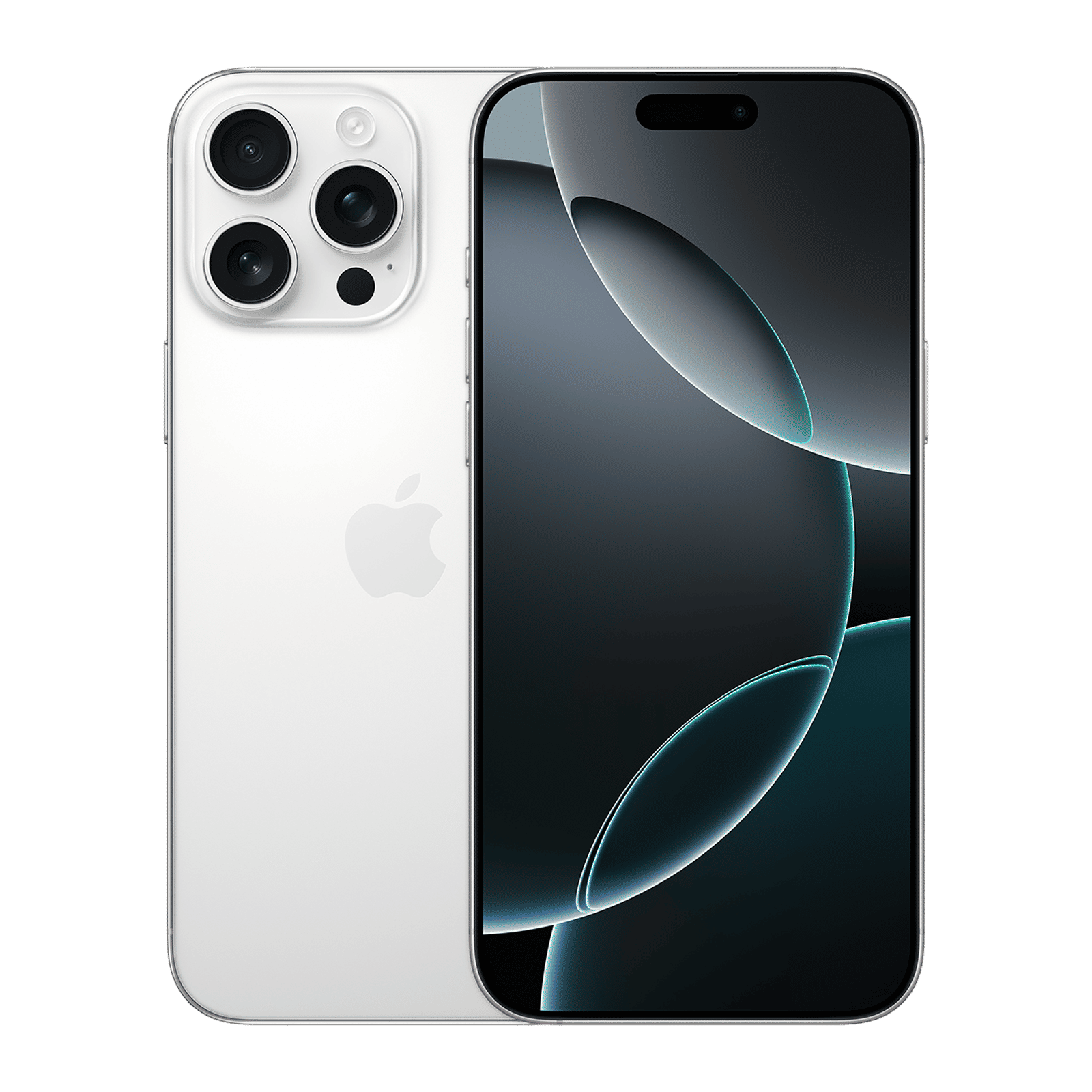
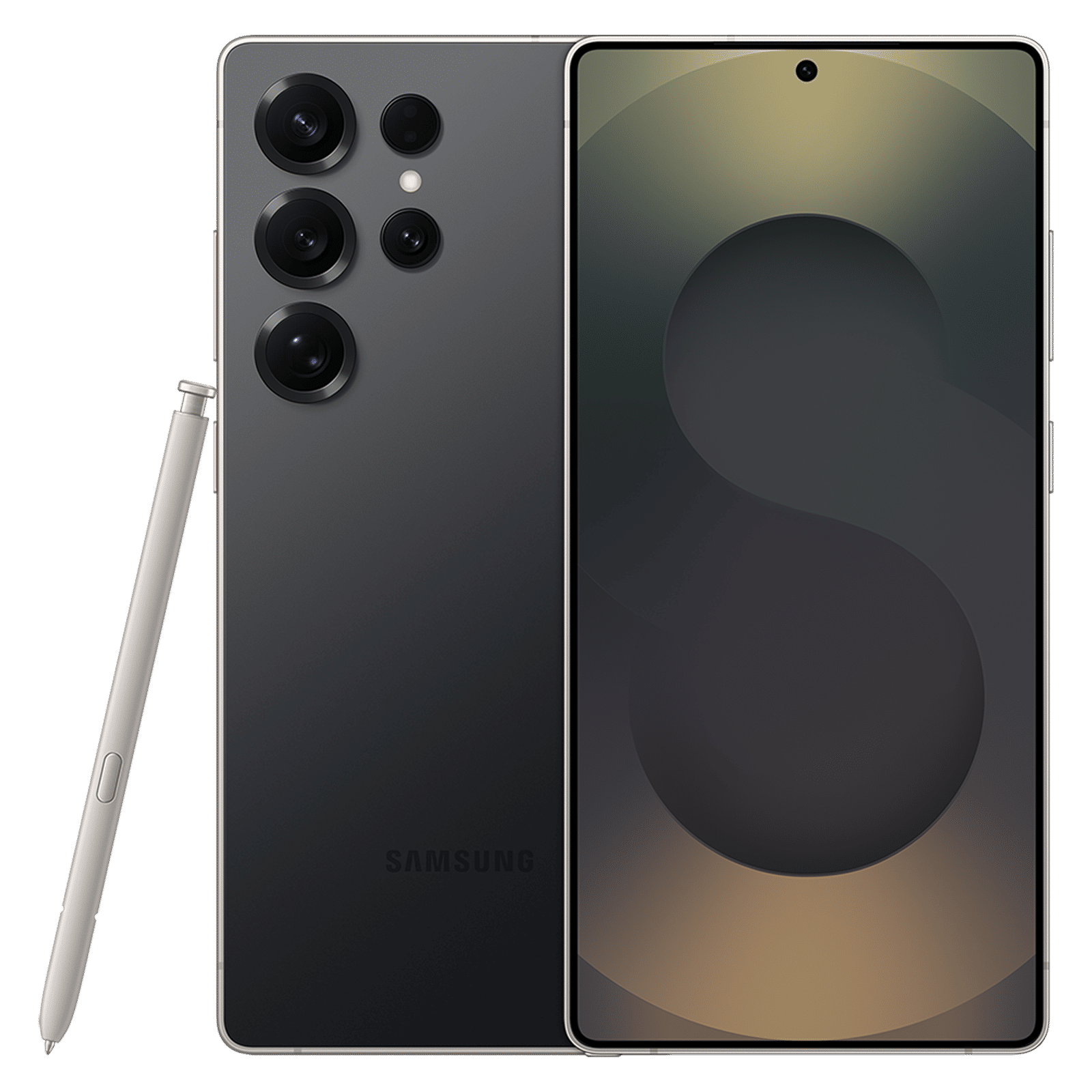
It’s nice that Apple finally allowed power sharing via an iPhone as it allows us to rely on an alternate power source in an emergency. Do bear in mind that this is a feature best used in an emergency only as frequently charging and discharging your iPhone at a rapid pace can severely degrade your iPhone’s battery over time.

Unleash your inner geek with Croma Unboxed
Subscribe now to stay ahead with the latest articles and updates
You are almost there
Enter your details to subscribe

Happiness unboxed!
Thank you for subscribing to our blog.
Disclaimer: This post as well as the layout and design on this website are protected under Indian intellectual property laws, including the Copyright Act, 1957 and the Trade Marks Act, 1999 and is the property of Infiniti Retail Limited (Croma). Using, copying (in full or in part), adapting or altering this post or any other material from Croma’s website is expressly prohibited without prior written permission from Croma. For permission to use the content on the Croma’s website, please connect on contactunboxed@croma.com
- Related articles
- Popular articles
Anirudh Regidi
Comments