







Transferring photos and videos from your smartphone to your TV is easy and gives you a better way to enjoy content on a bigger screen. You can do it wirelessly using casting or screen mirroring, or you can use a physical connection such as HDMI or USB.
The entire process works by sending image or video data from your phone to the TV using either a shared Wi-Fi network or a direct cable connection, and is useful when you want to show vacation photos, replay a video for friends and family, or just view your content more comfortably. Here’s how to transfer photos and videos from your smartphone to your TV.
Here's how to transfer files from phone to TV
Getting your phone’s photos and videos onto your TV screen is pretty simple, and there are several ways to do it. You can cast content wirelessly, mirror your screen, or use a cable connection. Most smartphones and TVs already support at least one of these options.
ALSO READ: How to turn your iPhone’s camera grid on or off
The process works by linking the two devices so that your TV can display or stream media directly from your phone.
1. Use Casting to stream from apps
Casting lets you stream photos and videos from your phone to your TV without any cables. It works over Wi-Fi and is supported on most Android TVs, Google TVs, Chromecast devices, and many smart TVs from brands like LG, Samsung, and others. To use casting, open a supported app on your phone, such as Google Photos or YouTube.
Look for the Cast icon, tap it, and select your TV from the list of available devices. Your phone and TV need to be connected to the same Wi-Fi network for this to work. Once the connection is made, your TV will start playing the content while your phone acts as the remote.
2. Use Screen Mirroring
Screen mirroring is useful when you want to display your entire phone screen on the TV instead of just streaming from a single app. Most Android phones support this feature, which may be labelled as Smart View, Screen Share, or Screen Cast, depending on the model. iPhones can use AirPlay to mirror content to Apple TVs or compatible smart TVs.
ALSO READ: How to calibrate your TV for better picture quality
To start screen mirroring on Android, swipe down to access Quick Settings and tap the appropriate option for your device. On iPhones, swipe down from the top right corner to open the Control Centre, tap Screen Mirroring, and select your Apple TV or compatible TV from the list. Your phone’s screen will then be displayed in real time on the TV.
3. Use a cable to connect your phone directly
If wireless options are not available or your Wi-Fi connection is unstable, using a cable is the most reliable method. It also works instantly without the need for setup. For Android phones that have a USB Type-C port, you can use a USB Type-C to HDMI adapter.
ALSO READ: What Samsung Smart View is and how can you use it
For iPhones, you will need a Lightning to HDMI adapter. Once you connect your phone to the adapter and link it to the TV using an HDMI cable, switch the TV to the correct HDMI input. Your phone screen should appear on the TV right away.

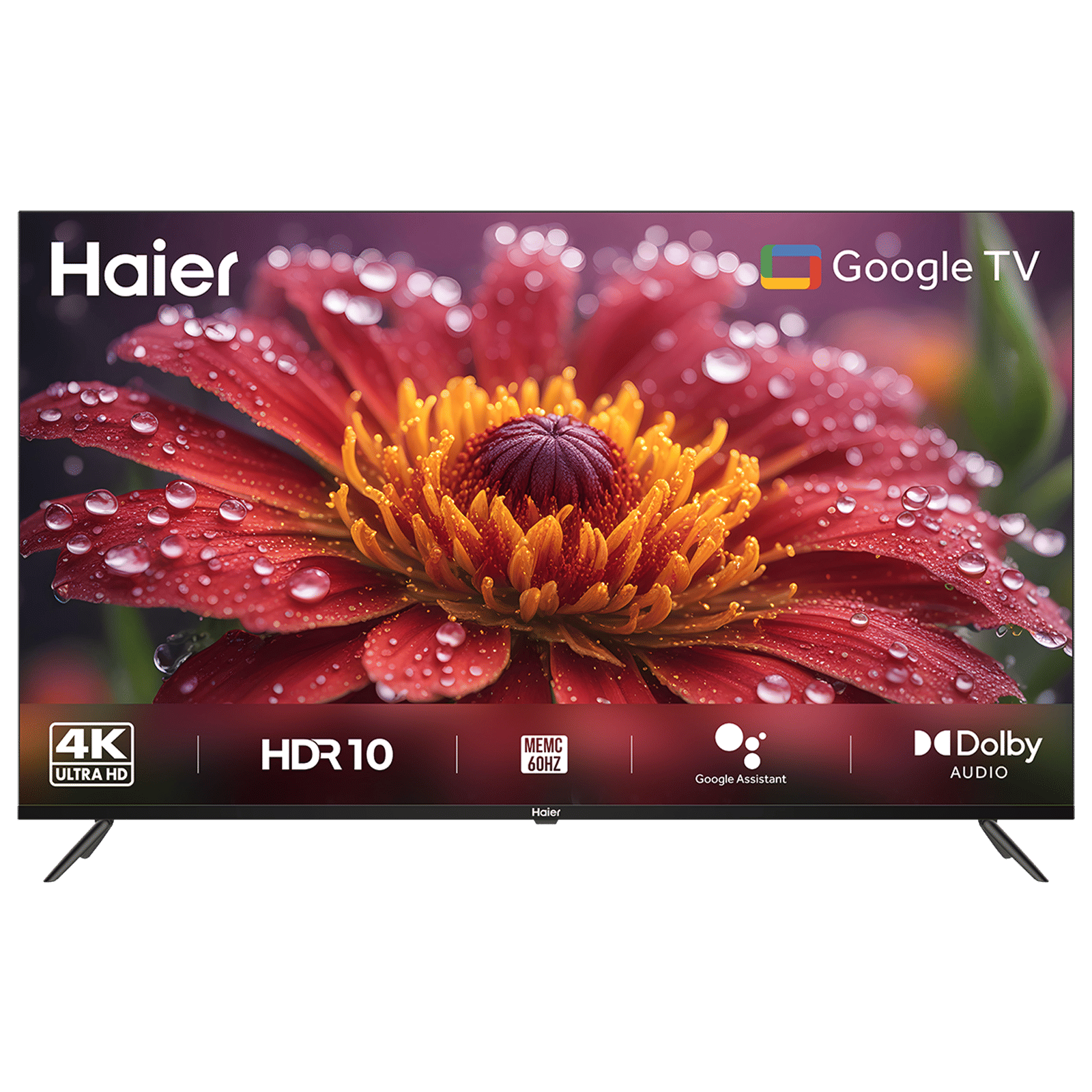
4.Use a streaming device
If your TV is not a smart TV, devices like Chromecast, Amazon Fire TV Stick, or Apple TV can give it wireless functionality. These devices plug into the HDMI port on your TV and connect to your Wi-Fi network, allowing you to cast or mirror content from your phone just like you would with a smart TV. After setting up the streaming device, open a compatible app on your phone, tap the Cast or AirPlay icon, and choose the device from the list.

Unleash your inner geek with Croma Unboxed
Subscribe now to stay ahead with the latest articles and updates
You are almost there
Enter your details to subscribe

Happiness unboxed!
Thank you for subscribing to our blog.
Disclaimer: This post as well as the layout and design on this website are protected under Indian intellectual property laws, including the Copyright Act, 1957 and the Trade Marks Act, 1999 and is the property of Infiniti Retail Limited (Croma). Using, copying (in full or in part), adapting or altering this post or any other material from Croma’s website is expressly prohibited without prior written permission from Croma. For permission to use the content on the Croma’s website, please connect on contactunboxed@croma.com
- Related articles
- Popular articles
Shubhendu Vatsa
Comments