







Streaming to your TV without Wi-Fi is possible by using your mobile data connection instead. By turning your smartphone into a Wi-Fi hotspot or connecting it directly to the TV, you can provide internet access through your cellular plan. This allows the TV or a connected streaming device to access online content just as it would on a regular Wi-Fi network.
It is especially useful when Wi-Fi is unavailable, such as when you are travelling, experiencing a network outage, or living in an area with limited broadband access. Here is how to use mobile data to stream content on your TV.
How to use mobile data to stream content on TV?
There are a bunch of ways you can connect your TV to the internet using mobile data. The idea is to share your smartphone’s internet connection with the TV or a connected streaming device. Here’s how to do it, depending on your setup:
1. Use your phone as a mobile hotspot
This is the most common method. You turn your smartphone into a portable Wi-Fi router, and your TV connects to it just like it would connect to any regular Wi-Fi network. To do this, go to your phone’s settings and enable Mobile Hotspot (on Android) or Personal Hotspot (on iPhone). Set a network name and password if prompted.
Then, on your TV, open the Wi-Fi settings, select your phone’s hotspot from the list, and connect using the password you set. Once connected, your TV will use your phone’s mobile data to stream content through any app, just like it would on home Wi-Fi.
2. Use USB tethering
You can also use a USB cable to share your phone’s mobile data with your TV or streaming device, though this method only works with Android phones. If your TV or streaming box supports USB networking (some Android TVs and devices like Amazon Fire TV Stick do), connect your Android phone using a USB cable.
ALSO READ: Streaming vs. cable: What’s the difference?
Then go to Settings > Network & Internet > Hotspot & tethering on your phone and enable USB tethering. Your phone will start sharing its mobile data connection with the connected device.
3. Cast or mirror using mobile data
If you are streaming content directly on your phone using mobile data, you can cast or mirror it to your TV without using Wi-Fi, but both devices still need to be on the same local network. This is where your mobile hotspot comes in. Turn on your phone’s hotspot and connect both your phone and your TV (or a casting device like Chromecast) to that network.

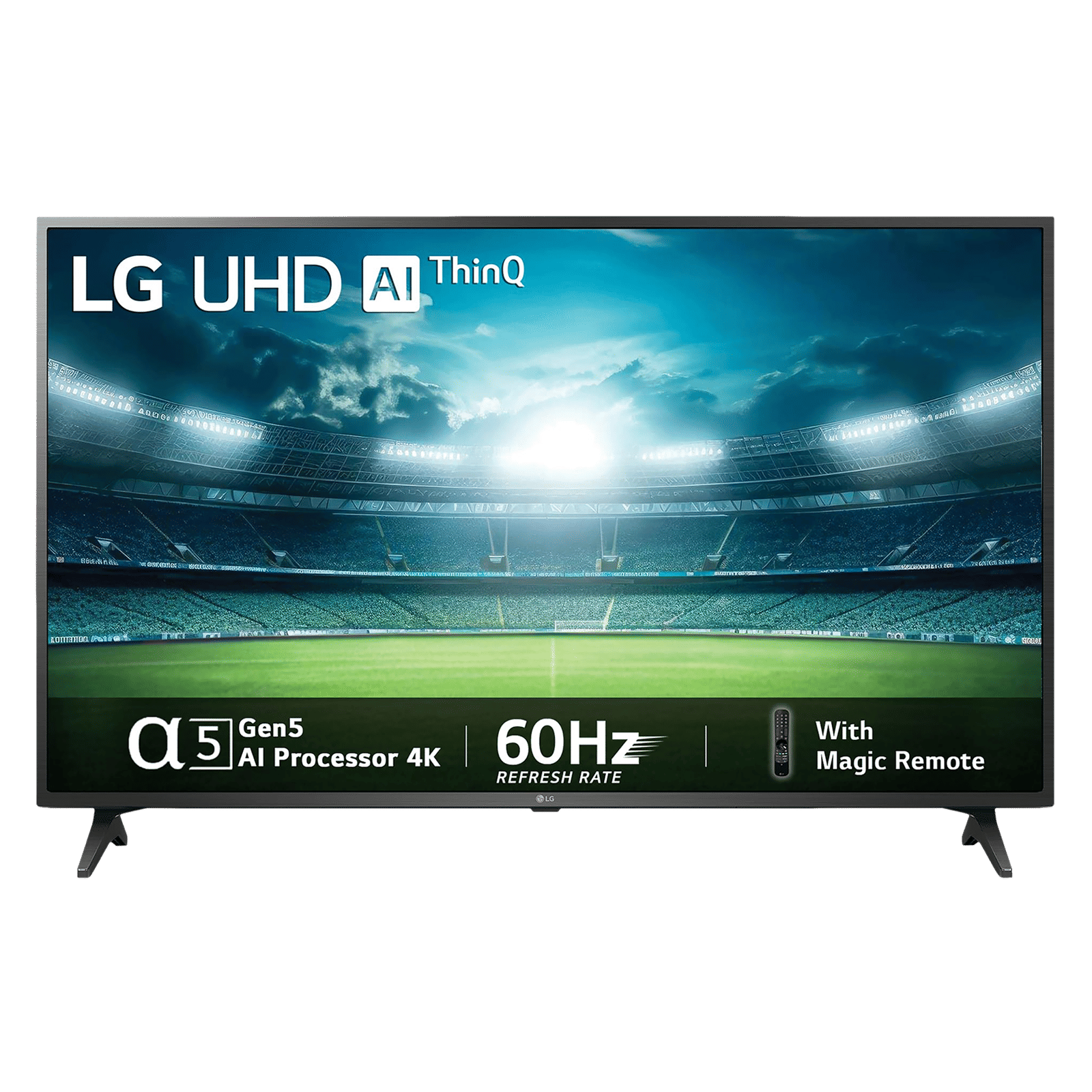
Then open a casting-enabled app such as YouTube or Netflix, tap the Cast icon, and select your TV. For screen mirroring, Android users can use Smart View or Cast Screen, while iPhone users can use AirPlay, as long as the TV supports it and is connected to the hotspot.

Unleash your inner geek with Croma Unboxed
Subscribe now to stay ahead with the latest articles and updates
You are almost there
Enter your details to subscribe

Happiness unboxed!
Thank you for subscribing to our blog.
Disclaimer: This post as well as the layout and design on this website are protected under Indian intellectual property laws, including the Copyright Act, 1957 and the Trade Marks Act, 1999 and is the property of Infiniti Retail Limited (Croma). Using, copying (in full or in part), adapting or altering this post or any other material from Croma’s website is expressly prohibited without prior written permission from Croma. For permission to use the content on the Croma’s website, please connect on contactunboxed@croma.com
- Related articles
- Popular articles
Shubhendu Vatsa
Comments