







Samsung Smart Switch is an Android app that allows a Samsung Galaxy user to seamlessly transfer contacts, photos, music, videos, messages, notes, and more to their device. You can bring in this data from both another Android device as well as an Apple one.
Here’s how you can use Samsung Smart Switch:
Initial setup
First make sure both devices have enough charge to last several hours. The process is normally fast but depending on the amount of data you have, it may take a while.
Next, install Smart Switch from the Play Store or Galaxy Store. If it’s already installed, update the app. It’s also a good idea to disable iMessage on your iPhone if you’re migrating from one. This will ensure that all messages go to your new Galaxy phone directly and not to Apple’s iMessage servers.
Switching from iPhone
You have two options here: iCloud, and direct.
iCloud is generally the better option if you have all your data backed up online, as all of your data will be transferred directly to the Android device without first being downloaded on the iPhone.
Simply open Smart Switch, select Receive Data>iPhone>Get data from iCloud instead. Next, sign in with your Apple ID and select the data you want to transfer.
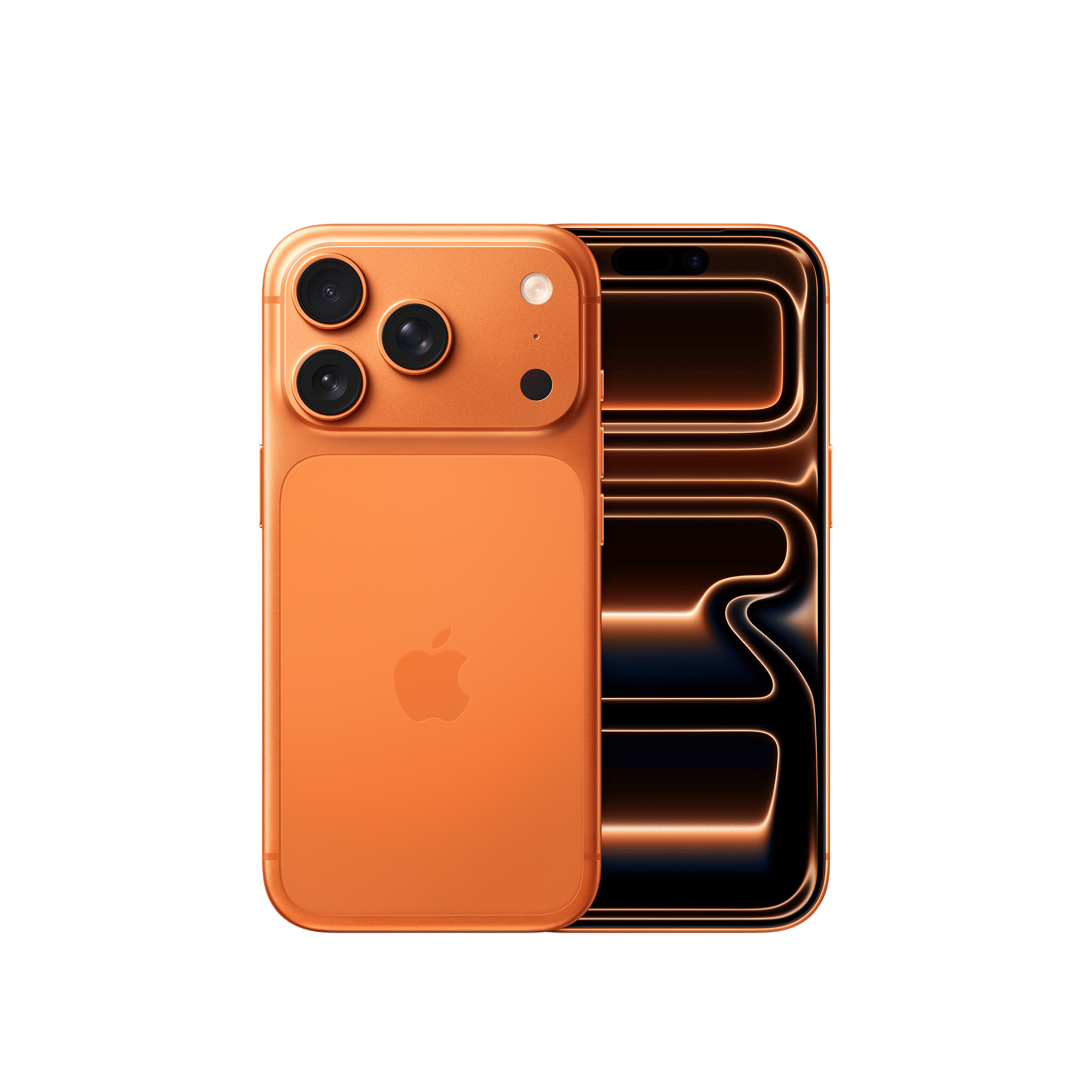
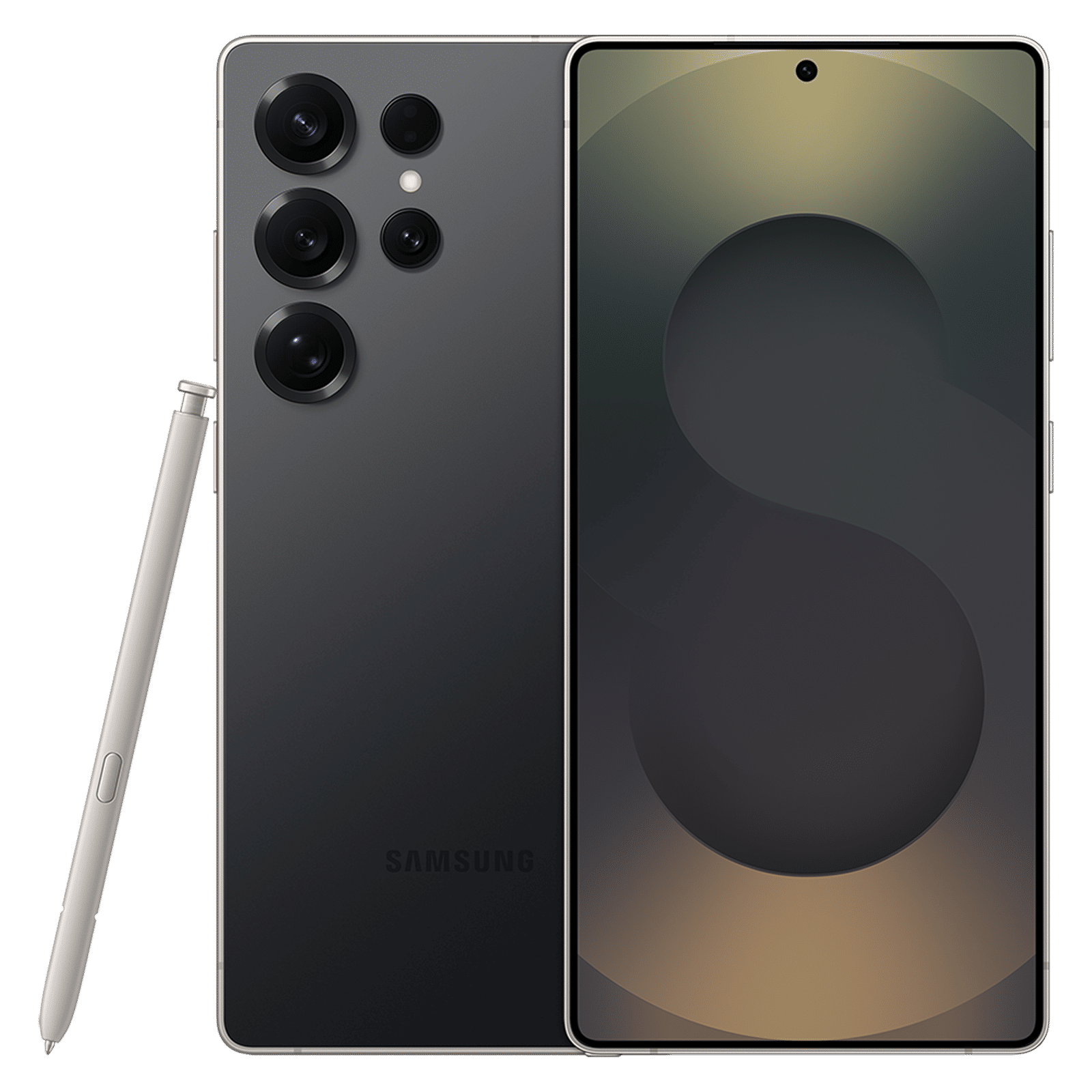
For moving data from an iPhone directly to your Galaxy device, get a USB C data cable or a Lightning to USB-C cable depending on what you need. Again select Receive Data>iPhone, ‘Trust’ the connection on your iPhone, and tap Transfer to begin.
Note that only the Pro model iPhones support faster USB 3.0 transfer rates of 5 GBps or higher. The regular models only transfer data at USB 2.0 speeds.
Switching from Android
Install the Smart Switch app on both devices and run it, then select Receive Data on the Galaxy phone and Send Data on the old Android phone. You can transfer data wirelessly or via a cable, and you’ll be prompted to choose which data to transfer. We’d recommend a wired connection for stability.
There’s also an option of using the Smart Switch app on Mac or PC, but for that you’ll need a phone that can be backed up to a Mac or PC first.
ALSO READ: Samsung TV Plus not working? Easy fixes to try
If you have such a device, use Smart Switch to first backup the old device, then ‘Restore’ the data on the new one.
And that’s it! You’ve now transferred data from your older phone to your new Samsung Galaxy device. Note that some data might have been missed so it’s best to double-check that critical contacts and images, etc. are on your new phone before you wipe the old one.

Unleash your inner geek with Croma Unboxed
Subscribe now to stay ahead with the latest articles and updates
You are almost there
Enter your details to subscribe

Happiness unboxed!
Thank you for subscribing to our blog.
Disclaimer: This post as well as the layout and design on this website are protected under Indian intellectual property laws, including the Copyright Act, 1957 and the Trade Marks Act, 1999 and is the property of Infiniti Retail Limited (Croma). Using, copying (in full or in part), adapting or altering this post or any other material from Croma’s website is expressly prohibited without prior written permission from Croma. For permission to use the content on the Croma’s website, please connect on contactunboxed@croma.com
- Related articles
- Popular articles
Anirudh Regidi
Comments