







Samsung TV Plus is a built-in app that comes with, you guessed it, Samsung TVs. Available on Samsung Smart TVs and Galaxy devices, the app allows you to watch a plethora of TV content, including news, sports and entertainment, for free on any supported device.
The app itself functions like any other OTT app in that it requires an internet connection to work. When it fails, which isn’t often, it’s usually an internet issue of some kind.
Here are some steps you can take to get your Samsung TV Plus app working again:
Reset your TV
Press and hold the power button on your remote for about 5 seconds till the TV reboots, or shut off the TV at the mains and wait a few seconds before turning it back on again. This simple step fixes most app or TV issues, not just Samsung TV Plus issues.
Check the date
Sometimes an incorrect clock setting can mess up your app’s functionality. If the TV clock is wrong, head to Settings>General>System Manager>Time and change the setting to Auto. The clock will now sync with a time server over the internet. Once corrected, the app should be working fine now.

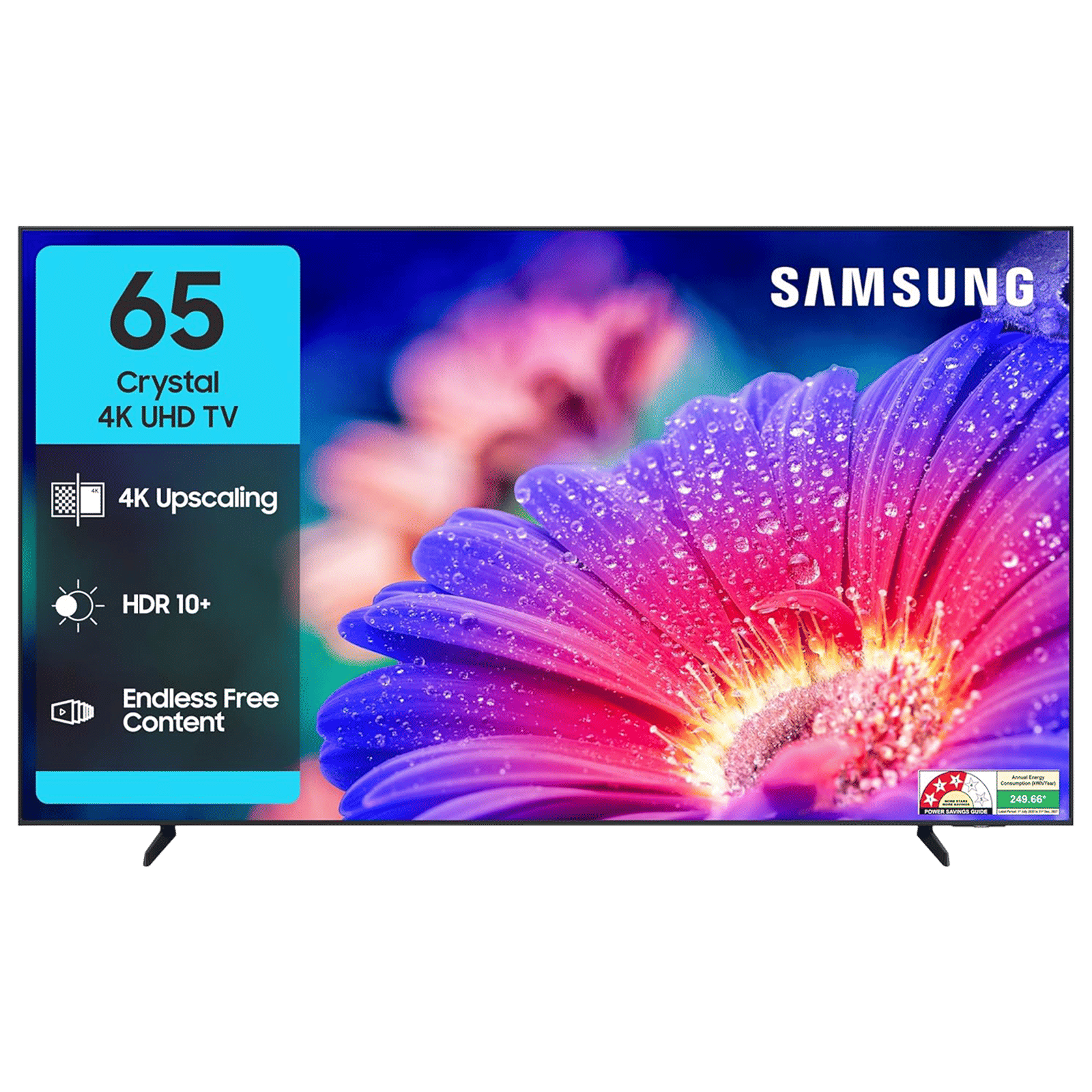
Network issues
First try toggling the Wi-Fi on and off. If that doesn’t work, try resetting your router by either power cycling it or using an app if it has one. You can also try switching to your smartphone’s hotspot temporarily to confirm whether the issue is related to your home internet connection.
ALSO READ: Best Samsung TVs to buy in 2025
If you’re using a VPN service, it might be a good idea to disable that as well. In some cases, the VPN service might be interfering with the Samsung TV Plus app’s ability to communicate with its servers.
Reinstall the app
If all else fails, reinstall the app. Head to Apps>Settings, find the app, and then hit Reinstall. You can also try clearing the cache by heading to Settings>Support>Device Care>Manage Storage, then select the Samsung TV Plus and navigate to View Details>Clear Cache.
If all the above fail, it might be a good idea to contact Samsung customer service and confirm that the service is still up. In extremely rare cases, your TV might need servicing, but again, this is highly unlikely when you’re dealing with a simple app issue.

Unleash your inner geek with Croma Unboxed
Subscribe now to stay ahead with the latest articles and updates
You are almost there
Enter your details to subscribe

Happiness unboxed!
Thank you for subscribing to our blog.
Disclaimer: This post as well as the layout and design on this website are protected under Indian intellectual property laws, including the Copyright Act, 1957 and the Trade Marks Act, 1999 and is the property of Infiniti Retail Limited (Croma). Using, copying (in full or in part), adapting or altering this post or any other material from Croma’s website is expressly prohibited without prior written permission from Croma. For permission to use the content on the Croma’s website, please connect on contactunboxed@croma.com
- Related articles
- Popular articles
Anirudh Regidi
Comments