







Your Samsung smart TV is more than just a screen and is a gateway to the world of entertainment. Whether you want to watch TV channels, stream the latest episode of Squid Game on Netflix, or follow the news on YouTube, Samsung smart TV makes it incredibly easy.
However, you can do a lot more on your Samsung smart TV by downloading apps, and whether it’s fitness or education, there is an app for it.
While Samsung smart TV, like many other smart TV platforms, comes with most apps you would need already downloaded and installed, it is easier to find new apps and download them. If you have a Samsung TV and are wondering how to download & install apps on Samsung Smart TV, then you have come to the right place.
How to download apps in Samsung Smart TV
One of the prerequisites for downloading apps on your Samsung smart TV is to make sure your TV is connected to Wi-Fi. Before knowing how to download apps in Samsung smart TV, you will need to ensure your TV is connected to the right wireless network.
ALSO READ: Best TVs for gaming in 2025: Smooth, sharp and lag-free
In order to ensure your Samsung Smart TV is connected to the internet, press the Home button on your remote and go to Settings. Now, navigate to Network and click on Open Network Settings. Select Wi-Fi and connect to your home network. Once connected, you can dive into the App Store and download apps.
How do you add apps to Samsung Smart TV
Samsung Smart TVs run on Tizen OS, where Samsung‘s Smart Hub is the central place to discover, download, and install your favourite apps. To add apps to Samsung Smart TV, here are the steps to follow:
– Step 1: Press the Home button on your remote.
– Step 2: Navigate to the Apps section using the arrow keys.
– Step 3: You will now see the Samsung Smart Hub, where you can browse, search, and manage apps.
– Step 4: Use the Search icon (magnifying glass) to type in the name of the app you are looking for.
– Step 5: Select the app you want to download and press the Select/OK button. This will open the app’s description page with details, app ratings, and an install button.
– Step 6: Select the Install button. This will start downloading the app and install it automatically once done.
– Step 7: A message will appear confirming successful installation.
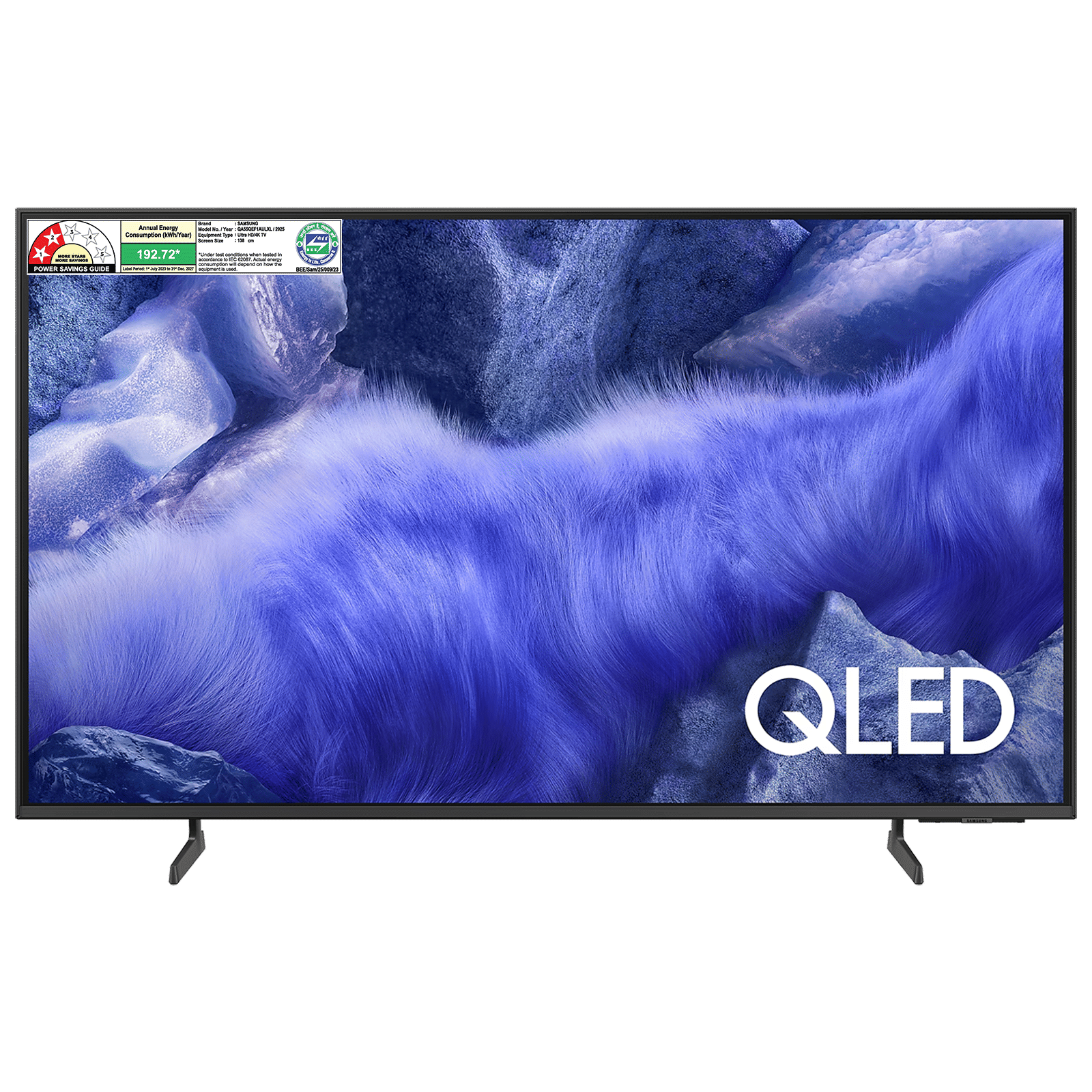
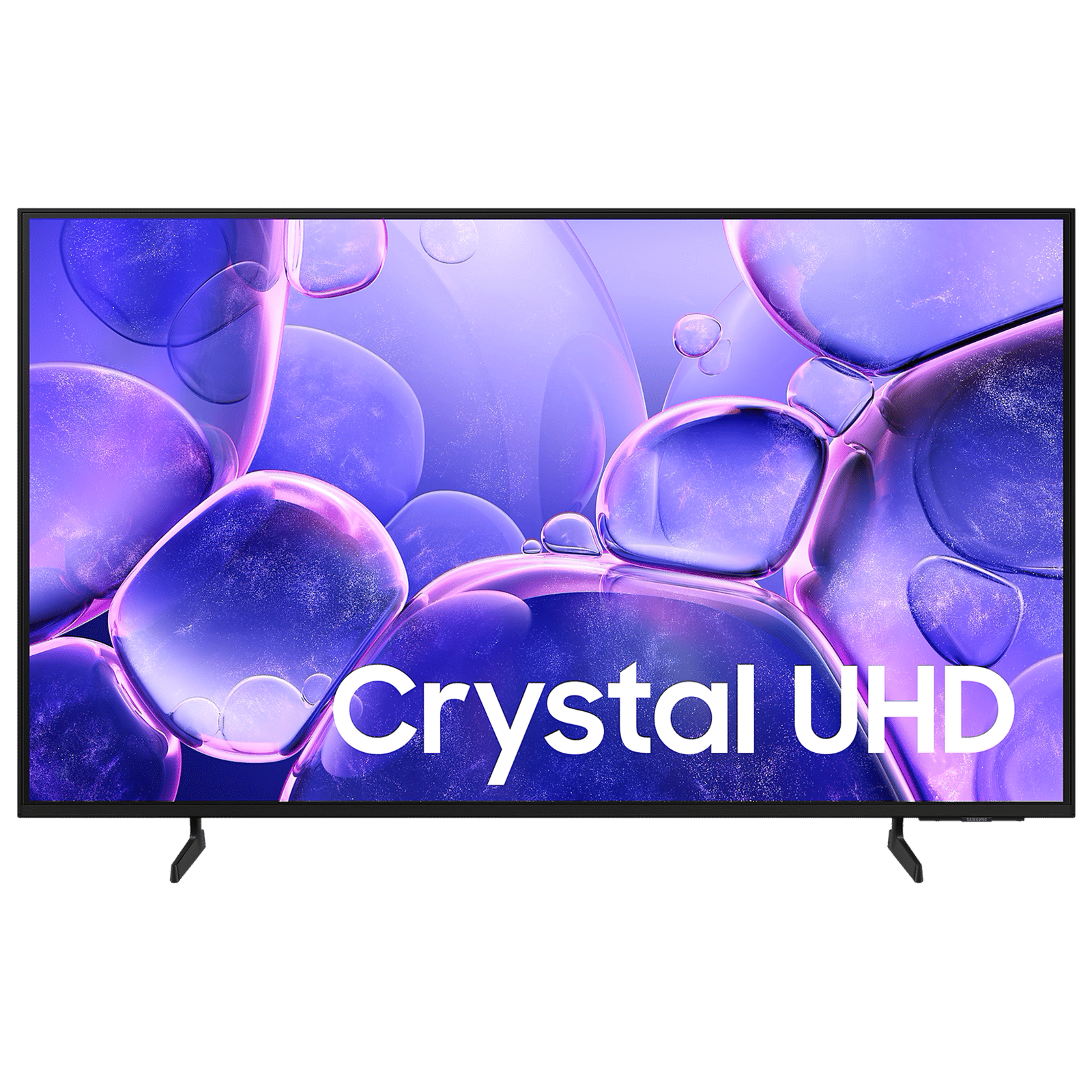
Once installed, you can find all your apps either on your Home screen or the Apps section. You can also move your downloaded apps to the home screen. To do that, go to Apps and highlight the installed app. Now, press and hold the Enter button on your remote and select Add to Home or Move to place it where you want on your home screen.
ALSO READ: Samsung TV remote not working? 10 quick fixes you can try
You can also update or remove apps from your Samsung Smart TV by going to Apps >> select Settings (gear icon). You will see options to Auto-Update, Reinstall, or Delete apps. Learning how to download & install apps on Samsung Smart TV is the key to turning your smart TV into a full-blown entertainment hub that spans streaming, music, fitness, or education.

Unleash your inner geek with Croma Unboxed
Subscribe now to stay ahead with the latest articles and updates
You are almost there
Enter your details to subscribe

Happiness unboxed!
Thank you for subscribing to our blog.
Disclaimer: This post as well as the layout and design on this website are protected under Indian intellectual property laws, including the Copyright Act, 1957 and the Trade Marks Act, 1999 and is the property of Infiniti Retail Limited (Croma). Using, copying (in full or in part), adapting or altering this post or any other material from Croma’s website is expressly prohibited without prior written permission from Croma. For permission to use the content on the Croma’s website, please connect on contactunboxed@croma.com
- Related articles
- Popular articles
Karthekayan Iyer
Comments