







The switch from Windows to macOS can be a big leap, and with that change, there are a few things you need to keep in mind. This doesn’t just include cosmetic changes, but a bunch of features and actions that work differently on macOS.
Having said that, if you are about to switch to a Mac, or already got yourself a new MacBook, here are seven things you need to keep in mind.
7 things to know when switching from Windows to macOS
The menu bar works differently
On macOS, the menu bar is fixed at the top of the screen instead of sitting inside each window. It changes depending on the app you’re using, which can feel confusing at first but becomes second nature over time.
The Command key replaces Ctrl
Most shortcuts you know still exist, just with the Command key instead of Ctrl. Copy, paste, switching apps, and more all revolve around it.
So, next time you want to perform any of the actions, don’t look for a Ctrl key, rather hit that Command key, which looks like a looped square symbol. Once you are used to the Command Key, it all feels quicker.
Closing apps isn’t the same
Clicking the red close button doesn’t always quit the app. It just closes the window. The app can still run in the background, so you’ll need to quit it manually if needed.
Finder is simple but different
Finder is macOS’ version of File Explorer. It handles files well, but works more minimally. Installing apps is usually drag and drop, and uninstalling is often just deleting the app.
Spotlight is your best shortcut
Press Command and Space, and you can search for anything. Apps, files, settings, calculations. It’s fast and becomes the easiest way to navigate your Mac.
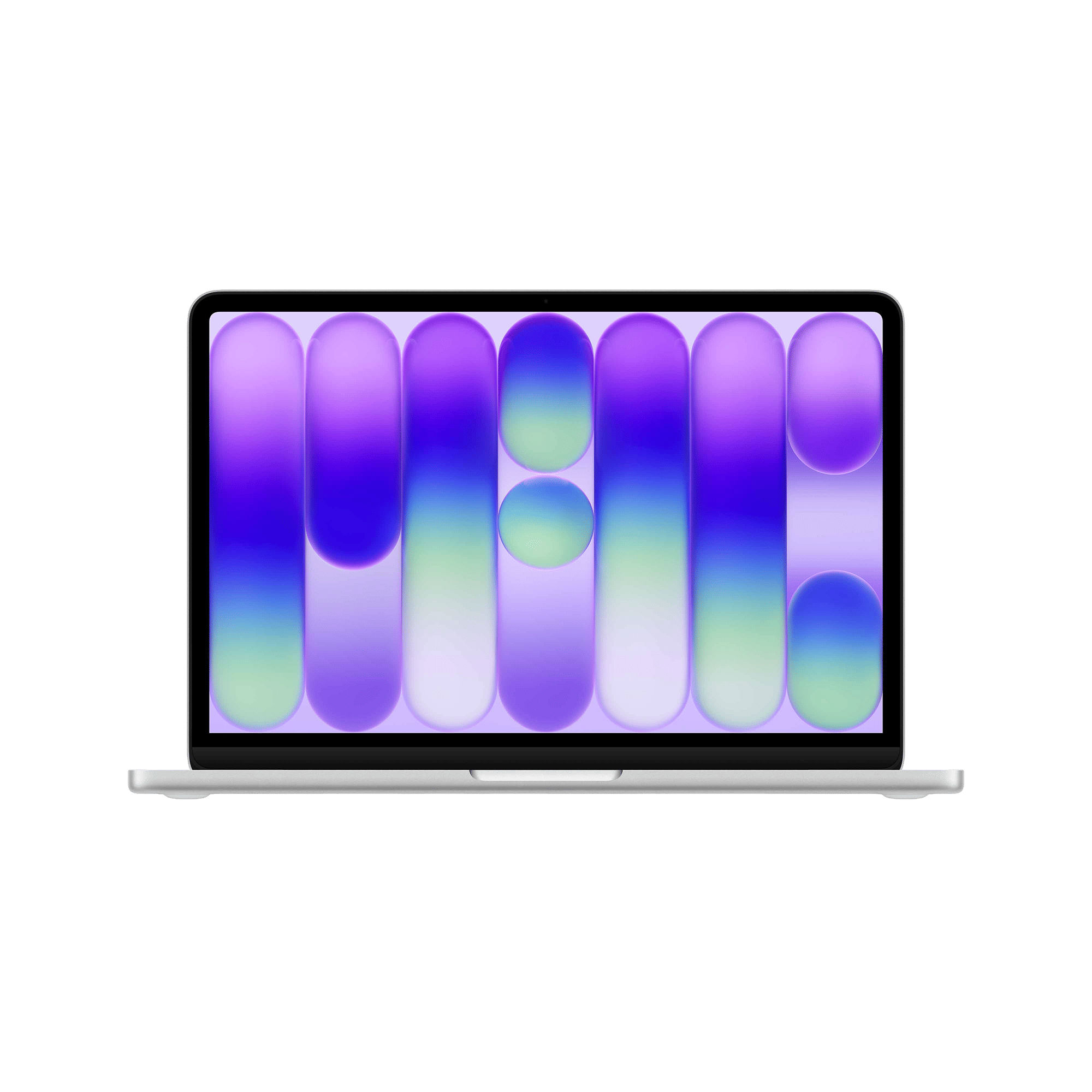
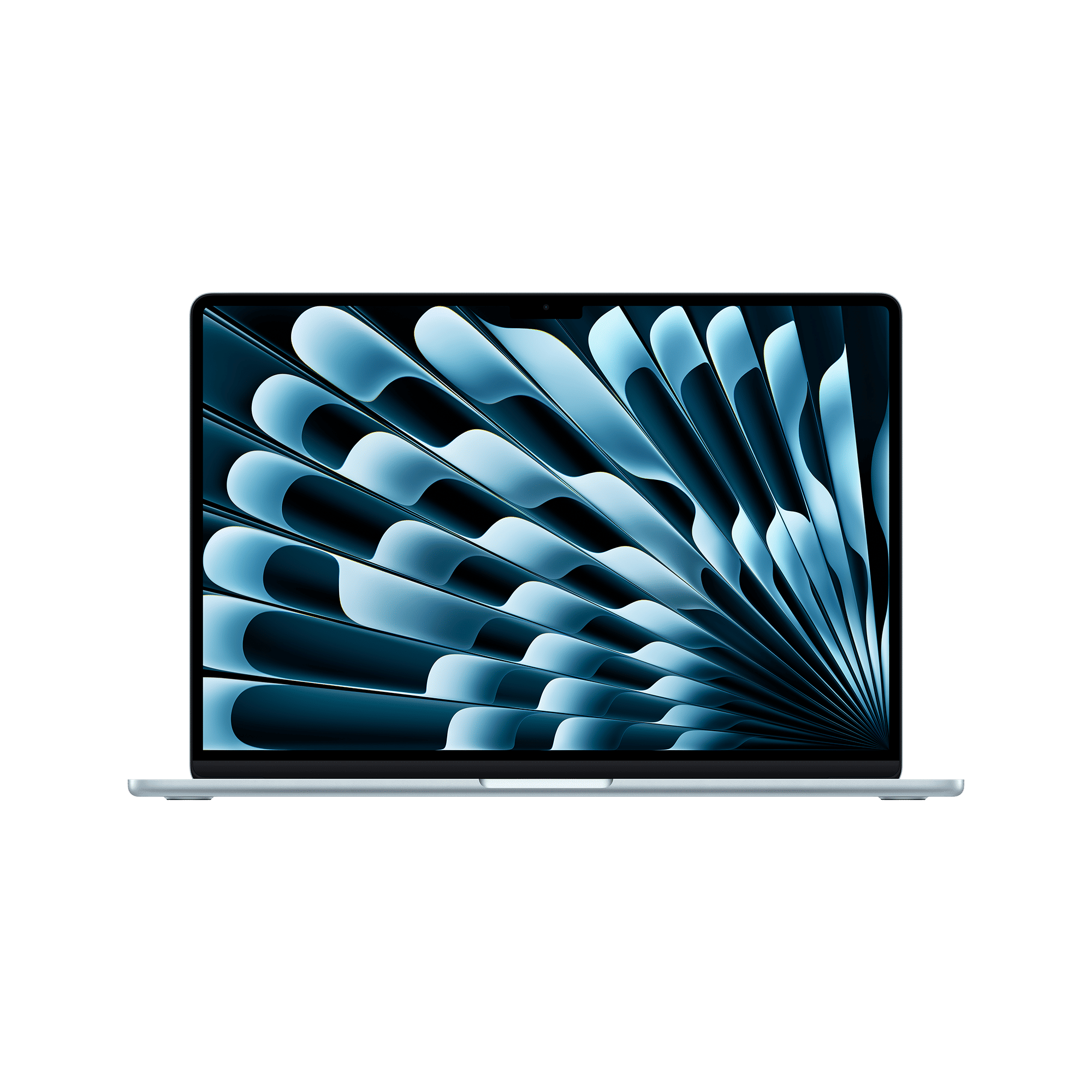
System Settings replaces Control Panel
There’s no Control Panel in macOS. All your device settings live in one place – Settings. It’s cleaner and more organised compared to Windows, making it easier to find things.
Trackpad gestures are a big deal
The Mac trackpad is designed for gestures. Two-finger scroll, swipe between apps, and other gestures make navigation feel smoother than a traditional mouse setup.
ALSO READ: 5 unique macOS 26 features you need to check out
Switching from Windows to macOS is surely a big shift, but it’s not entirely different. All you need is getting used to some of the buttons and actions, and you are good to go.

Unleash your inner geek with Croma Unboxed
Subscribe now to stay ahead with the latest articles and updates
You are almost there
Enter your details to subscribe

Happiness unboxed!
Thank you for subscribing to our blog.
Disclaimer: This post as well as the layout and design on this website are protected under Indian intellectual property laws, including the Copyright Act, 1957 and the Trade Marks Act, 1999 and is the property of Infiniti Retail Limited (Croma). Using, copying (in full or in part), adapting or altering this post or any other material from Croma’s website is expressly prohibited without prior written permission from Croma. For permission to use the content on the Croma’s website, please connect on contactunboxed@croma.com
- Related articles
- Popular articles
Pranav Sawant
Comments