







The Samsung Galaxy S26 Ultra is one of those phones that feels impressive the moment you pick it up. The build is premium, the display is enormous, and the camera system promises serious photographic firepower.
But out of the box, you’re not actually seeing the phone at its best. Like many feature-packed Android flagships, several of its most useful settings are either dialled down or tucked away in menus. Spend ten minutes adjusting a few of them, and the S26 Ultra suddenly feels sharper, faster and far more tailored to you. Here are the first tweaks worth making on your new Samsung Galaxy S26 Ultra.
1. Set the screen resolution to maximum
Samsung ships the Samsung Galaxy S26 Ultra at a lower display resolution by default. It is done to save battery, but it also means you are not seeing the screen at its best.
Head to Settings > Display > Screen Resolution and switch it to the highest option available (QHD+). Text becomes crisper, photos gain extra detail, and the display finally looks like the flagship panel Samsung designed it to be. If battery life ever becomes a concern, you can always dial it back.
2. Unlock Developer Options and speed up animations
This is one of the quickest ways to make the phone feel faster. Go to Settings > About Phone > Software Information and tap Build Number seven times. This unlocks the hidden Developer Options menu.
Now go to Settings > Developer Options and find the three animation settings under the Drawing section:
– Window Animation Scale
– Transition Animation Scale
– Animator Duration Scale
Change all three from 1x to 0.5x. The phone instantly feels more responsive. Apps open faster, and transitions snap into place rather than lingering on screen. This is something we have been tweaking on every Galaxy Ultra we’ve tested for the past 7 years, and it makes a world of difference.
3. Turn on the Galaxy AI features you actually want
Samsung has leaned heavily into AI on the S26 series, but many features are not enabled during setup. Go to Settings > Advanced Features > Galaxy AI and scroll through the available tools. A few worth switching on straight away include:
– Call Assist
– Note Assist
– Writing Assist
– Now Nudge
ALSO READ: Samsung Galaxy S26 Ultra refines the formula, pushes AI to the forefront
These tools tend to work quietly in the background, helping with things like summarising notes, drafting messages or filtering calls.
4. Customise your Now Brief
Samsung’s Now Brief acts as a quick daily snapshot of useful information. Open Galaxy AI > Now Brief and enable Expand Now Brief Without Unlocking so you can view it directly from the lock screen. Then tap Content to Include and decide what should appear.
Weather updates, reminders, travel alerts, and calendar events are useful. Other things, such as social content, can quickly dominate the feed, so it is worth trimming it down.
5. Turn on Dolby Atmos audio
Samsung includes Dolby Atmos support, but it is not always enabled by default. Go to Settings > Sounds and Vibration > Sound Quality and Effects and toggle Dolby Atmos on. Music, films and games all gain a little more depth.
While you are there, run Adapt Sound. This creates an audio profile based on your hearing, which can make headphones sound noticeably better.
6. Schedule Dark Mode
Dark Mode is one of those features that becomes indispensable once you start using it properly.
Go to Settings > Display > Dark Mode Settings and set it to Scheduled > Sunset to Sunrise. The phone automatically switches themes based on the time of day, keeping the display comfortable at night without requiring manual changes.
7. Set up Privacy Display on the S26 Ultra
One of the more interesting additions on the S26 Ultra is Privacy Display. Found under Settings > Display > Privacy Display, this feature restricts screen visibility when viewed from the side. Only someone looking directly at the display can see it clearly.
ALSO READ: Samsung Galaxy S26 Ultra: What is Privacy Display?
You can enable it for the entire phone or apply it only to specific apps. Many people choose to activate it for banking apps, messaging platforms, photos, or password managers, which is extremely convenient and a big upgrade compared to physical privacy screenguards.
8. Enable Always On Display
Samsung’s Always On Display remains one of the most useful lock screen features. Go to Settings > Lock Screen > Always On Display and turn it on. From here, you can choose what information appears: time, notifications, widgets, and more. And if you enjoy customisation, Samsung’s Good Lock app opens up even more design options.
9. Turn on Extend Unlock
Extend Unlock makes daily use a little less tedious. Found under Settings > Lock Screen, it keeps your phone unlocked in trusted situations such as when you are at home, connected to a known Bluetooth device, or carrying the phone.
It reduces how often you need to unlock the device while still keeping it secure elsewhere.
10. Enable Find My Mobile and theft protection
Finally, make sure you have Samsung’s tracking and security tools switched on. Go to Settings > Security and Privacy > Lost Device Protection > Find My Mobile and enable all available options. This allows you to locate, lock, or erase the phone if it is lost.
Then return to the Theft Protection section and enable those safeguards as well. These features add extra layers of protection if someone attempts to reset or tamper with your device.
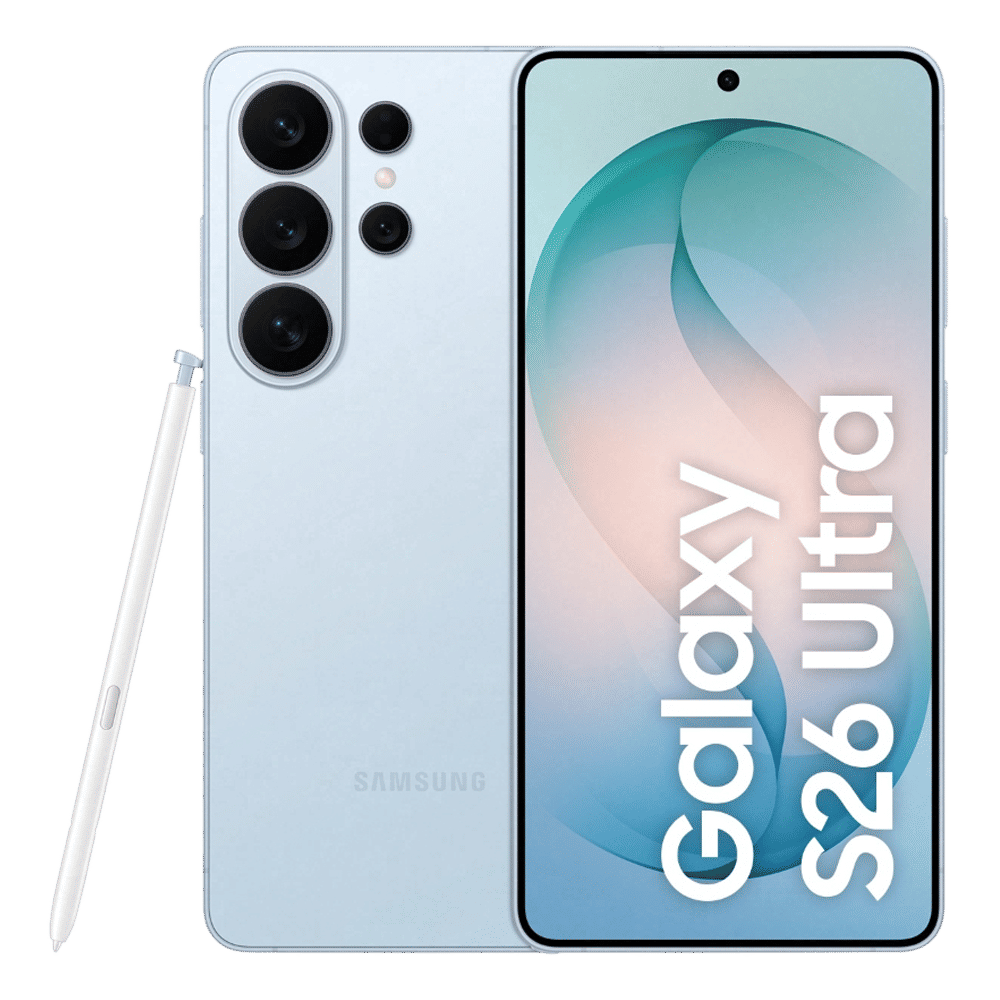
The Galaxy S26 Ultra works perfectly well out of the box, but a few thoughtful tweaks reveal what Samsung’s flagship is really capable of. Ten minutes in the settings menu can transform it from impressive to genuinely personal. Have you tried any of these yet? Drop a comment to let us know.

Unleash your inner geek with Croma Unboxed
Subscribe now to stay ahead with the latest articles and updates
You are almost there
Enter your details to subscribe

Happiness unboxed!
Thank you for subscribing to our blog.
Disclaimer: This post as well as the layout and design on this website are protected under Indian intellectual property laws, including the Copyright Act, 1957 and the Trade Marks Act, 1999 and is the property of Infiniti Retail Limited (Croma). Using, copying (in full or in part), adapting or altering this post or any other material from Croma’s website is expressly prohibited without prior written permission from Croma. For permission to use the content on the Croma’s website, please connect on contactunboxed@croma.com
- Related articles
- Popular articles
Dhriti Datta
Comments