







Did you get a brand new laptop after knowing all the specifications, but are still uncertain about some specs or looking to verify them? Well, your laptop comes with built-in tools to check full laptop specifications and system properties easily. This is designed to help you choose the right software, upgrade the hardware, or troubleshoot performance issues. From processor type, RAM, storage, and graphics, to operating system version, your laptop’s system properties offer a wealth of information.
How to see properties of laptop
Whether you have a Windows laptop or a MacBook, here’s a step-by-step guide to see the properties of a laptop:
Using Settings App
This is the easiest way to check the device name, processor, RAM, system type and OS version on Windows 10 and Windows 11. Here are the steps to follow:
– Click Start and go to Settings
– Go to System
– Select About
Using System Information
If you are looking for a detailed view of your laptop specifications with a deeper technical overview, then you should use system information. This includes information such as BIOS version, processor cores and threads, graphics card details, installed memory, motherboard details, and network adapters. Here’s how to check system information:
– Press Windows + R
– Type msinfo32 and press Enter
Using DirectX Diagnostic tool
If you are looking specifically for graphics and sound specifications of your laptop, then the DirectX Diagnostic tool would be a better fit. This displays information such as GPU model, display memory, and driver version. Here are the steps to follow:
– Press Windows + R
– Type dxdiag
– Click OK
Check laptop specs on Mac
Apple also makes it extremely easy to check laptop specs by following these steps:
– Click the Apple menu in the top-left corner
– Select About This Mac
– Go to More Info
The above step will reveal processor details, memory configuration, storage capacity, macOS version, and serial number. For a deeper look at the hardware, click on System Report.
How to see laptop properties
While the above methods are the easiest way to see laptop properties, you can also use the terminal to quickly check your laptop specifications. Here’s how it works on Windows and macOS:
On Windows
– Click Start and search Command Prompt
– Open Command Prompt
– Type systeminfo
– Press Enter
On macOS
– Press Command + Space for Spotlight Search
– Type Terminal
– Type system_profiler SPHardwareDataType
– Press Enter
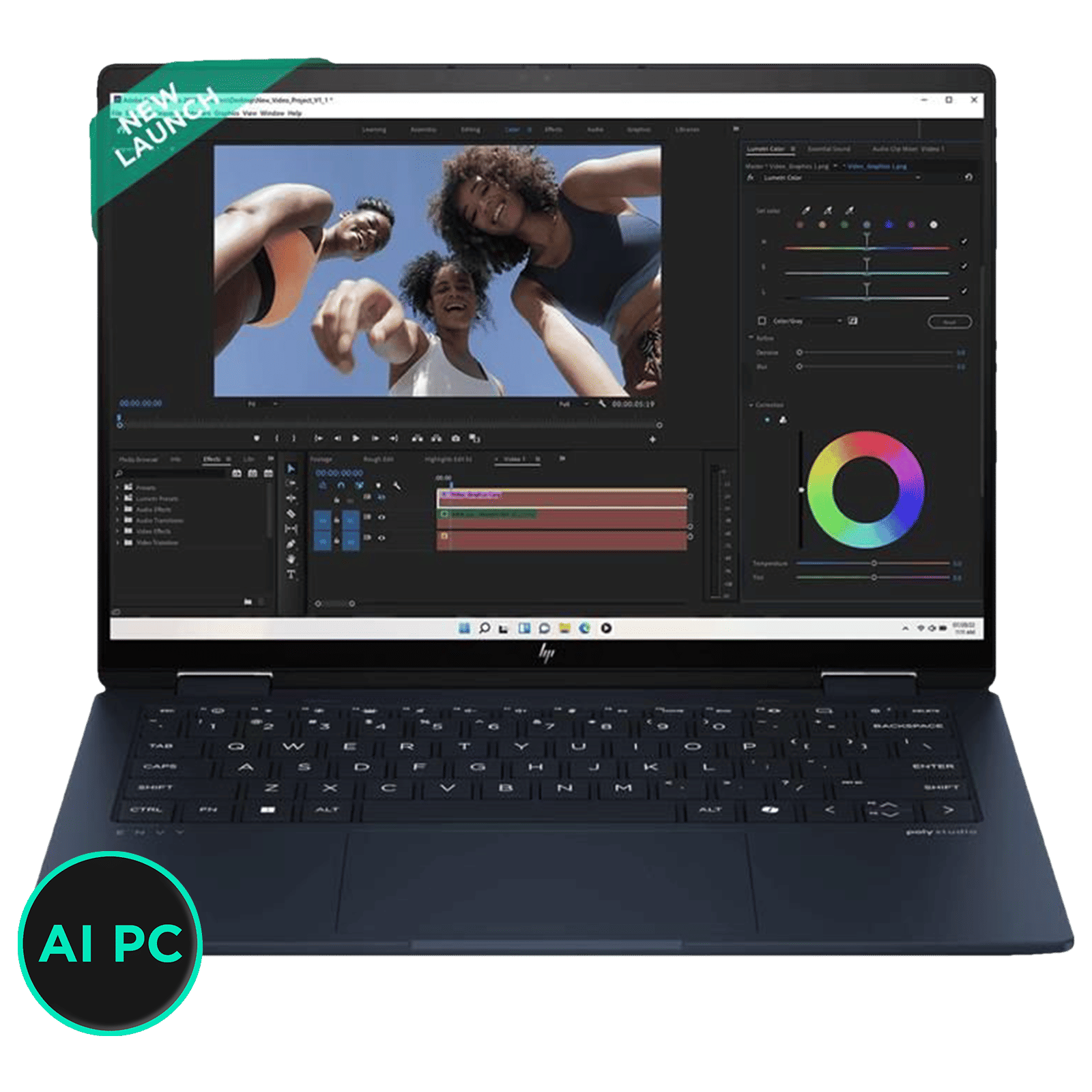

It gives great satisfaction to unbox a new laptop and check its full specifications since the system properties play a vital role in deciding how you can use the device. You need to review your laptop specifications while installing games or software, upgrading internal hardware, diagnosing performance slowdown, or contacting customer support.
ALSO READ: How to turn on camera on Windows or Mac laptop: Step-by-step guide
Both Windows and macOS make it quick and free to check your laptop’s full specifications. Using system tools like About This Mac, System Information, and Settings, you can learn everything you need to know about your laptop’s specifications. Instead of googling, simply use these tools to check full laptop specifications and system properties easily.

Unleash your inner geek with Croma Unboxed
Subscribe now to stay ahead with the latest articles and updates
You are almost there
Enter your details to subscribe

Happiness unboxed!
Thank you for subscribing to our blog.
Disclaimer: This post as well as the layout and design on this website are protected under Indian intellectual property laws, including the Copyright Act, 1957 and the Trade Marks Act, 1999 and is the property of Infiniti Retail Limited (Croma). Using, copying (in full or in part), adapting or altering this post or any other material from Croma’s website is expressly prohibited without prior written permission from Croma. For permission to use the content on the Croma’s website, please connect on contactunboxed@croma.com
- Related articles
- Popular articles
Karthekayan Iyer
Comments