







It is relatively easy to check the phone processor in Android and iPhone. On Android, you can find processor information in the “About Phone” page but if you have a Samsung phone or an iPhone, you will need to visit the manufacturer’s website. You can also use third-party apps like CPU-Z or AIDA64 to get detailed processor specifications, including clock speeds and manufacturer details.
How to check phone processor
The process to check phone processor details varies between Android and iPhone. Here are the steps to follow:
For Android devices:
- Step 1: Open Settings
- Step 2: Scroll to “About Phone” or “About Device”
- Step 3: Look for “Processor” or “Chipset” information to view CPU name, core count, and architecture details.
If you have a Samsung smartphone, then you can find out the model number (starting with SM) and look up processor details on the Samsung website. You can also view processor details on Android through Developer options in Settings. Go to Developer Options and find “System” or “Hardware info” to view detailed processor specifications.
ALSO READ: What is a smartphone processor and what does it do
For iPhone:
- Step 1: Open the Settings app and tap General
- Step 2: Navigate to About
- Step 3: Find the model number.
While the “About” section doesn’t explicitly give away the processor name, the model information can be used to find out processor details on the Apple website.
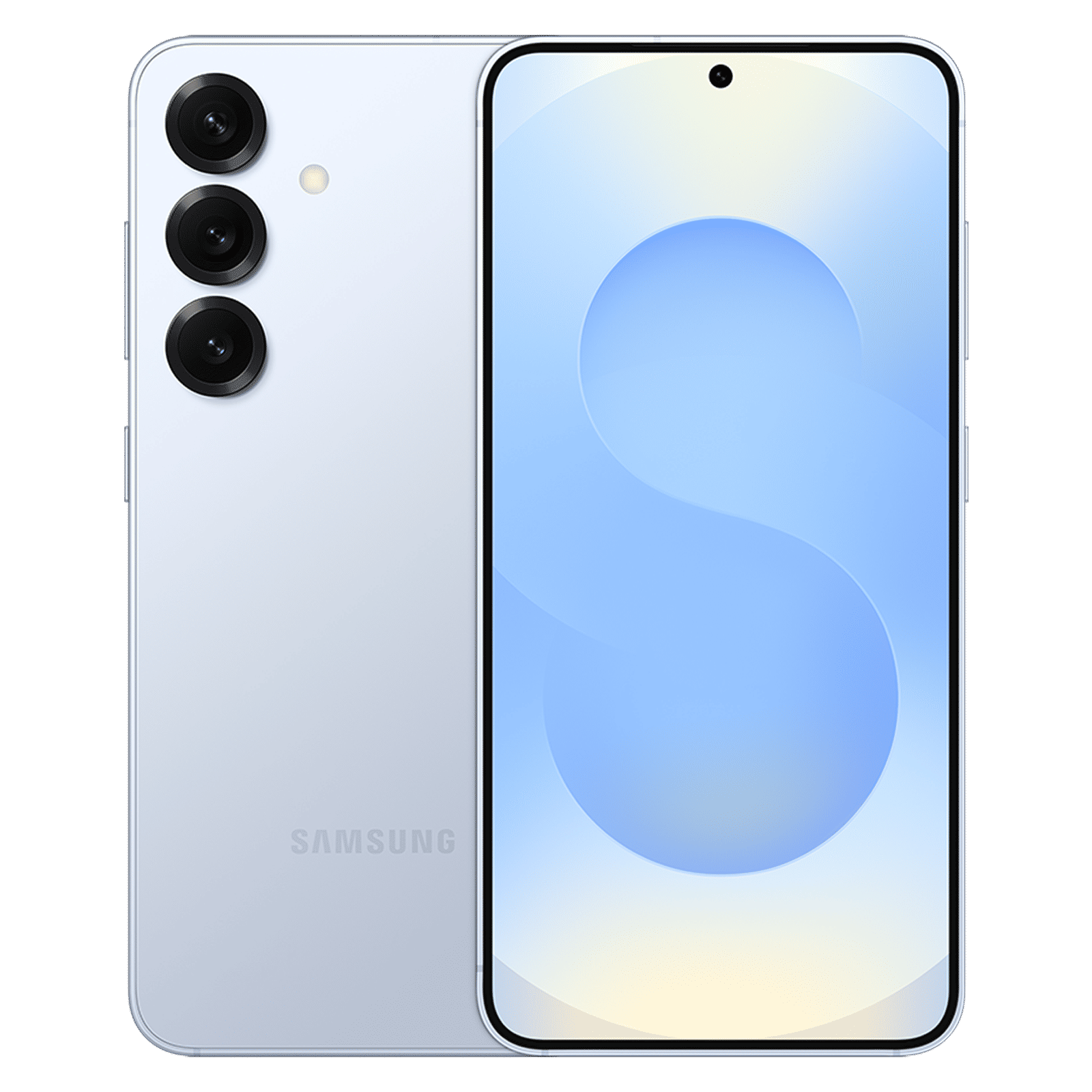
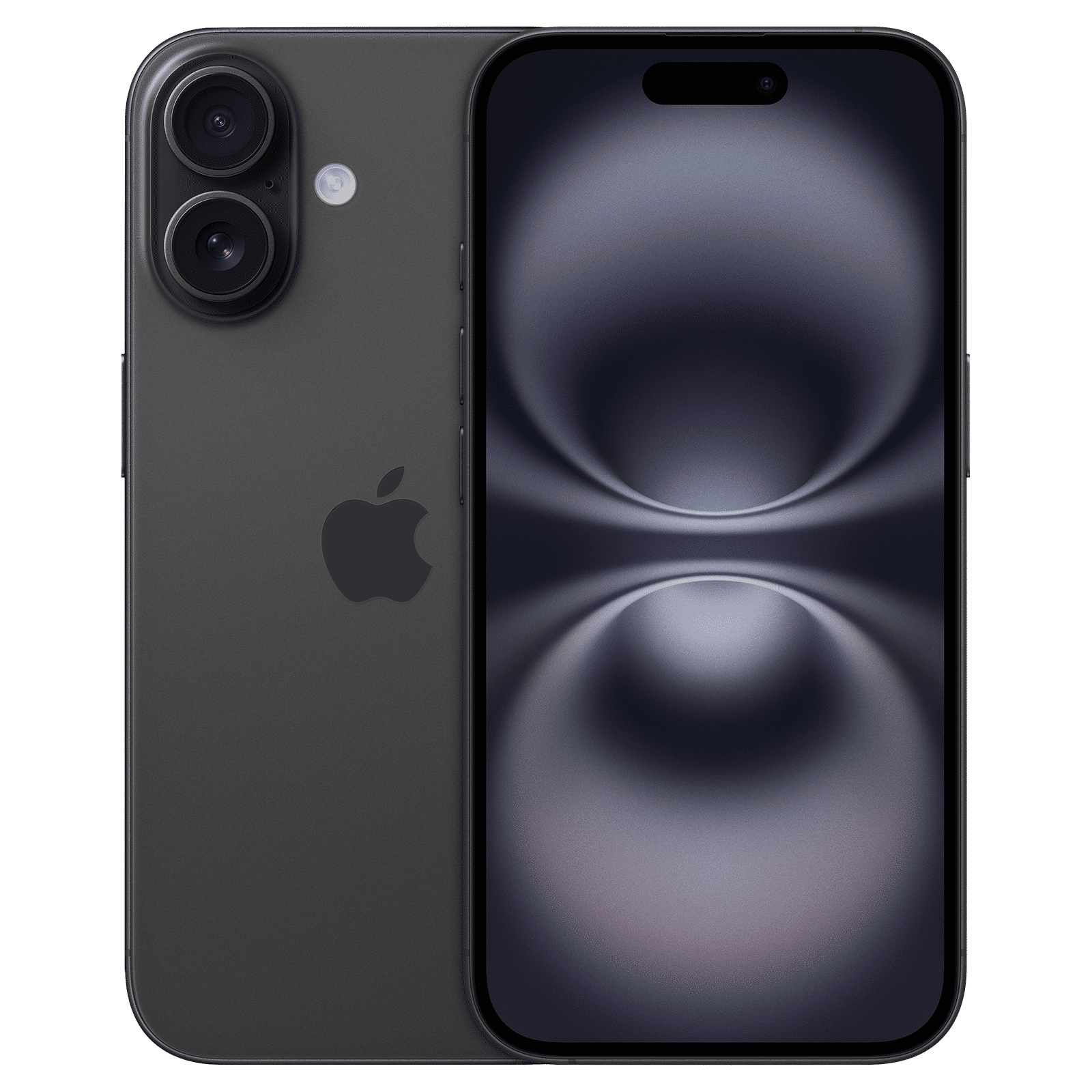
How to check mobile processor
You can also download third-party apps like CPU-Z or Device Info on Android and AIDA64 on iPhone to check mobile processors. These apps provide more comprehensive processor information, such as core count, performance of each core, etc. For the nerds out there, you can also use ADB commands to find processor information on Android.
FAQs:
Q1: Why can’t I see detailed processor info on iPhone?
A: Apple limits system access for security reasons, offering only basic chip information.
Q2: How do I check if my phone is Exynos or Snapdragon?
A: To check whether your Samsung phone has Exynos or Snapdragon chip, you will need to download third-party apps like CPU-Z or Device Info HW from the Plapy Store.
By visiting your phone’s “About” section, you can find out the hone processor on most Android phones, while Samsung and iPhone users will need to take an extra step to find the details. To get more details about your phone processor, you need to download third-party apps.

Unleash your inner geek with Croma Unboxed
Subscribe now to stay ahead with the latest articles and updates
You are almost there
Enter your details to subscribe

Happiness unboxed!
Thank you for subscribing to our blog.
Disclaimer: This post as well as the layout and design on this website are protected under Indian intellectual property laws, including the Copyright Act, 1957 and the Trade Marks Act, 1999 and is the property of Infiniti Retail Limited (Croma). Using, copying (in full or in part), adapting or altering this post or any other material from Croma’s website is expressly prohibited without prior written permission from Croma. For permission to use the content on the Croma’s website, please connect on contactunboxed@croma.com
- Related articles
- Popular articles
Karthekayan Iyer
Comments