







Sony has always been strict about how audio works on the PlayStation and the PS5 is no exception. While the console supports headsets designed specifically for gaming, the PS5 does not support standard Bluetooth earbuds such as Apple’s AirPods.
For anyone who already uses AirPods every day, that limitation can quickly become frustrating. Luckily, with a small workaround, it’s possible to connect AirPods with a PS5. So to help you get started, here’s how to connect your AirPods to a PS5 and get them working for gaming.
How to connect AirPods to PS5
As the PS5 doesn’t support wireless earbuds out of the box, you may notice a bit of audio delay, limited or no mic support, and the absence of features like 3D Audio or noise cancellation. Still, if you want to use AirPods with a PS5, there are two easy ways to do it: either with a Bluetooth USB adapter or through your TV’s built-in Bluetooth. Here’s how:
Method 1: Connect AirPods to PS5 Using a Bluetooth USB adapter
This is the easiest and reliable way to use AirPods with a PS5. Since the console blocks Bluetooth audio, the adapter handles the wireless connection and sends the sound straight to your AirPods. Here’s how you can pair your AirPods to PS5 using a Bluetooth USB adapter:
- Plug the Bluetooth USB adapter into your PS5
- Put the adapter into pairing mode using its sync button
- Open the AirPods case lid and press and hold the setup button on the back until the light flashes white
- Wait for the adapter and AirPods to pair
- Press the PS button on the DualSense controller
- Go to Settings > Sound > Audio Output and select the USB Bluetooth adapter as the output device
ALSO READ: PlayStation Limited Edition Mechanical Watch announced to mark 30 years of play
Once everything’s connected, all PS5 audio will play through your AirPods.
Method 2: Connect AirPods to PS5 Using Your TV
If your TV supports Bluetooth headphones, you can pair your AirPods with the TV instead of the PS5. The TV takes care of the Bluetooth connection and passes the PS5 audio through, saving you from buying an adapter, though you’ll still run into the same Bluetooth limitations. Here’s how you can pair your AirPods:
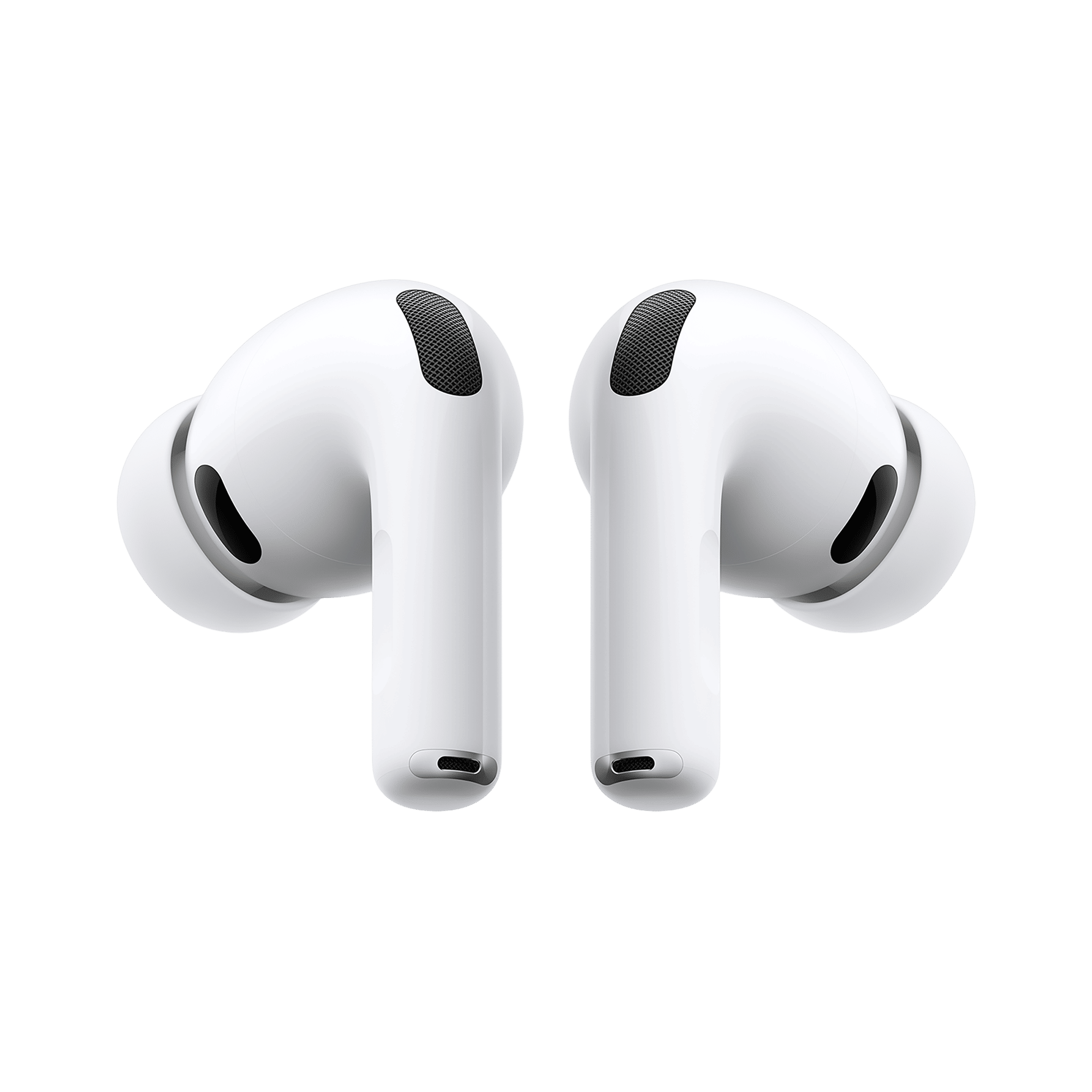
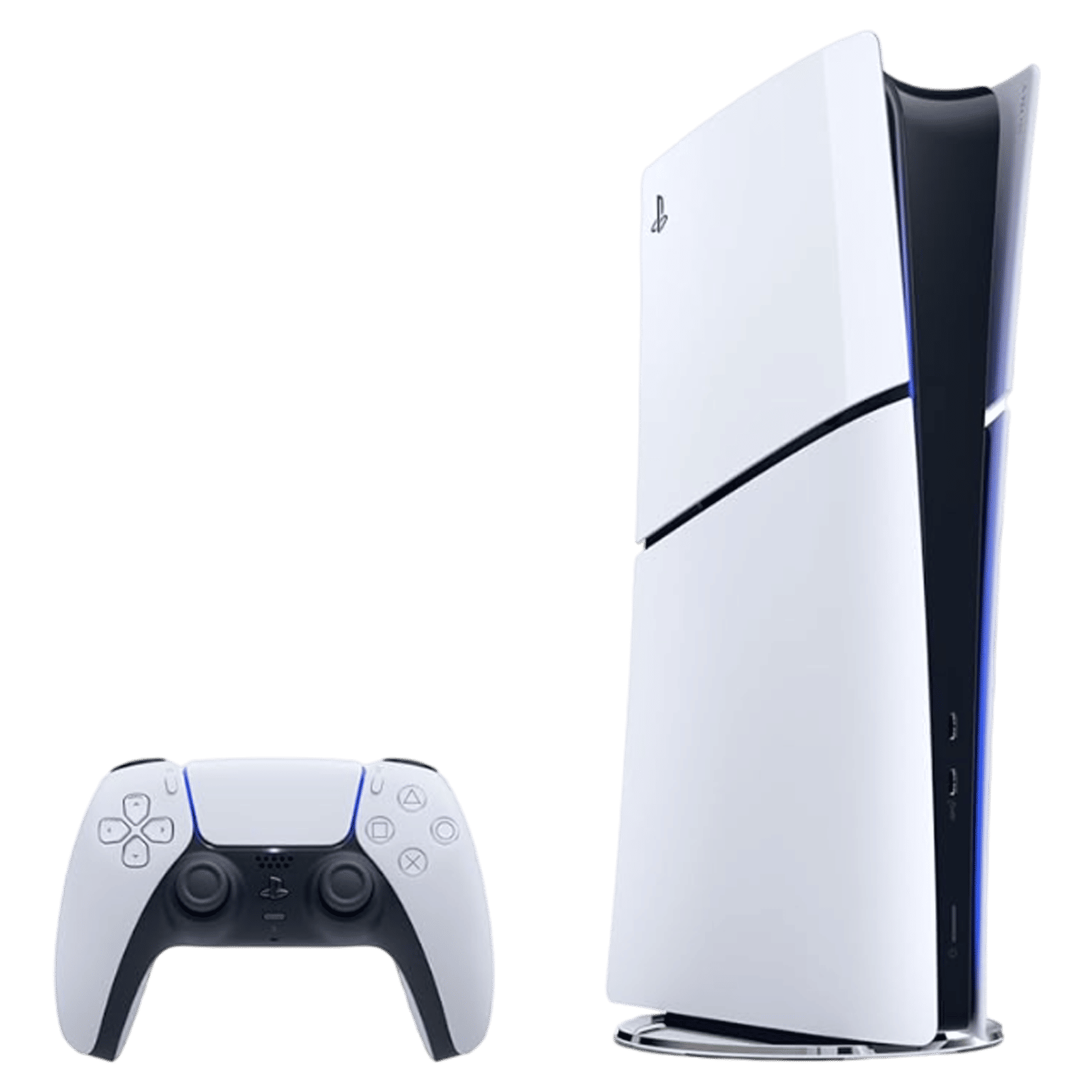
- Open the AirPods case lid
- Press and hold the setup button until the light flashes white
- Open your TV’s Bluetooth settings and select your AirPods from the list of available devices
- Confirm the connection
Once paired, your TV will automatically send PS5 audio to your AirPods. And that does it for how to connect your AirPods to a PS5 with or without an adapter.

Unleash your inner geek with Croma Unboxed
Subscribe now to stay ahead with the latest articles and updates
You are almost there
Enter your details to subscribe

Happiness unboxed!
Thank you for subscribing to our blog.
Disclaimer: This post as well as the layout and design on this website are protected under Indian intellectual property laws, including the Copyright Act, 1957 and the Trade Marks Act, 1999 and is the property of Infiniti Retail Limited (Croma). Using, copying (in full or in part), adapting or altering this post or any other material from Croma’s website is expressly prohibited without prior written permission from Croma. For permission to use the content on the Croma’s website, please connect on contactunboxed@croma.com
- Related articles
- Popular articles
Shubhendu Vatsa
Comments