







Bluetooth speakers are some of the most versatile audio devices you can use, and they connect to pretty much anything that supports Bluetooth, from your phone to your laptop and even your PC. If you’re trying to figure out how to hook up a Bluetooth speaker to your PC, the good news is that it only takes a few quick steps. Once paired, you get better sound quality, a cleaner desk with fewer cables, and the freedom to place your speaker wherever you want. So here’s how to connect your Bluetooth speaker to a PC.
How to connect a Bluetooth speaker to a PC
Connecting a Bluetooth speaker to a Windows PC is easy once you know where to find the right settings. Windows has built-in Bluetooth controls that let you pair a speaker the same way you would with your phone. Before you begin, make sure your speaker is charged and already in pairing mode. With that out of the way, here’s how to quickly connect a Bluetooth speaker with your PC:
1. Turn on Bluetooth on your PC
To turn on your PC’s Bluetooth, simply click the Start menu and open Settings. Go to Devices and select Bluetooth & other devices on the left, then toggle Bluetooth on. If you don’t see the option at all, your PC likely doesn’t have Bluetooth built in. You can still add it by using a USB Bluetooth adapter.
2. Put your Bluetooth speaker in pairing mode
Most Bluetooth speakers have a Bluetooth or Pair button. Press and hold it until you see a blinking light or hear a pairing sound, which tells you the speaker is ready to connect.
ALSO READ: Top 5 Bluetooth speakers under Rs 1500
3. Pair the speaker with your PC
Open the Bluetooth & other devices menu on your PC and click Add Bluetooth or other device. Select Bluetooth in the pop-up window. Your PC will scan for nearby devices and when your speaker appears on the list of available devices, click on it and wait for Windows to confirm the connection. Once it’s paired, Windows will automatically route all your audio to the Bluetooth speaker.
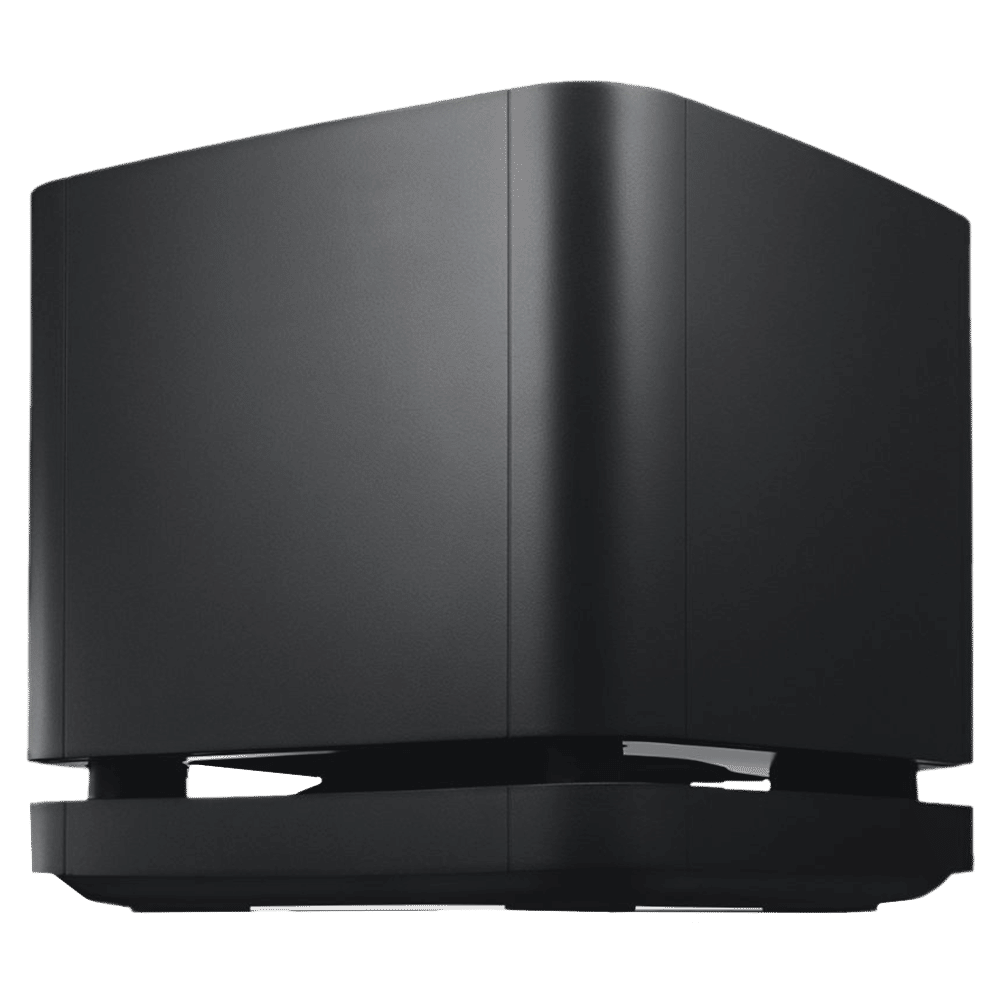
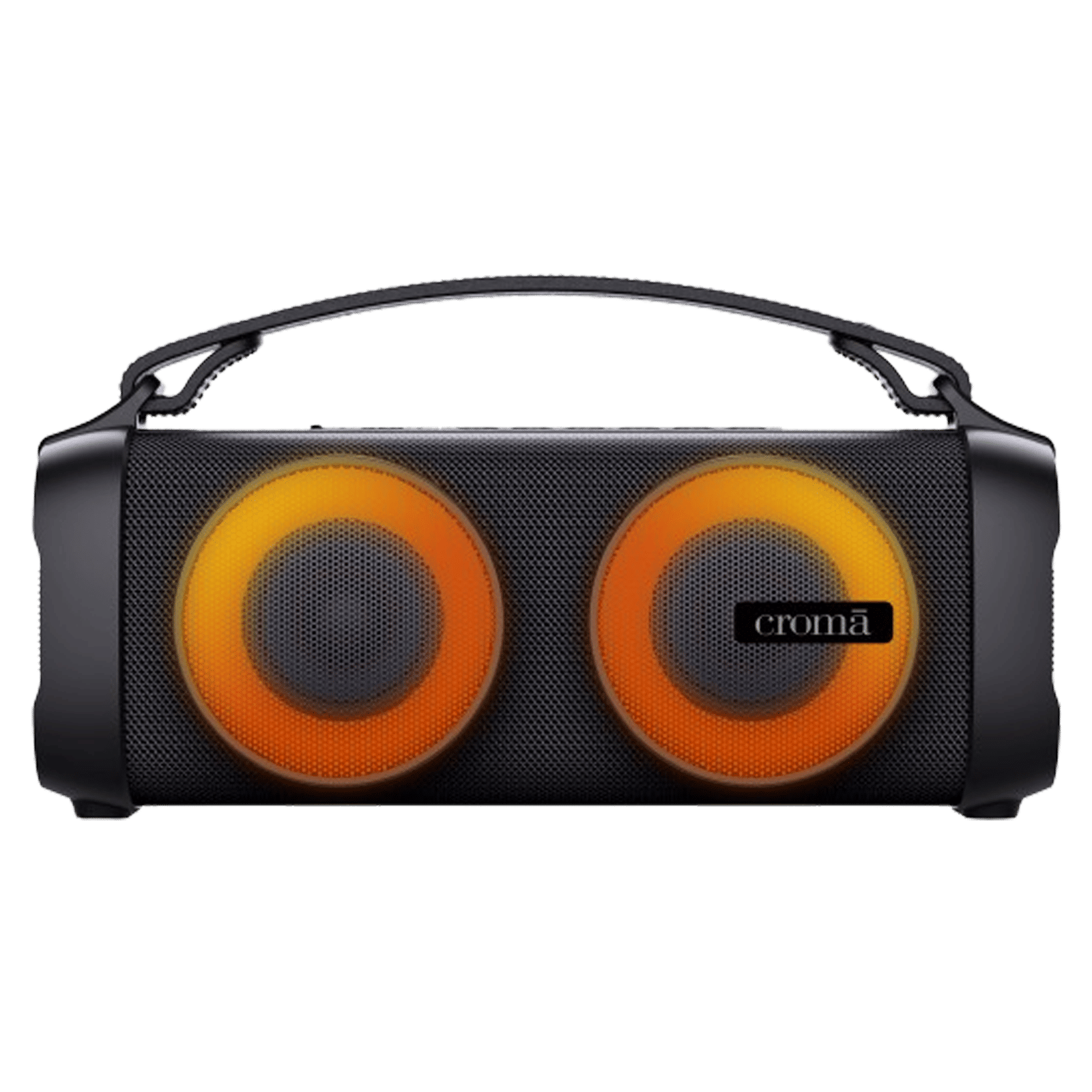
Products in focus
4. Set the Bluetooth speaker as the default audio output
If the sound is still coming from your PC speakers, click the sound icon in the taskbar and switch the output device to your Bluetooth speaker. You’ll see it in the list of available audio devices.
Once your Bluetooth speaker has been paired, reconnecting is simple. Turn on your Bluetooth speaker and make sure Bluetooth is enabled on your PC. Windows usually reconnects automatically, but if it doesn’t, open Bluetooth settings and click Connect next to your speaker’s name.

Unleash your inner geek with Croma Unboxed
Subscribe now to stay ahead with the latest articles and updates
You are almost there
Enter your details to subscribe

Happiness unboxed!
Thank you for subscribing to our blog.
Disclaimer: This post as well as the layout and design on this website are protected under Indian intellectual property laws, including the Copyright Act, 1957 and the Trade Marks Act, 1999 and is the property of Infiniti Retail Limited (Croma). Using, copying (in full or in part), adapting or altering this post or any other material from Croma’s website is expressly prohibited without prior written permission from Croma. For permission to use the content on the Croma’s website, please connect on contactunboxed@croma.com
- Related articles
- Popular articles
Shubhendu Vatsa
Comments