







If you enjoy gaming on your Android smartphone or iPhone, knowing how to connect a Bluetooth controller (whether it be a PlayStation, Xbox, or any other controller) to your phone is probably the easiest and best way to get around those cramped on-screen controls and have a more console-like experience. Most mobile games now support external controllers, and pairing one is usually quick if you know what to do. In this guide, we’ll show you how to connect PS, Xbox, and generic Bluetooth controllers to both Android and iPhone, so you can start playing your games with a setup that actually feels a tad more natural.
How to controller to Android or iPhone
Getting a controller working with your phone is pretty simple, but the process varies slightly by model. Below is a simple walkthrough for PS, Xbox, and generic Bluetooth controllers across both Android and iPhone:
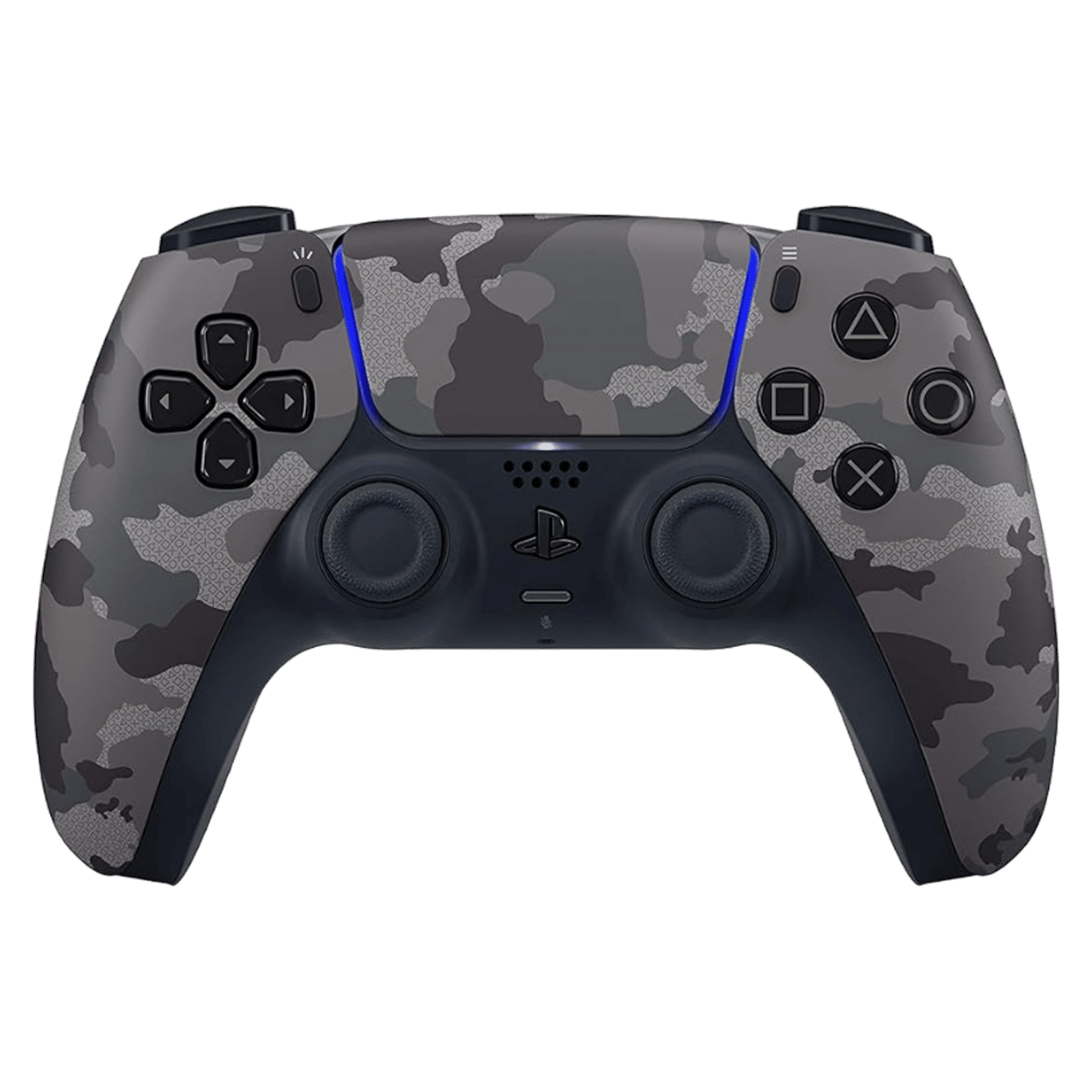
Connecting an Android smartphone with a PS4/PS5 controller
Pairing a PlayStation controller with your Android smartphone only takes a moment and to do this, simply:
- Put the controller in pairing mode.
- Hold PS + Share (PS4) or PS + Create (PS5) until the light bar starts flashing.
- Open Settings on your phone.
- Go to Bluetooth.
- Look for the Wireless Controller in the list and tap to pair.
Connecting an iPhone with a PS4/PS5 controller
iPhone pairing works the same way and only takes a few seconds. To pair your iPhone with a PS4 or PS5 controller:
- Put the controller in pairing mode using the PS + Share (PS4) or PS + Create (PS5) button combo.
- Then, on your iPhone, open Settings > Bluetooth.
- Select Wireless Controller from the list.
You’ll know it’s paired once the light bar stops flashing and holds a steady color.
Connecting an Android smartphone with an Xbox Wireless controller
Xbox controllers follow a slightly different setup, but the process is still quick.
- Turn on the controller by pressing the Xbox button.
- Hold the Pair button on top until the Xbox light flashes rapidly.
- Open Settings > Bluetooth on your Android phone.
- Tap the Xbox Wireless Controller when it appears.
Connecting an iPhone with an Xbox Wireless controller
The pairing method on iPhone is practically identical; however, make sure your Xbox controller is a Bluetooth-supported model.
- Put the controller in pairing mode by holding the Pair button.
- Open Settings > Bluetooth on your iPhone.
- Select the Xbox Wireless Controller from the list.
One thing to keep in mind here is that newer Xbox controllers support Bluetooth, but old non-Bluetooth models won’t connect to phones.
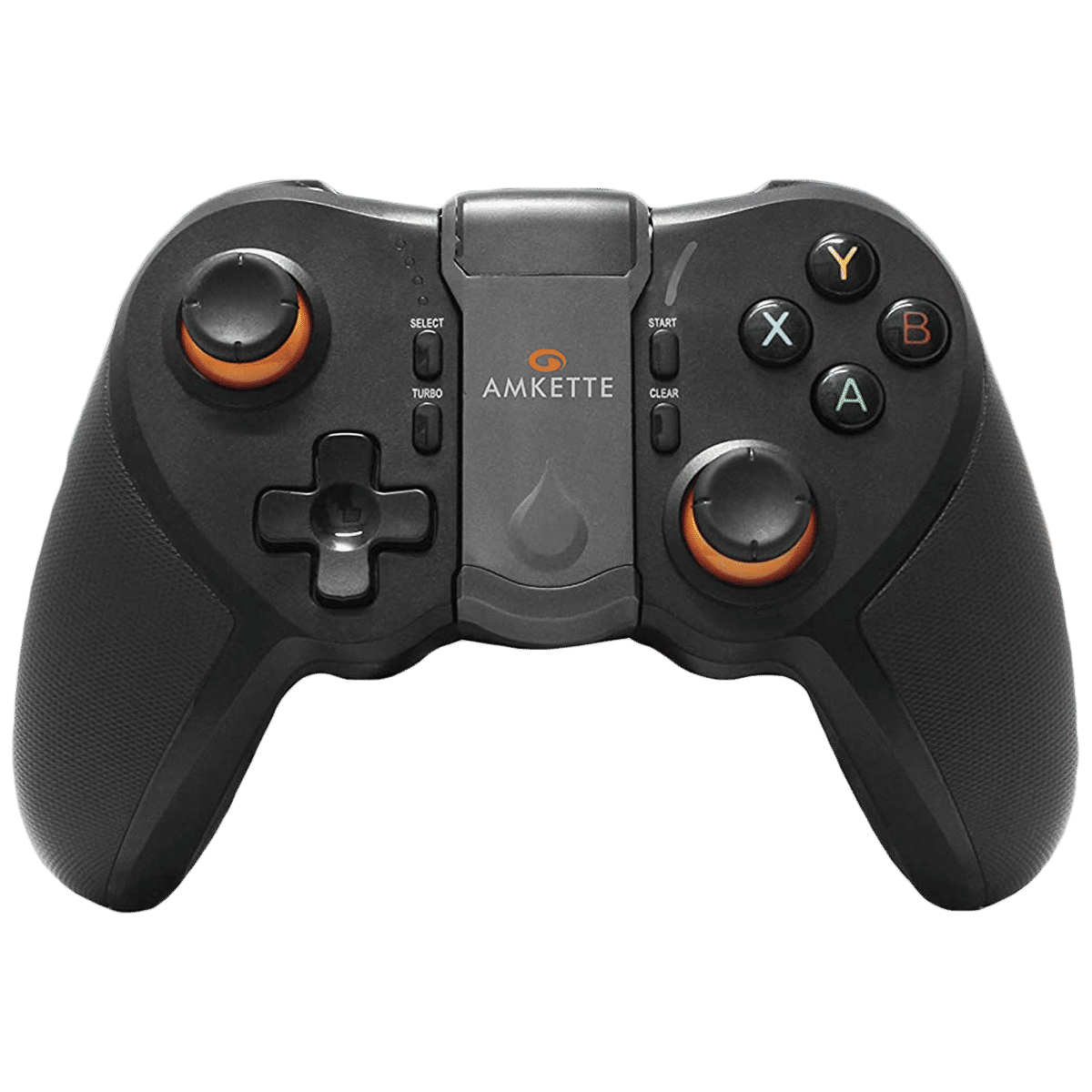
Connecting an Android smartphone with a generic Bluetooth controller
Generic controllers can vary a bit depending on the brand, but most of them follow the same basic pattern. As long as the LED starts blinking, your phone should detect it without trouble.
- Turn on the controller.
- Hold the Bluetooth / Pair / Home button (varies by model) until the LED starts flashing.
- Open Settings > Bluetooth on your Android device.
- Then, select the controller to pair
Connecting an iPhone with a generic Bluetooth controller
iPhone pairing is also simple, but keep in mind that some third-party controllers don’t support iOS unless they use the right Bluetooth profile.
- Put the controller in pairing mode.
- Open Settings > Bluetooth on your iPhone.
- Tap the controller name once it shows up.
ALSO READ: New video games in December 2025 to look out for
And that’s how you can connect nearly every Bluetooth controller with your Android smartphone or iPhone.

Unleash your inner geek with Croma Unboxed
Subscribe now to stay ahead with the latest articles and updates
You are almost there
Enter your details to subscribe

Happiness unboxed!
Thank you for subscribing to our blog.
Disclaimer: This post as well as the layout and design on this website are protected under Indian intellectual property laws, including the Copyright Act, 1957 and the Trade Marks Act, 1999 and is the property of Infiniti Retail Limited (Croma). Using, copying (in full or in part), adapting or altering this post or any other material from Croma’s website is expressly prohibited without prior written permission from Croma. For permission to use the content on the Croma’s website, please connect on contactunboxed@croma.com
- Related articles
- Popular articles
Shubhendu Vatsa
Comments