







Incognito mode, also known as InPrivate Browsing, has long been the way to browse the internet when you seek invisibility online. However, the internet’s cloak of invisibility has gained popularity from the belief that it wipes all traces of your online activity as soon as you close the incognito window, but the truth is far from it.
Incognito mode, in reality, does not save your browsing history on the device, but it doesn’t make you anonymous. Your employer, school, internet service provider, and the websites you visit can still track your activity. Wondering about ways on how to delete history from incognito? You’ve come to the right place.
How to delete history from incognito
The first thing to know about incognito browsing is that it doesn’t store your browsing history locally. In other words, there is no incognito browsing history to delete on your browser. Once you close your incognito window, Chrome, Edge, Safari, Firefox, and other browsers erase the following:
– Browsing history
– Cookies and site data
– Form inputs
– Temporary cache
ALSO READ: Google reveals Chrome doesn’t always protect your activity in incognito mode
However, your browsing in incognito mode does leave some traces and below are the ways to clear them.
How to clear incognito history
Since your browser doesn’t store incognito history, you need to clear the traces outside your browser. Here’s how.
1. Clear browser cache and cookies
Since your regular browser window and incognito window share the same system-level cache, you should clear your browser cache and cookies to ensure no trace remains.
2. Delete extensions with tracking permissions
Go to Browser Settings > Extensions > Disable Allow in Incognito/InPrivate to prevent extensions from recording your browsing history.
3. Delete DNS cache
Your operating system stores DNS lookup, which is essentially a list of all the websites you visited. You can clear it manually
- Windows: Open CMD > type: ipconfig /flushdns > press Enter.
- macOS: Open Terminal > type: sudo killall -HUP mDNSResponder > Enter (enter admin password).
- Android: Toggle Airplane mode on and off or clear the cache of your browser.
- iPhone: Restarting or toggling Aeroplane mode flushes DNS.
4. Check Google Activity settings
If you stay logged into Chrome while browsing incognito, Google will still be able to track your activity via Web & App activity, Timeline, YouTube history, and Location history. You can go to myactivity.google.com to “Pause or Clear” activity. This will ensure Google stops logging data across devices, not just browsers.
ALSO READ: How to close all incognito tabs in one go on Chrome
5. Use a privacy-focused browser
For truly private browsing, opt for privacy-first browsers like DuckDuckGo, Brave, or Firefox Focus. They automatically wipe background activity and block most trackers at the network level.

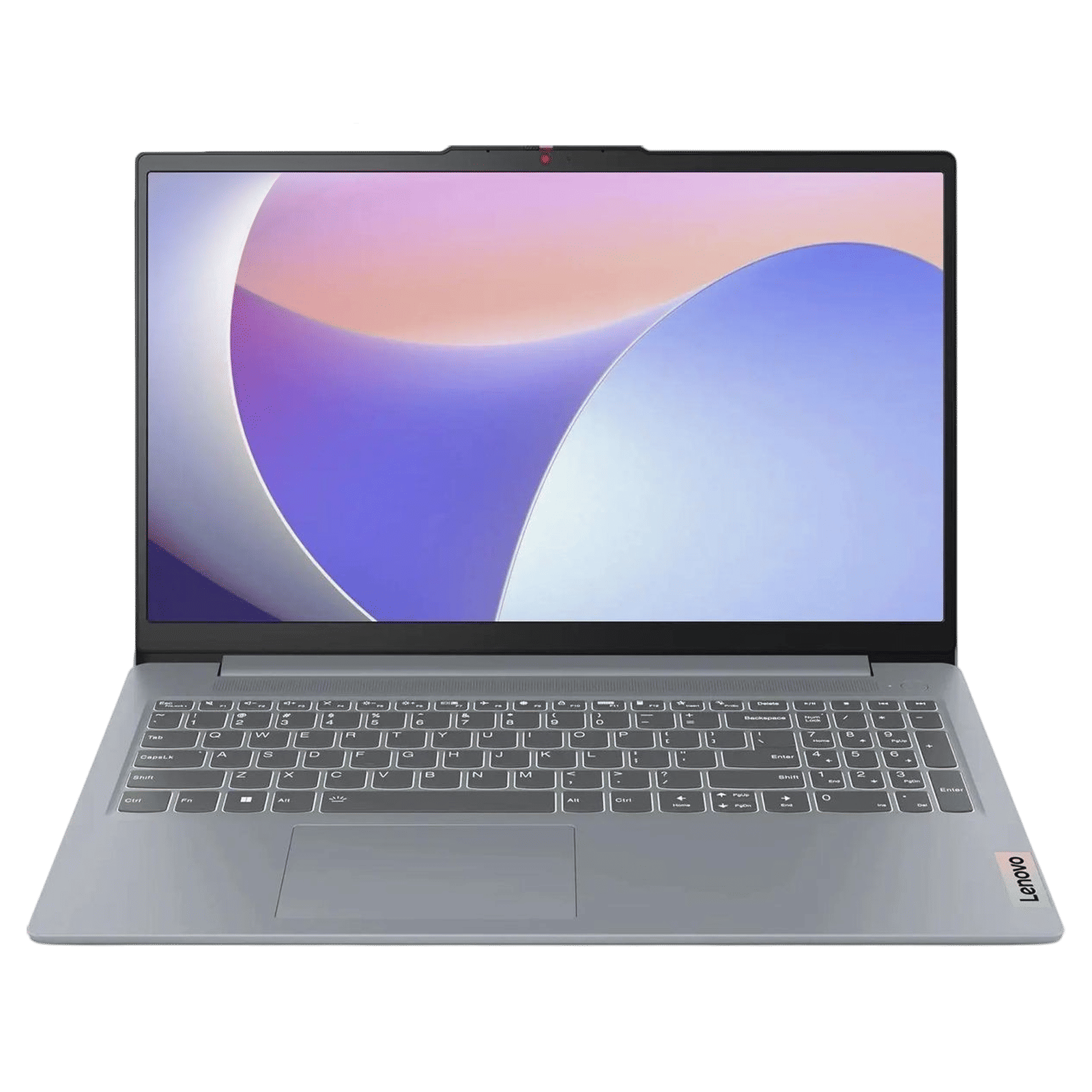
In addition to the above steps, you can also use a VPN for true anonymity online. Since VPN encrypts your traffic and prevents ISPs from logging your browsing history, it becomes one of the most effective ways to obscure activity from networks. You can also clear the system logs of your router for additional safety.
Incognito mode helps hide your browsing history locally, but it does not erase your digital footprint. To delete incognito history, you must delete DNS logs, system or browser cache, Google activity, and even router logs. If possible, use a VPN for real privacy.

Unleash your inner geek with Croma Unboxed
Subscribe now to stay ahead with the latest articles and updates
You are almost there
Enter your details to subscribe

Happiness unboxed!
Thank you for subscribing to our blog.
Disclaimer: This post as well as the layout and design on this website are protected under Indian intellectual property laws, including the Copyright Act, 1957 and the Trade Marks Act, 1999 and is the property of Infiniti Retail Limited (Croma). Using, copying (in full or in part), adapting or altering this post or any other material from Croma’s website is expressly prohibited without prior written permission from Croma. For permission to use the content on the Croma’s website, please connect on contactunboxed@croma.com
- Related articles
- Popular articles
Karthekayan Iyer
Comments