







Smart TVs have completely changed the way we consume content. By offering direct access to streaming services, games, and other productivity tools, smart TVs are putting content at the centre of everything we do on our TV. However, if you are new to smart TVs or switching to a new smart TV brand, then you might be wondering how to download an app on a smart TV. Since different brands have different operating systems, the process can be a little confusing.
Download app on smart TV
However, once you know where to look, the process to download apps on any smart TV gets fairly simple. For this guide, we will break down the steps to download and install apps on popular smart TV platforms. Whether you have a Samsung smart TV, an LG smart TV, an Android TV, or a Fire TV, here’s how to download app on smart TV.
How to download an app on Android TV
Android is the most popular platform for smart TVs, and popular TV brands like Sony, OnePlus, Xiaomi, and others offer Android TV. If you have an Android TV, here is a step-by-step guide to downloading apps:
Step 1: Press the Home button on your Android TV remote.
Step 2: Go to the Apps section and click on the Google Play Store.
Step 3: Use the voice search or type manually to find the app.
Step 4: Select the app and then click Install.
Step 5: Once installed, the app will appear in the Apps section.
ALSO READ: Best TVs for gaming in 2025: Smooth, sharp and lag-free
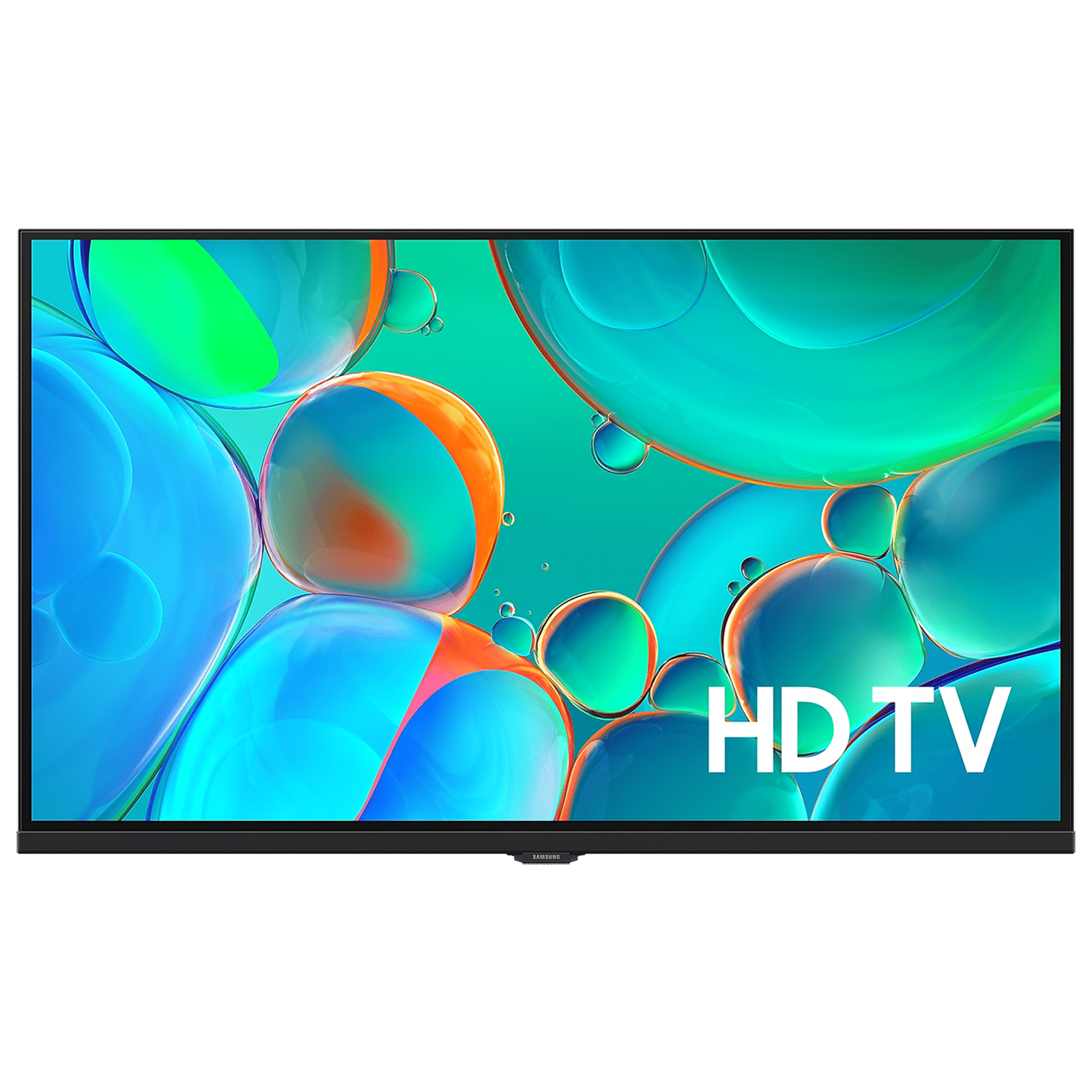
Samsung Smart TV: How to download apps on Tizen OS
Samsung smart TVs run their proprietary operating system called Tizen OS, and before downloading an app, you may need to log in with your Samsung account. Once logged in, follow these steps to download apps on your Samsung smart TV:
Step 1: Press the Home button on your Samsung remote.
Step 2: Navigate to Apps using the directional buttons.
Step 3: Browse or search for your favourite app using the Search icon.
Step 4: Select the app and click Install.
Step 5: Once installed, open the app from the Home screen or Apps section.
How to download an app on an LG Smart TV
Like Samsung, LG smart TVs run webOS, a proprietary operating system for smart TVs, and to download apps, you need to ensure that the TV is connected to the internet and your LG account is active. Here are the steps to download apps on an LG smart TV:
Step 1: Press the Home or Smart button on your LG TV remote.
Step 2: Go to the LG Content Store.
Step 3: Use the search bar or browse categories to find the app.
Step 4: Select the app and hit Install.
Step 5: Launch the app directly from the installation screen or the Home screen
If you have a TV running Fire OS, then you need to follow these steps to download apps:
Step 1: On your Fire TV remote, press the Home button.
Step 2: Navigate to the Fire Tab and click on Appstore.
Step 3: Use the keyboard or voice search to locate the app.
Step 4: Select the app you want to download and then click on the Get or Download option.
Step 5: Once downloaded, you can access the apps from the Your Apps & Channels section.
For Fire TV users, there is also an option to download apps using the Amazon website, which will push the app directly to your Fire TV.
ALSO READ: Apple TV 4K vs Fire TV Stick 4K: Which one should you pick?
While these are the most prominent app ecosystems for smart TVs, you may have connected an Apple TV to your smart or non-smart television. If you are an Apple TV user, go to the App Store from the Apple TV home screen, use the Search tab or browse categories to discover apps to download, select the app and click Get and sign in with your Apple ID if prompted. This will download the app to the home screen of your Apple TV interface.
A smart TV is as smart as the apps running on it, and knowing how to download an app on a smart TV will help you unlock the full potential of your television. Whether you are interested in streaming Netflix, YouTube, JioHotstar, or setting up a game for your kids, a smart TV opens doors to a wide range of entertainment, and the right apps make that entertainment a wholesome experience.

Unleash your inner geek with Croma Unboxed
Subscribe now to stay ahead with the latest articles and updates
You are almost there
Enter your details to subscribe

Happiness unboxed!
Thank you for subscribing to our blog.
Disclaimer: This post as well as the layout and design on this website are protected under Indian intellectual property laws, including the Copyright Act, 1957 and the Trade Marks Act, 1999 and is the property of Infiniti Retail Limited (Croma). Using, copying (in full or in part), adapting or altering this post or any other material from Croma’s website is expressly prohibited without prior written permission from Croma. For permission to use the content on the Croma’s website, please connect on contactunboxed@croma.com
- Related articles
- Popular articles
Karthekayan Iyer
Comments