







Running out of iPhone storage is almost inevitable, especially as photos, videos, app data, and backups begin to take up more space. Even higher-capacity models can fill up faster than expected, which is why knowing how to offload data to iCloud matters.
Apple already includes several built-in options to move photos, files, and backups to iCloud, depending on what you want to clear out. So, here’s how to move iPhone storage to iCloud the right way.
How to move iPhone storage to iCloud
You don’t manually move everything from your iPhone to iCloud. Instead, Apple uses built-in features that store full-resolution files in iCloud while keeping lighter versions on your device. Once these are turned on, your iPhone starts freeing up space automatically in the background.
Moving photos and videos to iCloud
Photos and videos usually take up the most space. When you turn on iCloud Photos and select Optimize iPhone Storage, your iPhone uploads full-resolution photos and videos to iCloud. After that, it keeps smaller versions on your device and only downloads the full files when you open them. This reduces local storage usage over time without deleting anything.
Moving files and documents to iCloud
Files saved directly on your iPhone can also be moved off local storage. All you need to do is open the Files app and move items from On My iPhone to iCloud Drive. Once moved, these files live in iCloud instead of your device and only download when you access them. Until then, they don’t take up full storage space.
How to move your iPhone backup to iCloud
Most people don’t realise their iPhone backup doesn’t have to stay on the phone. Enabling iCloud Backup automatically transfers your backup to iCloud.
To enable it, go to Settings, then tap on your name at the top, then iCloud and iCloud Backup. Then, simply turn on iCloud Backup. Once enabled, your iPhone will back up when it’s charging and connected to Wi-Fi.
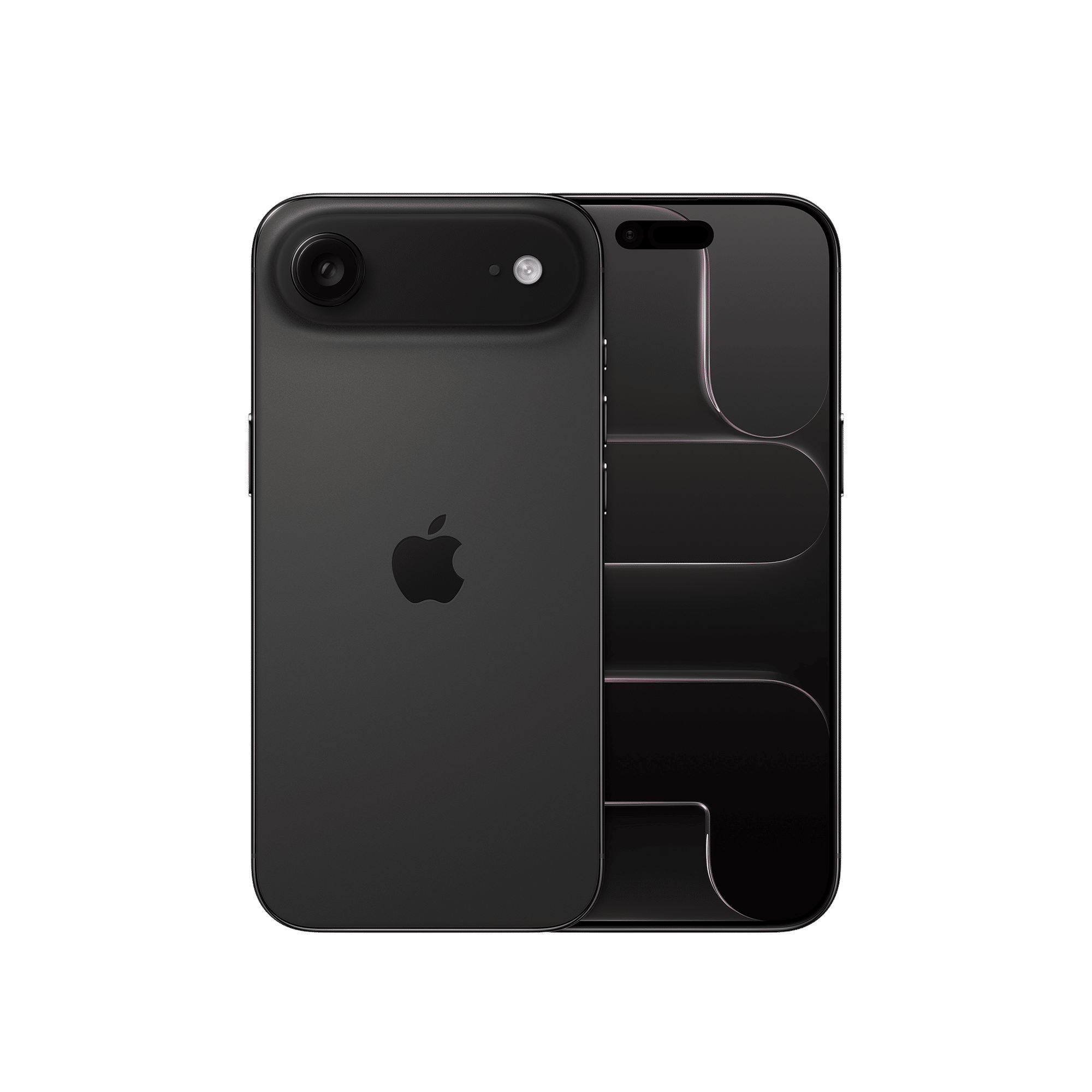
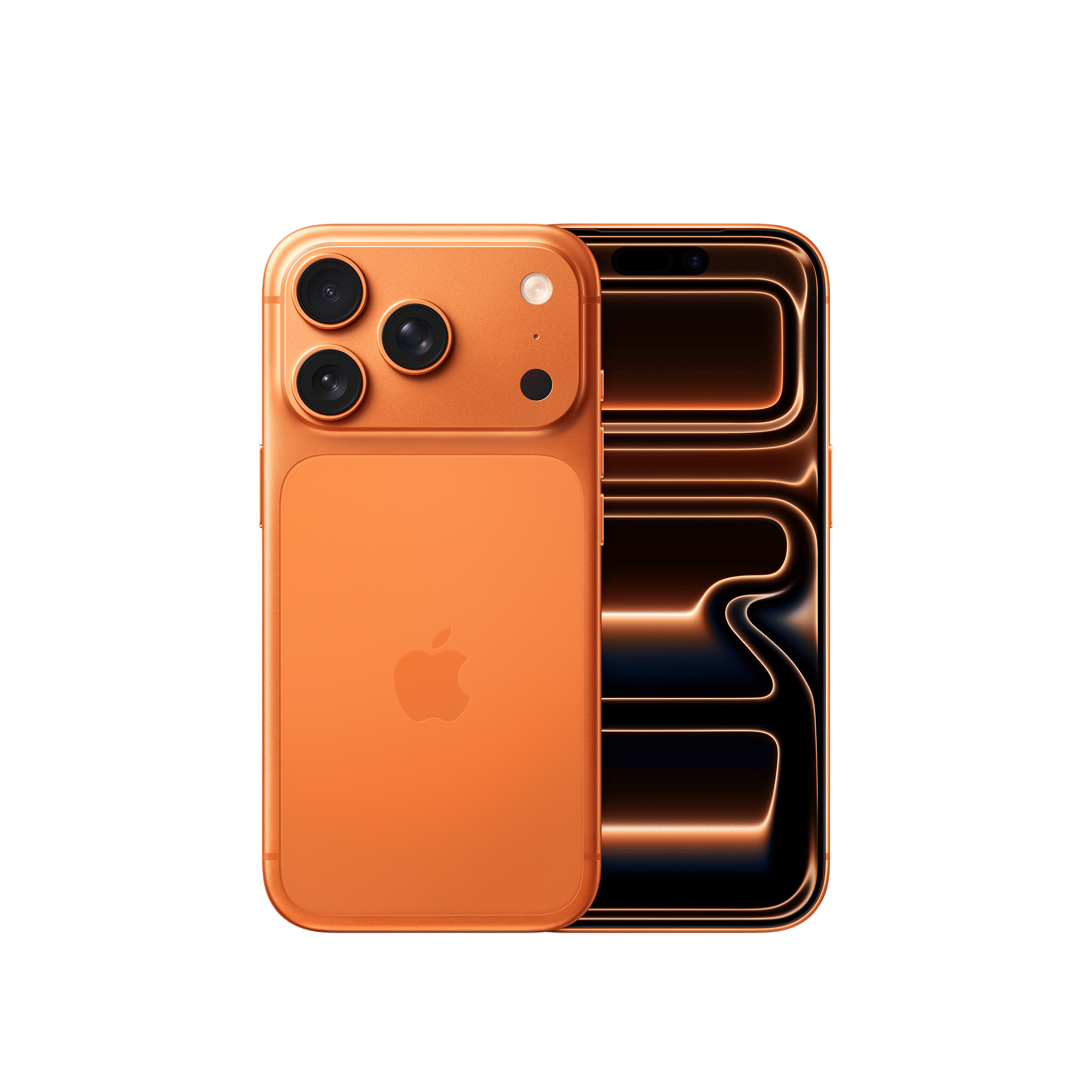
After these features are enabled, iOS will manage storage on its own, removing large local files first, keeping frequently used content available, and downloading full versions from iCloud only when needed. And that does it for our how to move iPhone storage to iCloud guide.

Unleash your inner geek with Croma Unboxed
Subscribe now to stay ahead with the latest articles and updates
You are almost there
Enter your details to subscribe

Happiness unboxed!
Thank you for subscribing to our blog.
Disclaimer: This post as well as the layout and design on this website are protected under Indian intellectual property laws, including the Copyright Act, 1957 and the Trade Marks Act, 1999 and is the property of Infiniti Retail Limited (Croma). Using, copying (in full or in part), adapting or altering this post or any other material from Croma’s website is expressly prohibited without prior written permission from Croma. For permission to use the content on the Croma’s website, please connect on contactunboxed@croma.com
- Related articles
- Popular articles
Shubhendu Vatsa
Comments