







Resetting your Samsung tablet erases all data and restores it to its factory settings, removing all apps, data, and personal settings. You can reset a Samsung tablet from the Settings menu if the tablet is working normally, or by using hardware buttons and remote tools if you cannot sign in or use the screen.
A reset can help if the tablet is frozen, stuck on a black screen, not responding to touch, or if you want to erase everything before giving it to someone else. So, here is how to reset a Samsung tablet with or without a password.
How to easily reset a Samsung tablet with or without password?
If your Samsung tablet keeps freezing, refuses to load the home screen, or you simply want to clear your data before passing it on, a reset can help.
ALSO READ: 7 signs it’s time to upgrade your Android tablet
It removes all apps, accounts, and personal files, restoring the tablet to its original factory state. Here’s how to reset your Samsung tablet with or without a password:
Reset a Samsung tablet via settings (with password)
If you can unlock your tablet and navigate the menus, this is the simplest method. Here’s how you can reset your Samsung tablet using a password:
Step 1: Open Settings from the app drawer or quick menu.
Step 2: Go to General Management and then Reset.
Step 3: Select Factory Data Reset.
Step 4: Review the data that will be erased and tap Reset.
Step 5: Enter your password, PIN, or pattern if prompted.
Step 6: Tap Delete All to start the reset process.
Once complete, the tablet will reboot and return to its original factory state.
Reset a Samsung tablet without password
If you’re locked out or the screen isn’t responding, you can reset it directly from recovery mode. Here’s how:
Step 1: Turn off the tablet by holding the power button.
Step 2: Press and hold Volume Up + Power (or Home if available) until the Samsung logo appears. This will take you into recovery mode.
Step 3: Once you’re there, use the volume buttons to scroll and highlight Wipe data/factory reset, then press the power button to select it.
Step 4: Select Yes to erase all user data.
Once the reset is complete, select “Reboot system now” to start fresh.
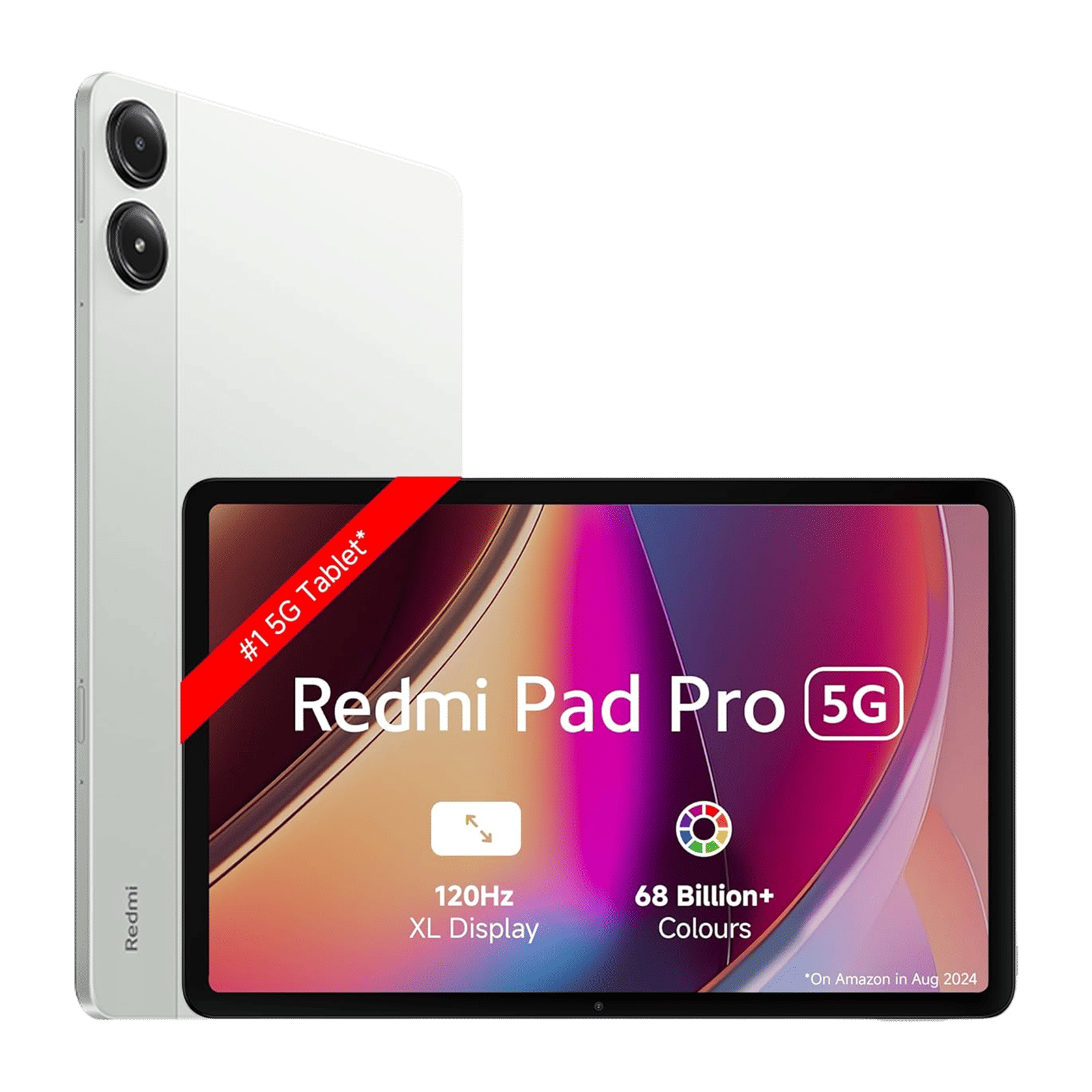

Reset a Samsung tablet using remote tools
If your tablet is online and linked to your account, you can also reset it remotely from another device. For Samsung’s Find My Mobile, visit findmymobile.samsung.com, sign in with your Samsung account, select your tablet from the list, and choose Erase Data to wipe it. For Google’s Find My Device, go to google.com/android/find, log in with your Google account, pick your tablet, and select Erase Device.

Unleash your inner geek with Croma Unboxed
Subscribe now to stay ahead with the latest articles and updates
You are almost there
Enter your details to subscribe

Happiness unboxed!
Thank you for subscribing to our blog.
Disclaimer: This post as well as the layout and design on this website are protected under Indian intellectual property laws, including the Copyright Act, 1957 and the Trade Marks Act, 1999 and is the property of Infiniti Retail Limited (Croma). Using, copying (in full or in part), adapting or altering this post or any other material from Croma’s website is expressly prohibited without prior written permission from Croma. For permission to use the content on the Croma’s website, please connect on contactunboxed@croma.com
- Related articles
- Popular articles
Shubhendu Vatsa
Comments