







Flashlight notifications can be an incredibly helpful feature for staying on top of incoming messages and calls, especially when you’re in a noisy environment or have your phone on silent. Whether you need an iPhone flashlight message or a flashlight for incoming call alert, this feature ensures you don’t miss anything important. In this guide, we’ll explain how to set up flashlight notifications on both iPhone and Android phones, making it easier to receive visual cues for calls and messages.
Setting up flashlight notifications on iPhone
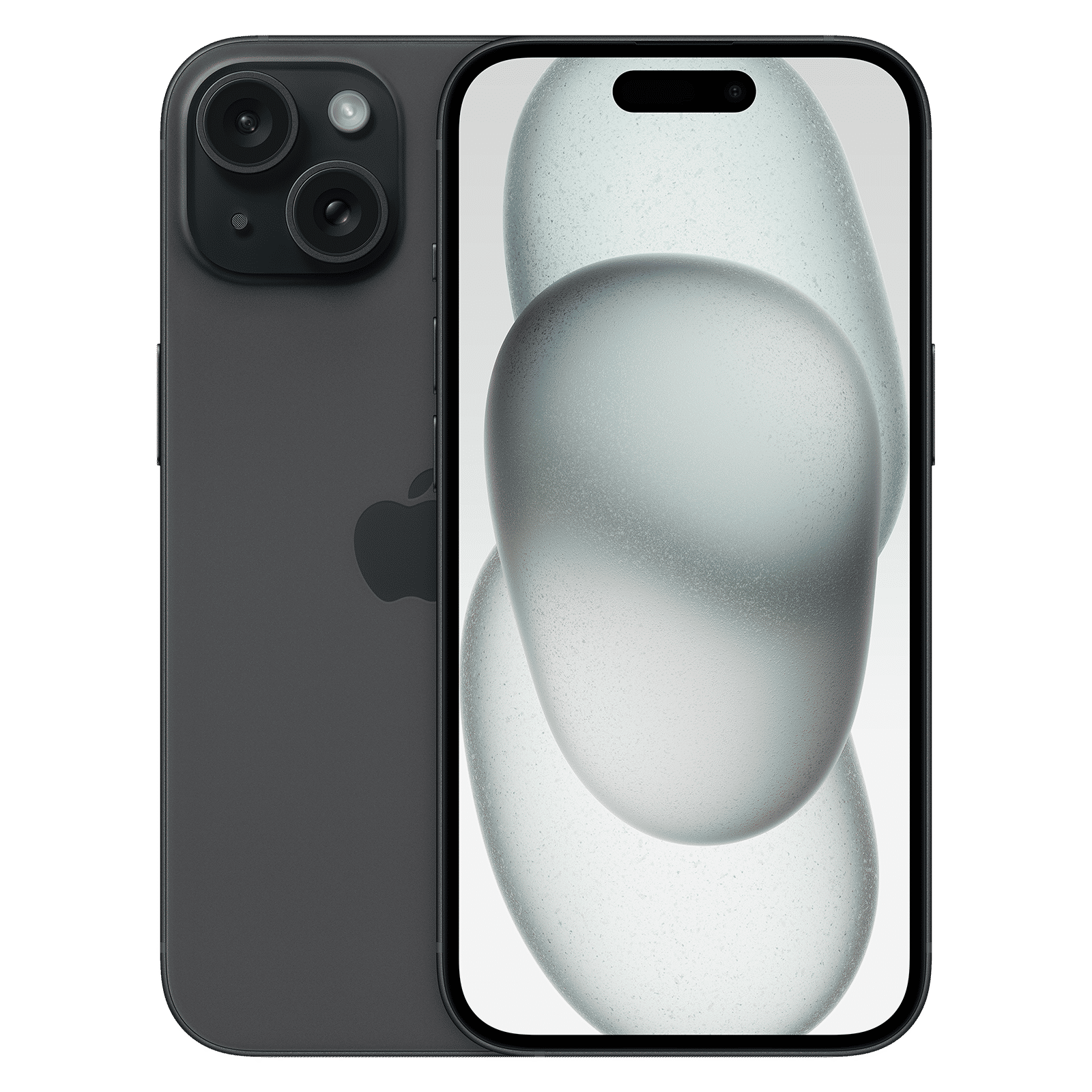
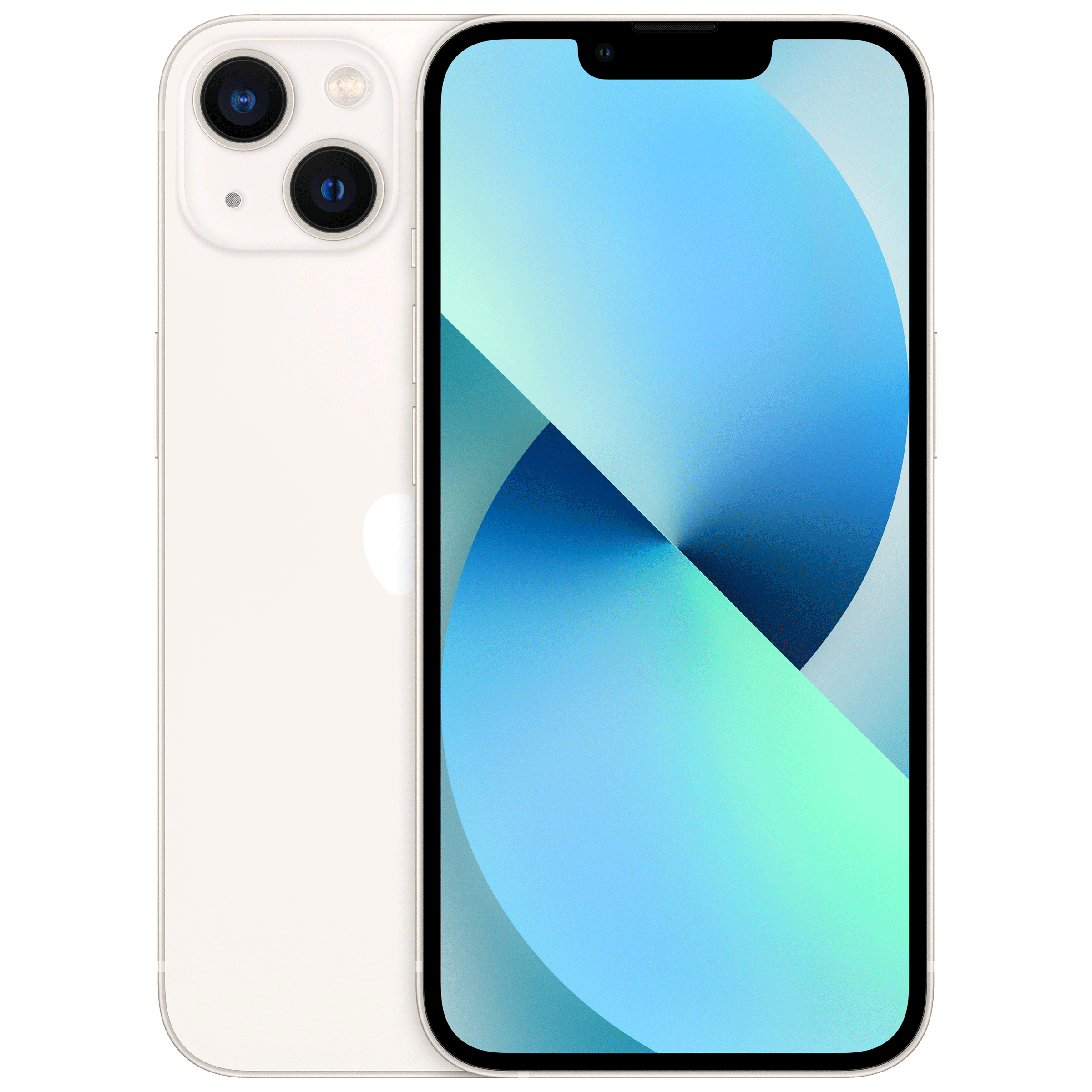
If you’re an iPhone user, Apple offers an easy way to activate flashlight notifications for incoming calls and messages. To begin, follow these steps:
– Go to your iPhone’s home screen and tap on the Settings app.
– Scroll down and tap Accessibility.
– Under the “Hearing” section, tap on Audio/Visual.
– Toggle the switch next to LED Flash for Alerts to turn it on.
– Now, whenever you receive an incoming call or message, your iPhone’s flashlight will blink, alerting you with a bright light.
This feature is especially useful when your phone is on silent mode or when you’re in a situation where you can’t hear the ringtone. The iPhone flashlight message or flash light for incoming call feature ensures you’re still notified.
ALSO READ: How to manage push notifications on the iPad
Setting up flashlight notifications on Android
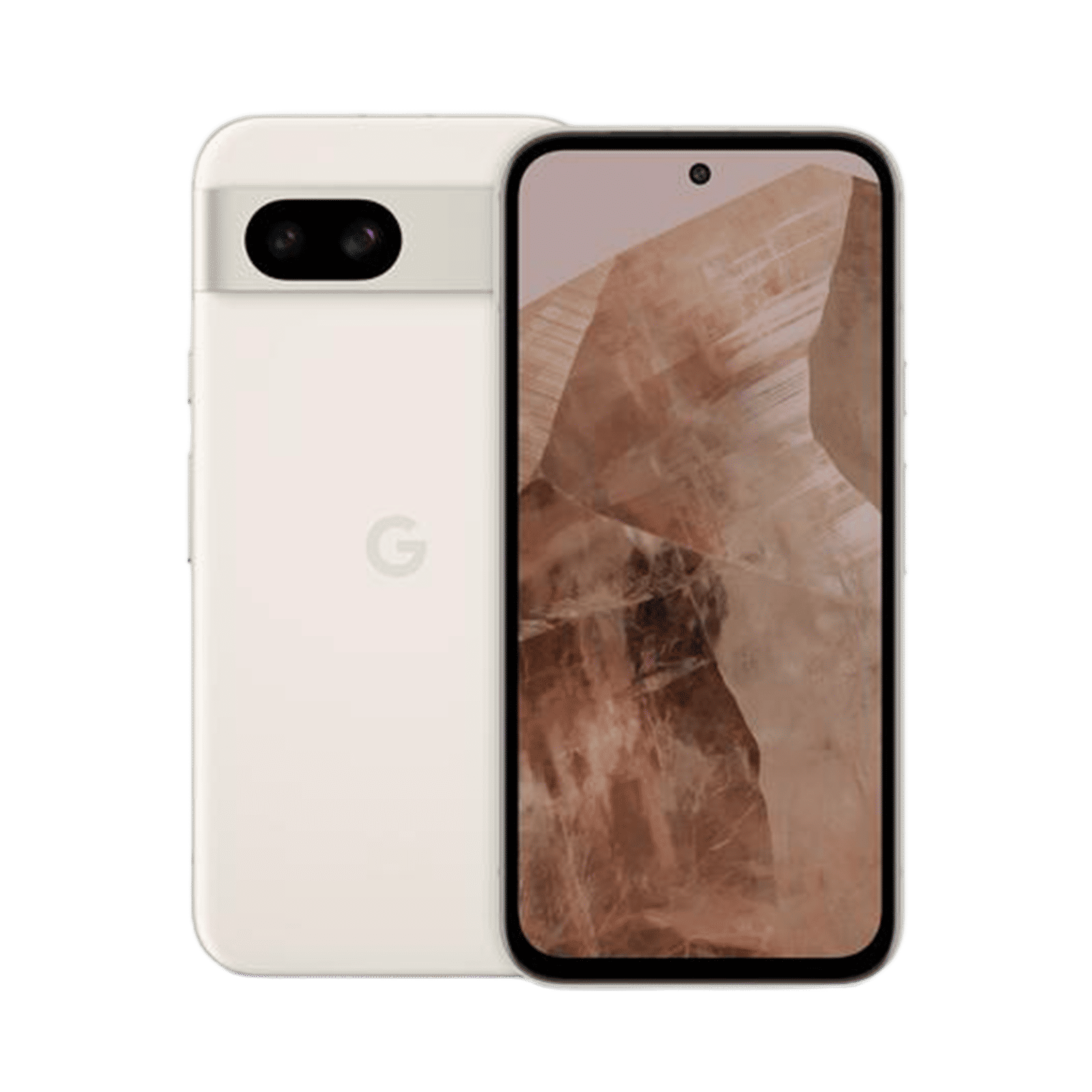
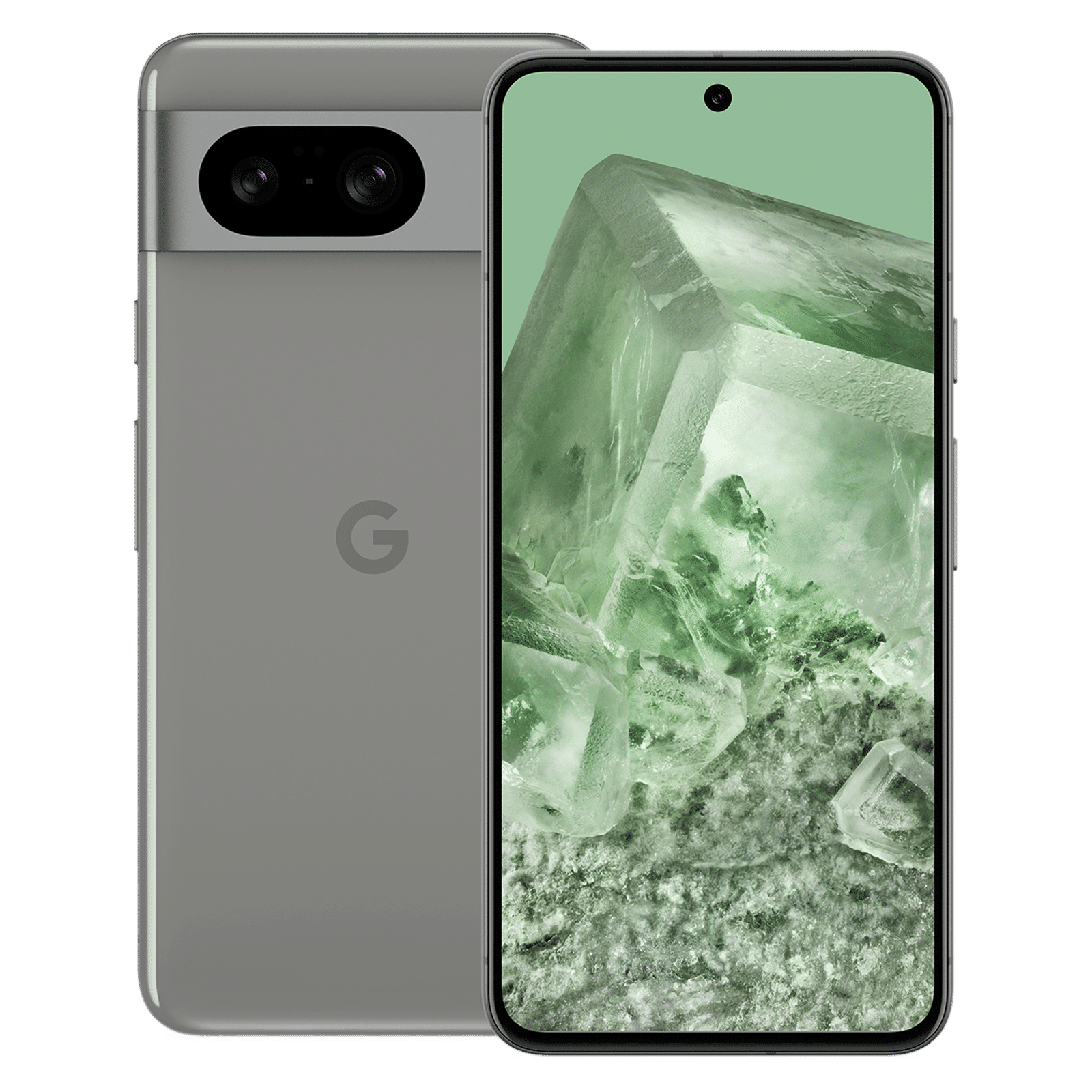
For Android users, setting up flashlight notifications varies slightly depending on the brand and version of the phone, but the process is largely similar. Here’s a simple way to activate this feature:
– Access your phone’s Settings menu.
– Scroll down and tap on Accessibility or Advanced Settings, then look for Flash Notification or Flash Alert.
– Toggle on the Flash Notification or Flash Alert option to enable the flashlight to blink when you receive incoming notifications.
– Some Android phones allow you to customise whether the flashlight flashes for calls, messages, or both.
This setup works similarly to the iPhone, ensuring you don’t miss important notifications, especially when you’re in a noisy environment or have your phone on silent.
ALSO READ: Android 16 may bring iPhone’s Dynamic Island-like notifications to Pixel devices
Other apps for customising flashlight notifications
If your phone doesn’t have a built-in flashlight notification feature or you want more customisation options, you can download third-party apps from the App Store or Google Play Store. Some popular apps that allow you to set up flashlight alerts for specific notifications include Flash Alerts 2 for Android and LED Flash Notification for iPhones. These apps offer greater flexibility, letting you decide which notifications trigger the flash.
Flashlight notifications are a valuable tool for staying connected in our increasingly noisy world. By following the steps outlined above, you can easily enable and customise this feature on both iPhone and Android devices. So why not give it a try? You might be surprised at how much more aware and responsive you become to your incoming communications.

Unleash your inner geek with Croma Unboxed
Subscribe now to stay ahead with the latest articles and updates
You are almost there
Enter your details to subscribe

Happiness unboxed!
Thank you for subscribing to our blog.
Disclaimer: This post as well as the layout and design on this website are protected under Indian intellectual property laws, including the Copyright Act, 1957 and the Trade Marks Act, 1999 and is the property of Infiniti Retail Limited (Croma). Using, copying (in full or in part), adapting or altering this post or any other material from Croma’s website is expressly prohibited without prior written permission from Croma. For permission to use the content on the Croma’s website, please connect on contactunboxed@croma.com
- Related articles
- Popular articles
Anvinraj Valiyathara
Comments