







Pendrives may feel like a thing of the past in the age of cloud storage and wireless sharing, but they’re still useful when you need a fast, offline way to move or back up files. Knowing how to transfer data to a pendrive can be especially useful for times when you want to share documents, create quick backups, or move files without an internet connection. Here’s how to easily transfer data from your laptop to a pendrive.
Moving data from a laptop and phones to a pendrive hasn’t really changed over the years, and that’s a good thing. The process works largely in the same way on both Windows laptops and MacBooks on the laptop side and Android and iOS on the mobile side.
For the data transfer to work, all you need is a working USB A or C port and a compatible pendrive. On the Android side, most phones support OTG, and even new iPhones support OTG file transfer, thanks to the USB-C port.
How to transfer files from a phone to pendrive
Step 1: Insert the pendrive into your phone’s USB-C port.
Step 2: Head to the Files app on your phone. Different phones have different files app, but you can use Google Files if your phone doesn’t come with one.
Step 3: Now, in the Files app, you can check the name of the pendrive. But you don’t need to open it immediately, just select the files that you want to transfer and click on the three dots or the options button.
Step 4: Now, tap on the Move or Copy option.
Step 5: Head to the Pendrive and paste/move the data here.
How to transfer files from a laptop to a pendrive
Step 1: Insert the pendrive into your laptop’s USB port.
Step 2: Wait for it to appear in File Explorer on Windows or Finder on a Mac.
Step 3: Open the folder containing the files you want to copy.
Step 4: Select the files using Ctrl + Click or Shift + Click.
Step 5: Right-click and select Copy.
Step 6: Open the pendrive and right-click to Paste

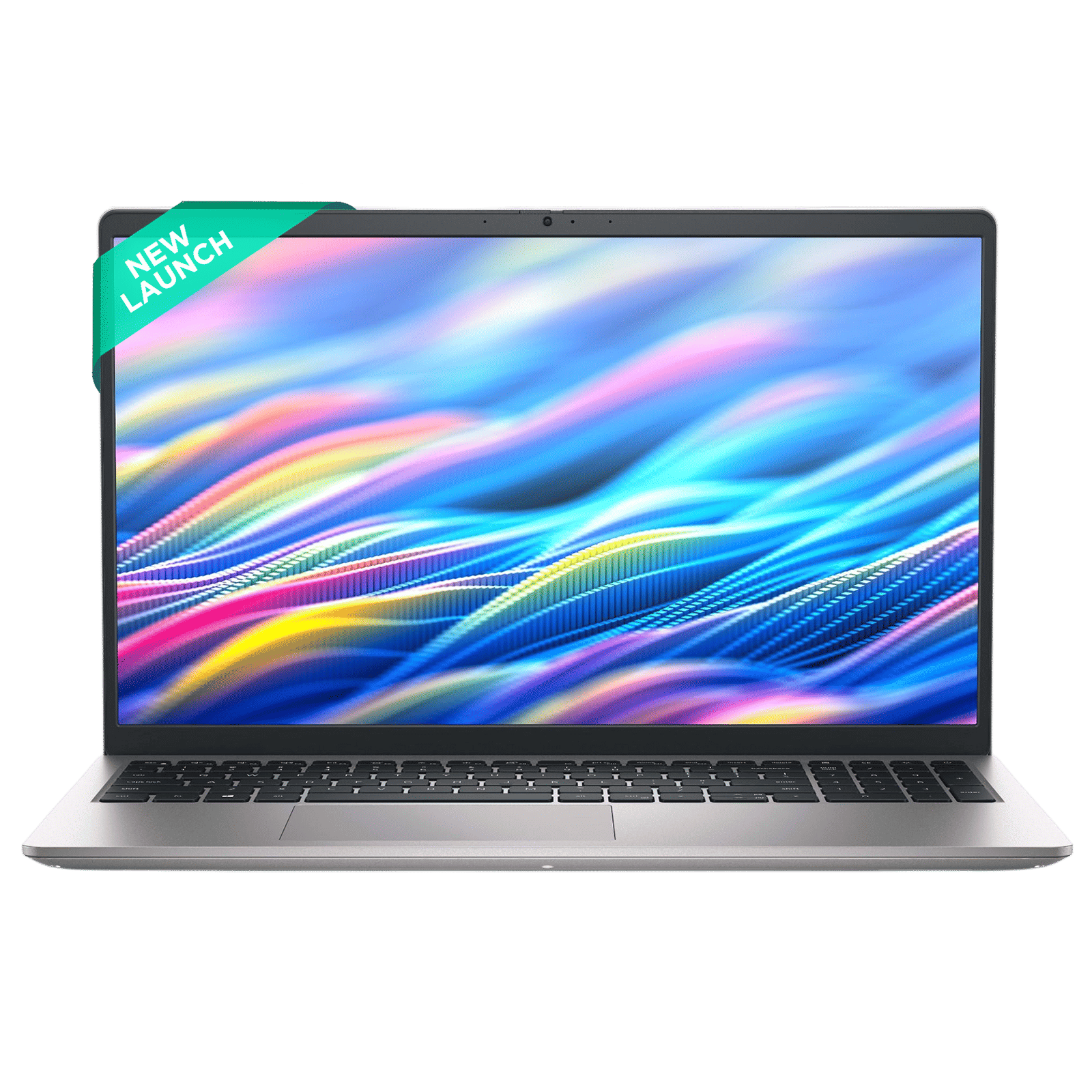
And voila! your files will start copying. While that happens, avoid unplugging the pendrive as removing it too soon can interrupt the transfer or corrupt files. Instead, when everything’s finished, eject the pen drive or hard drive using Safely Remove Hardware before unplugging it.
ALSO READ: How to transfer files from Android to Windows PC
If your pendrive doesn’t appear right away, try changing USB ports or restarting the laptop, as this usually solves the problem. Once it shows up, open the folder that contains the files you want to move, select what you need, then copy and paste them into the pendrive. That’s all there is to it.

Unleash your inner geek with Croma Unboxed
Subscribe now to stay ahead with the latest articles and updates
You are almost there
Enter your details to subscribe

Happiness unboxed!
Thank you for subscribing to our blog.
Disclaimer: This post as well as the layout and design on this website are protected under Indian intellectual property laws, including the Copyright Act, 1957 and the Trade Marks Act, 1999 and is the property of Infiniti Retail Limited (Croma). Using, copying (in full or in part), adapting or altering this post or any other material from Croma’s website is expressly prohibited without prior written permission from Croma. For permission to use the content on the Croma’s website, please connect on contactunboxed@croma.com
- Related articles
- Popular articles
Shubhendu Vatsa
Comments