







A ‘SIM not supported’ or ‘Invalid SIM’ error on an iPhone might seem alarming, but it’s usually not something you need to get too worried about. When you see that error, your phone is essentially telling you that it sees the SIM but is not able to use it to connect to a carrier. This can happen as a result of settings issues on the phone, a carrier or device lock at some level, or in the worst case, a damaged SIM, which is easy enough to replace.
Network lock
The first thing to check is whether your phone has some sort of network or carrier lock enabled. You do this by heading to Settings>About, and then scrolling to ‘Network Provider Lock’. Ideally, it should say ‘No SIM restrictions’.
If it says otherwise, you’ll need to contact your carrier or network provider to figure out what the issue is. Usually, a restriction indicates that the phone is locked to a network provider and you will need to either clear any pending payments or pay a fee to unlock the device.
While here if you see a notification to update carrier settings, please do so.
Toggling the network
If there are no issues, your phone might simply be suffering from a software glitch of sorts. You can check by toggling network connections individually or by toggling airplane mode on and off. To do this, simply open the Control Panel by swiping down from the top right and tapping the ‘Airplane Mode’ toggle.
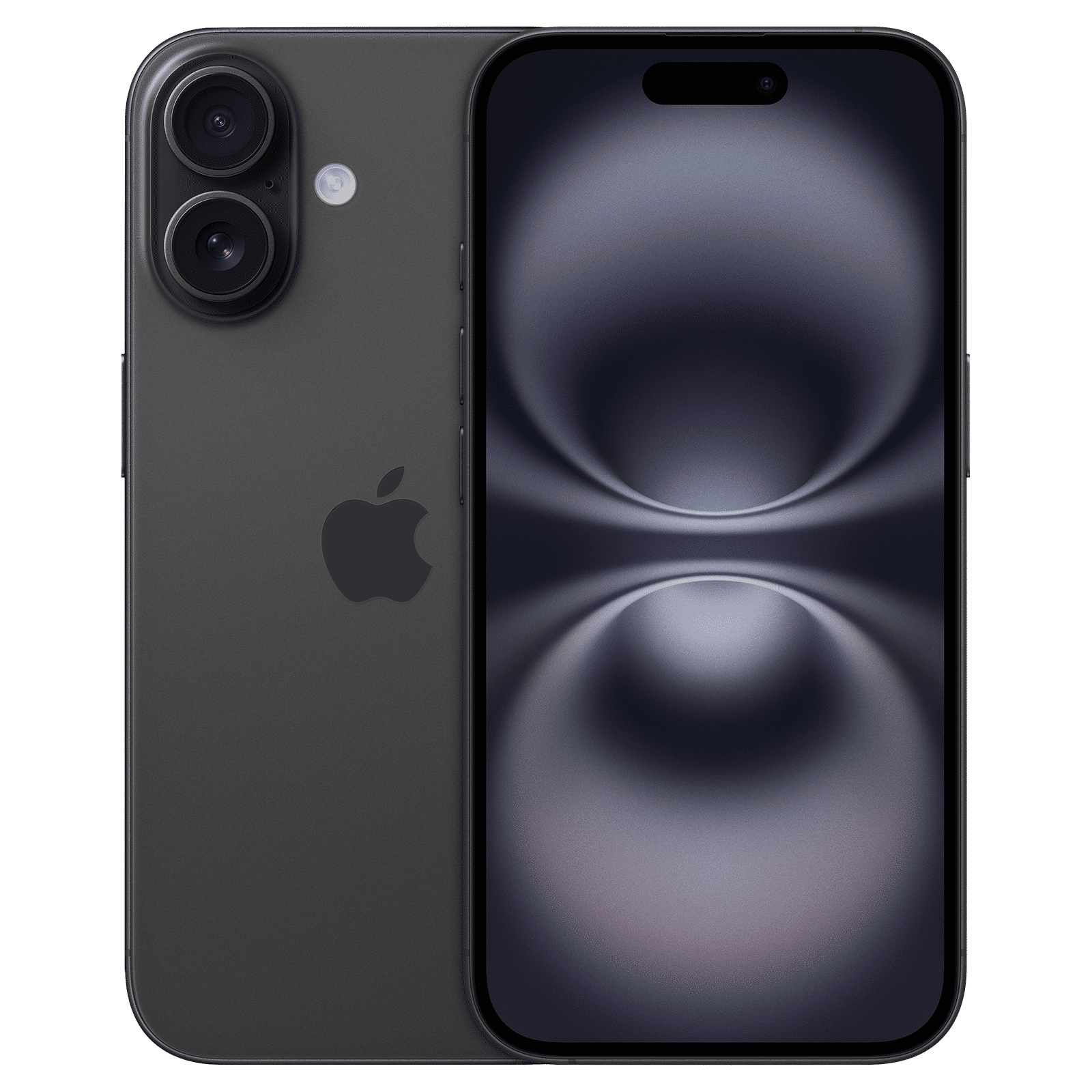
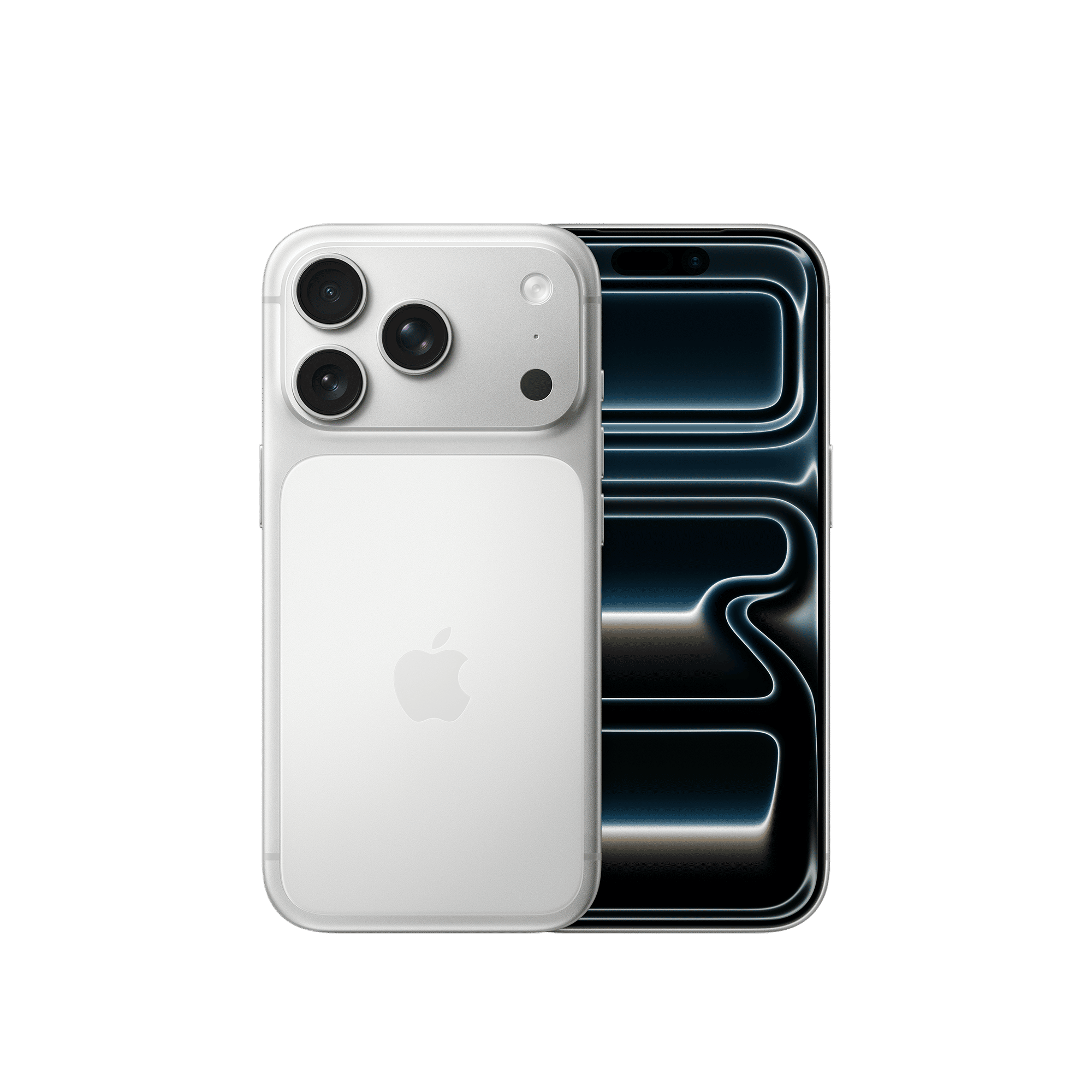
If that doesn’t work, try restarting the phone. Do this by pressing volume up + the side button and then swiping to shutdown. Press the side button again to power on the device.
Resetting the network and SIM
It’s possible you didn’t insert the SIM correctly. In that case, simply reseat the SIM card by removing it and re-installing it in your phone.
In the case of an eSIM, you might need to go through the activation process again, go to Settings>Mobile Service, and then Add eSIM. Follow the on-screen instructions from that point.
You can also try resetting the network by heading to Settings>General>Transfer or Reset iPhone>Reset>Reset Network Settings.
If none of these steps work, you’ll first need to contact your carrier to confirm that it’s not an issue on their end. If everything is fine on their end, it’s likely that you need to get your device serviced or updated.

Unleash your inner geek with Croma Unboxed
Subscribe now to stay ahead with the latest articles and updates
You are almost there
Enter your details to subscribe

Happiness unboxed!
Thank you for subscribing to our blog.
Disclaimer: This post as well as the layout and design on this website are protected under Indian intellectual property laws, including the Copyright Act, 1957 and the Trade Marks Act, 1999 and is the property of Infiniti Retail Limited (Croma). Using, copying (in full or in part), adapting or altering this post or any other material from Croma’s website is expressly prohibited without prior written permission from Croma. For permission to use the content on the Croma’s website, please connect on contactunboxed@croma.com
- Related articles
- Popular articles
Anirudh Regidi
Comments