







Whether you are switching networks, upgrading your phone, or troubleshooting a network issue, the first thing you often need to do is remove the SIM card. For Indian smartphone users with more than one SIM card, it is now second nature to replace a SIM card or use a dual-SIM device. For many, the SIM card tray is often one of the most accessed parts of the device. However, if you still struggle to remove the SIM card from any iPhone safely, you have come to the right place.
How do I take SIM card out of iPhone
The process of taking the SIM card out of an iPhone is simple and quick, and all you need to do is follow the right steps. Here’s a step-by-step guide to removing the SIM card from any iPhone.
Step 1: Power off your iPhone
The first step before you take the SIM card out of your iPhone is to power off the device. While you can remove the SIM with the device switched on, it is not recommended since it can cause network errors or data corruption.
To turn off your iPhone with Face ID, simultaneously press and hold the side button and either volume button until the slider appears, then drag the Power Off slider. For an iPhone with the Home button, press and hold the side button and then drag the slider. You can also turn off your iPhone by going to Settings > General > Shut Down, then drag the slider.
ALSO READ: How to do screen mirroring on iPhone: Step-by-step guide
Step 2: Locate the SIM tray
Once you have turned off your iPhone, the next step is to locate the SIM card tray. Below is a list of different iPhone models and the location of the SIM tray:
– iPhone XR to iPhone 14 series: Right side
– iPhone SE series : Right side
– iPhone 11 and 12: Left side
– iPhone 15, iPhone 16, and iPhone 17 series: Left side
In India, iPhone Air does not have a physical SIM slot, while Apple stopped offering a SIM tray in the US from iPhone 14 onwards.
Step 3: Use the SIM ejector tool
Every iPhone comes with a SIM ejector tool in the box. Insert it into the tiny hole next to the SIM tray and press gently until the SIM tray pops out. Do not apply force since the tray releases with minimal pressure. While not recommended, you can also use a small paper clip, an earring pin, or a sewing needle if you misplaced your SIM ejector tool.
Step 4: Remove the SIM card safely
Once the tray slides out, you can safely remove the SIM card. Most modern smartphones use the nano-SIM size, and while removing or replacing the SIM, avoid touching the gold chip.
ALSO READ: 5 genuinely useful features iPhone received this year for free
Step 5: Reinsert the SIM card tray
Once you have removed the SIM card or placed a new one in the SIM tray, slide the tray back into the dedicated slot and push until it’s flush with the frame. Once done, power on your iPhone and allow a few seconds for the network to establish a connection.
Products in focus
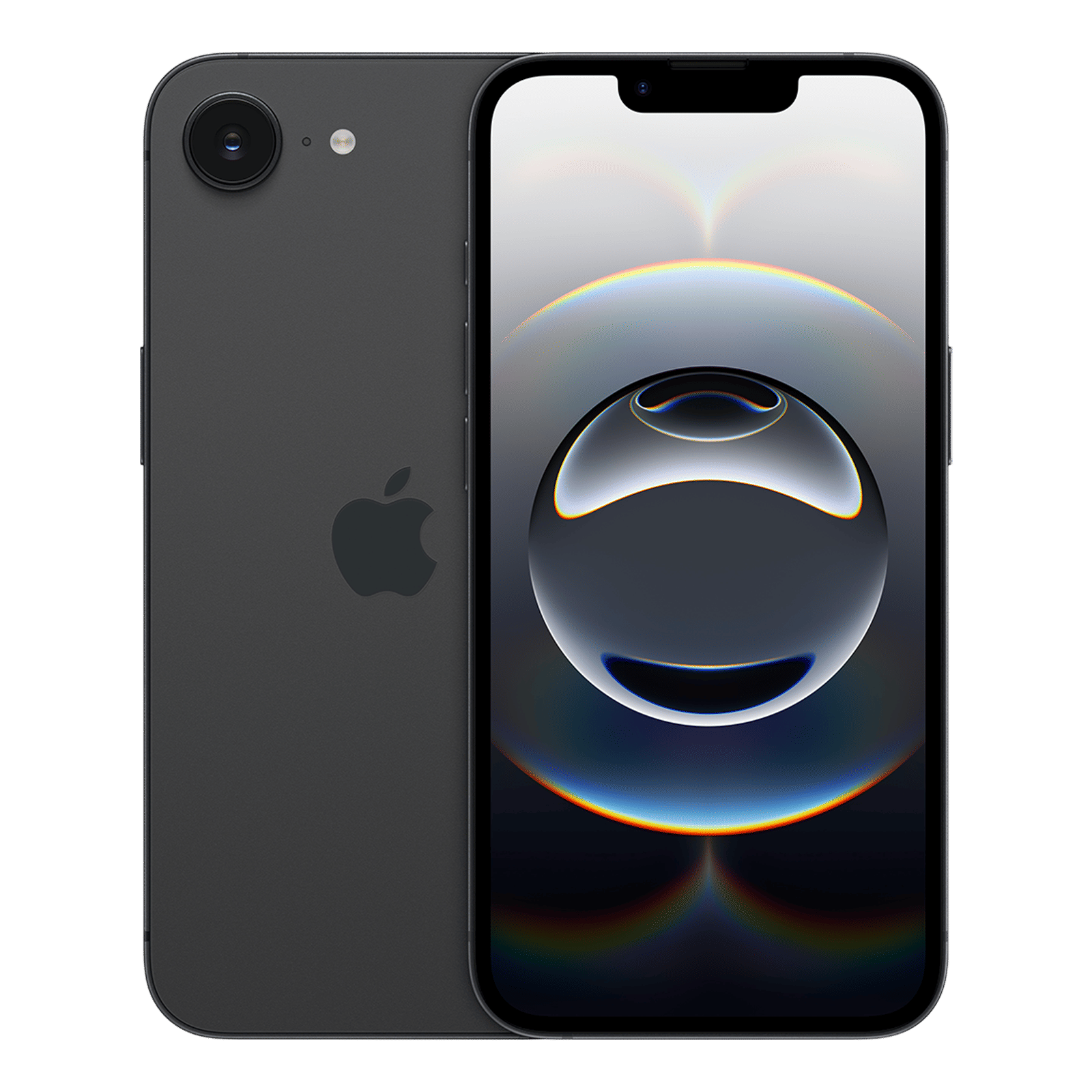
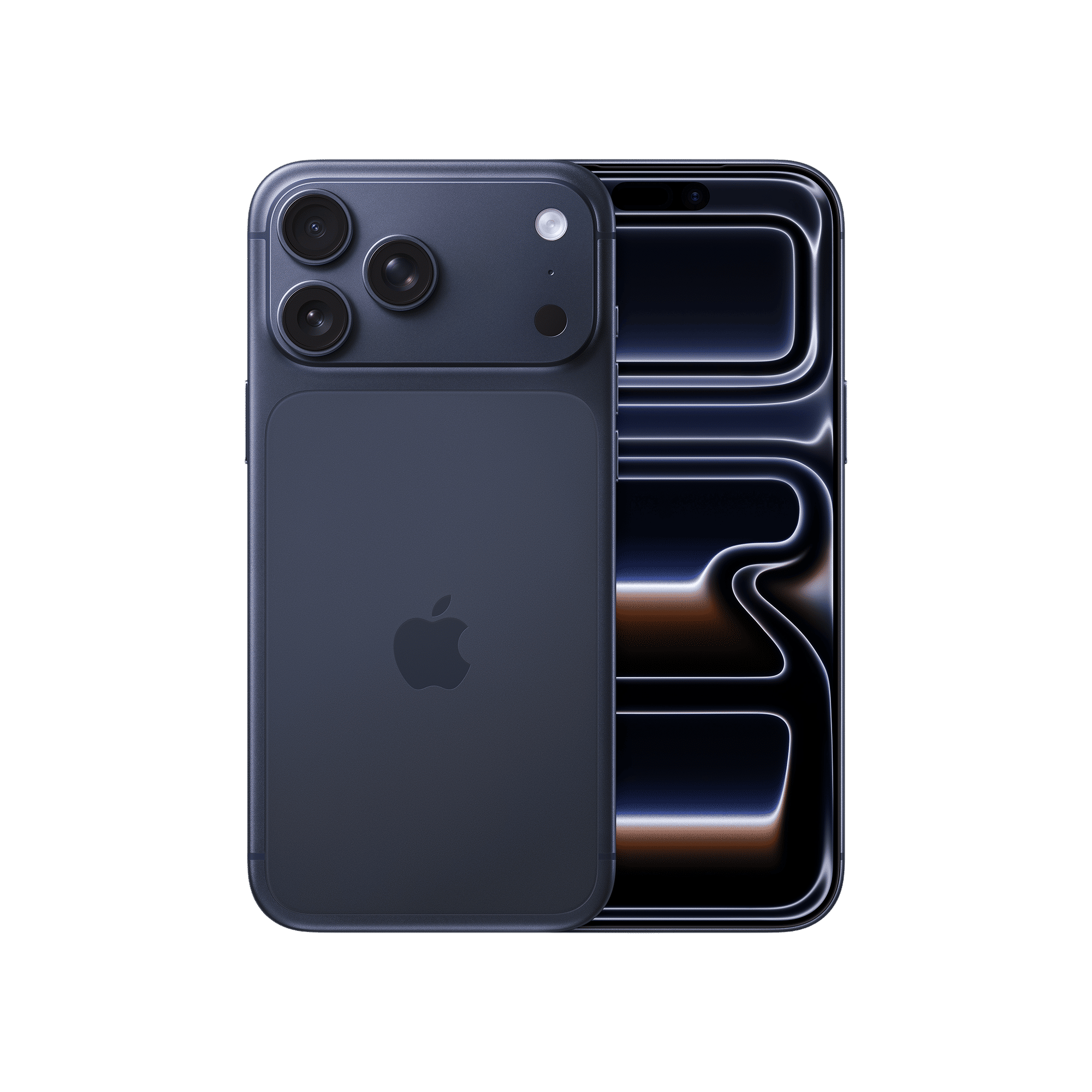
The process to remove the SIM card from any iPhone safely is rather straightforward. However, when you do it following the right steps, you ensure that you don’t damage the SIM tray or lose network access. The above step-by-step guide helps you safely swap SIM cards, fix signal issues, switch carriers, or ditch them with a switch to eSIM.

Unleash your inner geek with Croma Unboxed
Subscribe now to stay ahead with the latest articles and updates
You are almost there
Enter your details to subscribe

Happiness unboxed!
Thank you for subscribing to our blog.
Disclaimer: This post as well as the layout and design on this website are protected under Indian intellectual property laws, including the Copyright Act, 1957 and the Trade Marks Act, 1999 and is the property of Infiniti Retail Limited (Croma). Using, copying (in full or in part), adapting or altering this post or any other material from Croma’s website is expressly prohibited without prior written permission from Croma. For permission to use the content on the Croma’s website, please connect on contactunboxed@croma.com
- Related articles
- Popular articles
Karthekayan Iyer
Comments