







If you’re unable to hear any audio from your headphones, or there’s a constant crackling, or perhaps the left and right channels keep cutting out, it’s possible that there’s something wrong with your audio jack. You can try the following to deal with common issues, but note that anything more serious will require a trip to the nearest service centre.
Clean the port
The audio jack, especially a 3.5 mm jack, is relatively large compared to lightning or USB-C. It’s very easy for lint or other debris to enter, which can cause issues.
We’d recommend using something hard but non metallic like a toothpick to poke around the inside of your headphone jack. Be gentle but use enough pressure to verify that there’s nothing jammed up in the port.
If there is, try gently prying out the debris or gunk with the toothpick. You can also used a compressed air blower or canister to attempt blowing out the air. You might be tempted to blow inside the jack yourself, but note that any liquid inside the jack can cause electrical issues and further damage, especially on devices that aren’t weather-sealed.
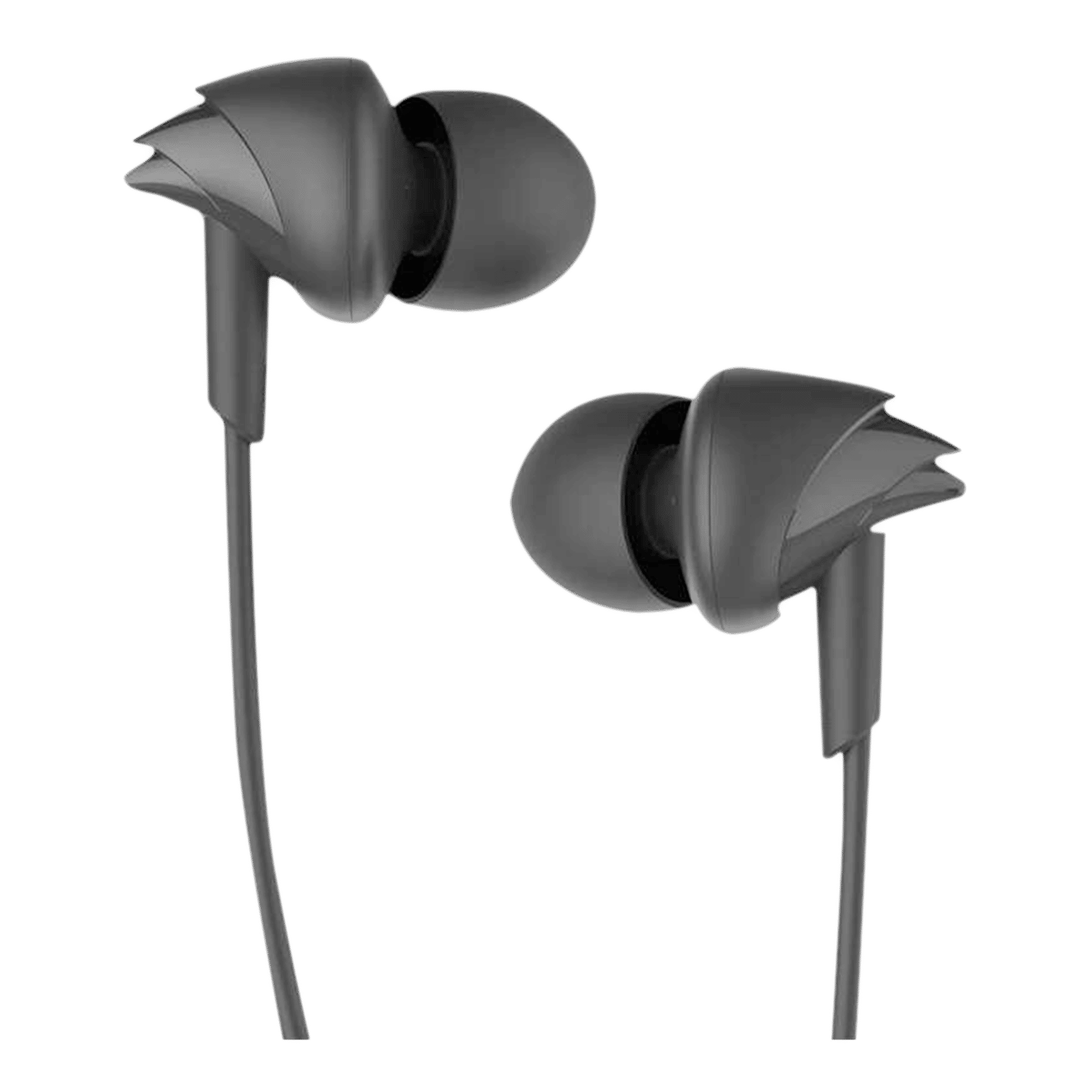
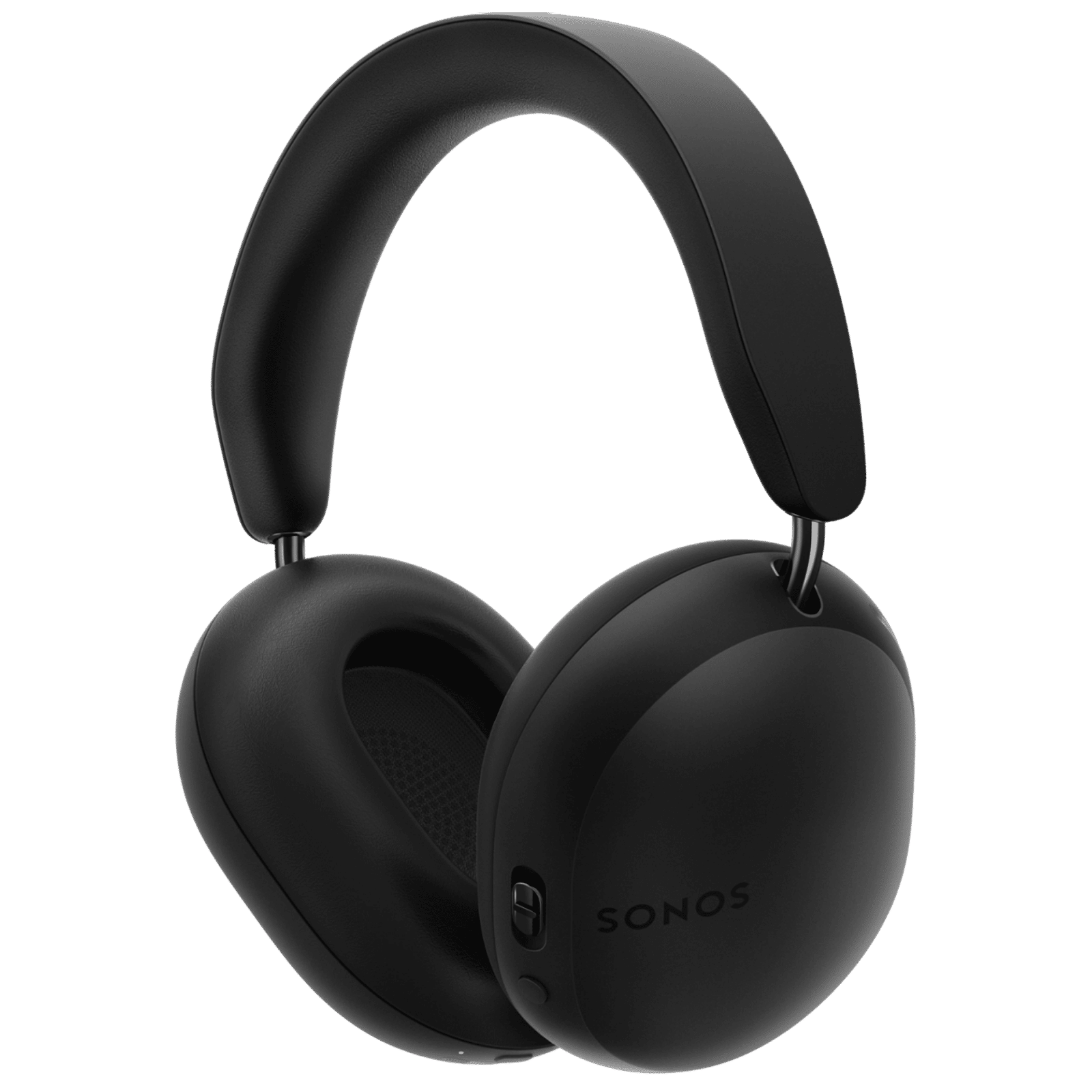
If that doesn’t work, try squirting in some glue from a glue gun. This can stick to the dirt and extract it when the glue is pulled out. Note that when poking around the inside of your audio jack, you might inadvertently damage it. If you’re not sure about what you’re doing, take the device to an expert.
Physical damage
Insert the headphone cable into the port and check if audio is normal when pressure is applied at a certain angle or when the cable is wiggled while in the port.
If so, it’s likely that the pins inside your audio jack are damaged or broken. If this is the case, the only option is to replace the jack, which can be done on most laptops and phones provided the service technician is familiar with the model.
Change your case
You’ll be surprised how often this happens, but sometimes just swapping or removing a case can fix audio issues. Some cases are too narrow or thick and can prevent the headphone plug from being inserted fully. The separation might be very small, but just enough to prevent good contact.
ALSO READ: Qualcomm aptX codecs explained: How do they help improve audio?
If your headphones work without a case, get a new one with a larger opening around the audio port.
Verify output device
On laptops, you might need to verify that the correct output device is selected. Do this by heading to the TaskBar and clicking on the volume icon in the system tray. On a Mac, you can click on the volume icon in the menu bar to list audio devices. From the list that pops up, select your headphone jack as the output device.
You will of course need to verify that the correct drivers are installed, which you can do by heading to the device manufacturer’s website and downloading the requisite driver package.
Audio issues are easy enough to fix and don’t usually involve a trip to the service centre. If there’s physical damage, however, or a risk of physical damage, it’s best to enlist the services of an experienced technician.

Unleash your inner geek with Croma Unboxed
Subscribe now to stay ahead with the latest articles and updates
You are almost there
Enter your details to subscribe

Happiness unboxed!
Thank you for subscribing to our blog.
Disclaimer: This post as well as the layout and design on this website are protected under Indian intellectual property laws, including the Copyright Act, 1957 and the Trade Marks Act, 1999 and is the property of Infiniti Retail Limited (Croma). Using, copying (in full or in part), adapting or altering this post or any other material from Croma’s website is expressly prohibited without prior written permission from Croma. For permission to use the content on the Croma’s website, please connect on contactunboxed@croma.com
- Related articles
- Popular articles
Anirudh Regidi
Comments