







You can check your mobile device’s health through the built-in diagnostic tools or the settings menu that monitors battery health, storage, memory consumption, and overall system health. While the iPhone provides battery health information and a storage management tool, Android offers detailed mobile health options in Settings.
How to check mobile health
The built-in features on Android and iPhone help identify performance issues, optimise device functionality, and determine when hardware components need attention. Here’s how to monitor your mobile device’s vital signs:
iPhone battery health check
Step 1: Go to Settings and navigate to Battery
Step 2: Tap on Battery Health & Charging
Step 3: View maximum capacity and enable or disable optimised battery charging
-
- Battery capacity above 80 per cent is healthy
iPhone storage management
Step 1: Go to Settings and tap on General
Step 2: Click on iPhone Storage to view memory usage by different apps and recommendations
-
- Keep at least 15 per cent storage free for reliable performance
Step 3: You can offload unused apps or optimise photos
Android device health check
On Android, the device health check varies based on the brand, and if you have a device running stock Android, you can go to Settings > Battery > Battery Usage to monitor usage and limit charging. You can also go to Settings > Storage > Internal Storage or Settings > Apps > Running Services to monitor storage and apps performance.
Samsung users can go to Settings > Device Care and navigate to battery, storage or memory to view optimisation recommendations or run automatic performance scans. You can also use third-party apps such as CPU-Z for hardware monitoring for AccuBattery for battery health check.
FAQs:
Q1: How do I know my phone battery is dying?
A: Go to battery health settings, and if the capacity is below 80 per cent, then it indicates battery replacement needs.
ALSO READ: Here’s how to maximise your smartphone’s battery health
Q2: Can I improve my mobile’s health?
A: Yes, by clearing cache, uninstalling unused apps, and updating software and apps, limiting fast charging, you can improve your mobile’s health.
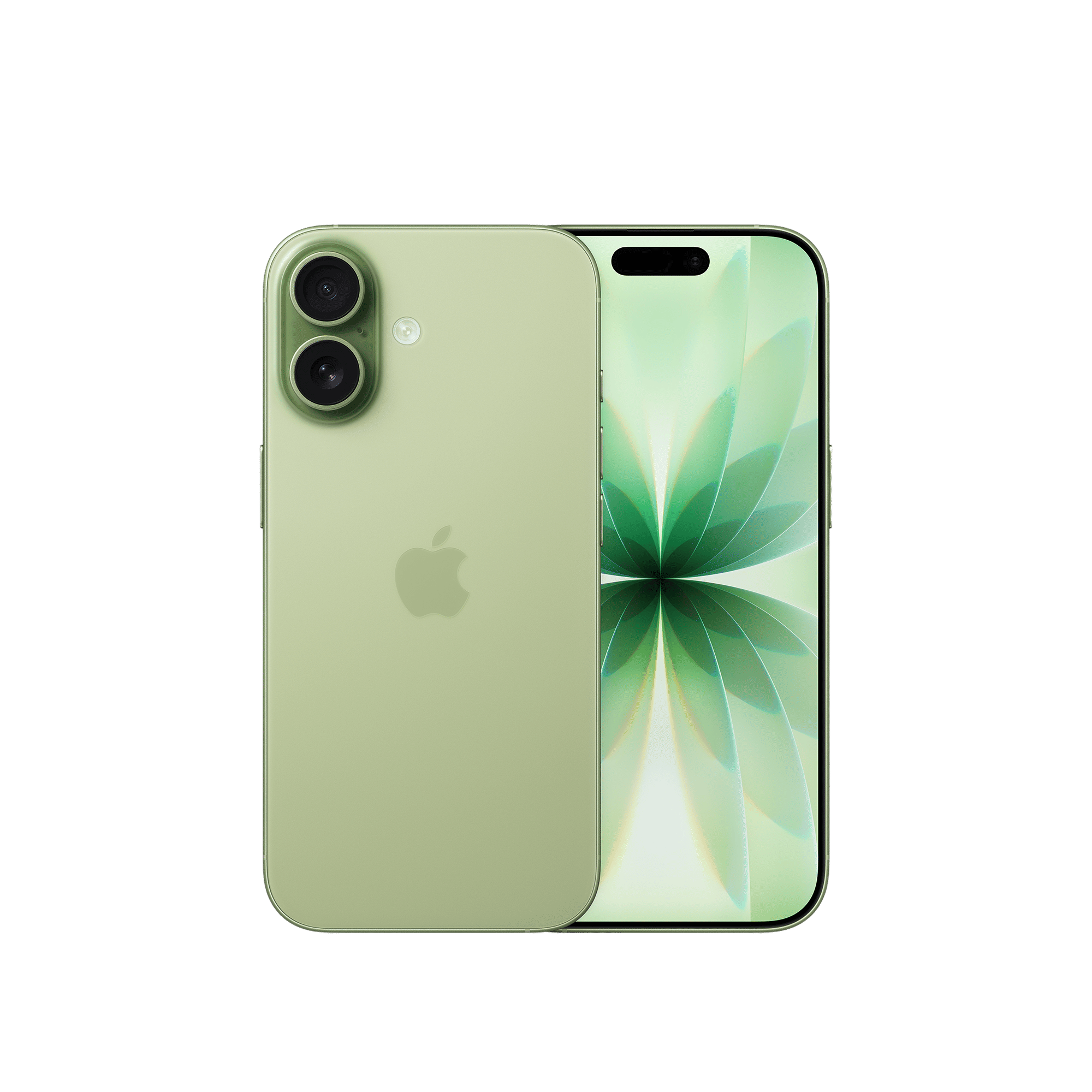

Through the built-in battery, storage, and system performance monitoring, you can check your mobile’s health for optimal device performance and to identify hardware failure earlier.

Unleash your inner geek with Croma Unboxed
Subscribe now to stay ahead with the latest articles and updates
You are almost there
Enter your details to subscribe

Happiness unboxed!
Thank you for subscribing to our blog.
Disclaimer: This post as well as the layout and design on this website are protected under Indian intellectual property laws, including the Copyright Act, 1957 and the Trade Marks Act, 1999 and is the property of Infiniti Retail Limited (Croma). Using, copying (in full or in part), adapting or altering this post or any other material from Croma’s website is expressly prohibited without prior written permission from Croma. For permission to use the content on the Croma’s website, please connect on contactunboxed@croma.com
- Related articles
- Popular articles
Karthekayan Iyer
Comments