







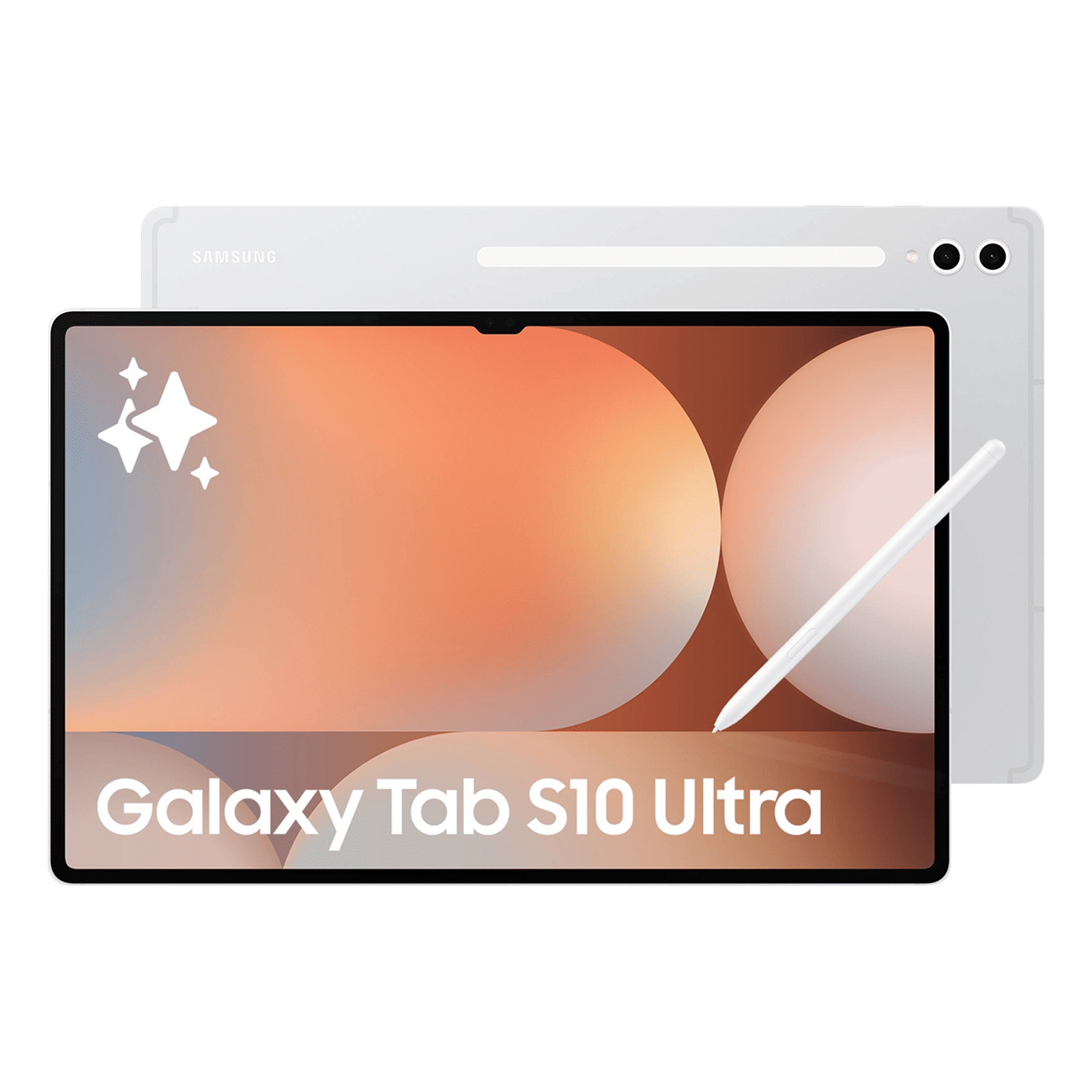
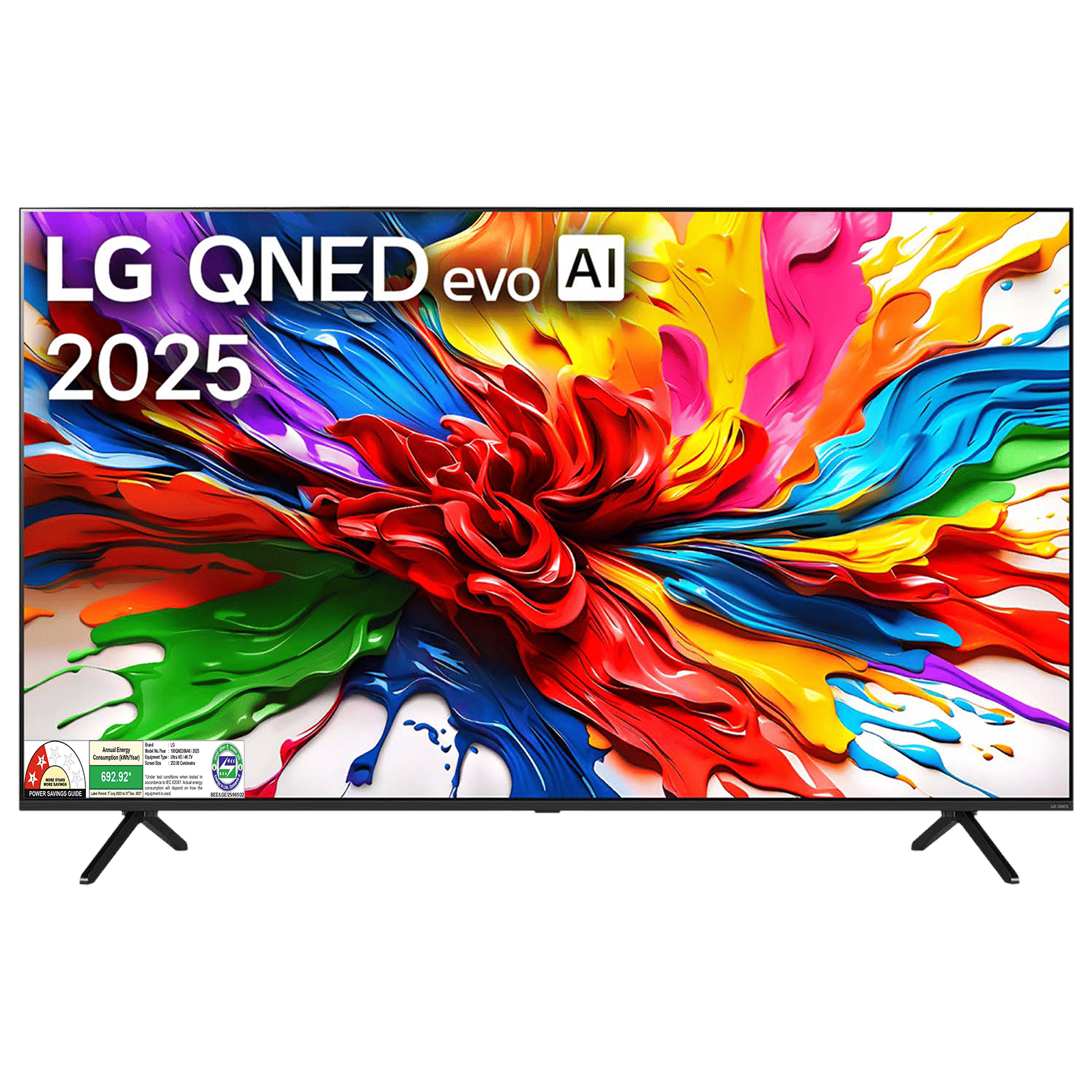
Tablets have created a niche for themselves as the go-to device for entertainment, video calls, and casual gaming. While they now come with big screens, there are times when you want an even bigger screen. Whether it is for watching a movie, viewing photos with family, or playing games on a big screen, you might want to connect your tablet to your TV.
Well, the good news is that it is easier than ever to connect a tablet to a TV. There are multiple options, and you can connect your tablet to your TV using both wired and wireless methods. Here is everything you need to know.
How to connect tablet to TV: Wired method
There is no denying that wired connections are often the simplest and stable way to connect one device to another. They are reliable and offer consistent performance without the lag seen with wireless options. Here are the common wired methods to connect your tablet to a TV.
ALSO READ: Tablets vs smartphones: which one is better
Using an HDMI cable
While most tablets don’t come with a built-in HDMI port, you can still connect them via an HDMI adapter. Here is how it works across different tablets:
– Android tablets: Use a USB Type-C to HDMI adapter
– For older Android tablets or tablets with a micro-USB port: Use an MHL (Mobile High-Definition Link) adapter
– For iPads with USB-C: Use a USB-C to HDMI adapter
– For iPad with Lightning port: Use an Apple Lightning Digital AV adapter
Once connected, switch your TV source to the correct HDMI input, and your tablet screen should mirror automatically.
Using USB-C to USB-C or USB-C to DisplayPort
If you have a newer smart TV or monitor with USB-C input and your tablet supports video output via USB-C, you can connect it directly using a USB-C cable.
How to connect tablet to TV: Wireless method
We live in the era of cord-cutting, and wireless is the way to go for those seeking a clutter-free lifestyle. There is an easy and cable-free way to connect a tablet to a TV wirelessly, but it hinges on the strength of your Wi-Fi connection. Here are the various methods to wirelessly connect a tablet to a TV.
Screen mirroring for Android and iPad
Most Android tablets and iPads feature a native screen mirroring option, and here is how they work:
– Android tablets: Use Smart View, Cast, or Screen Mirroring depending on your tablet.
– iPad: If you have an iPad, then you can use AirPlay to mirror your screen to an Apple TV or AirPlay 2-enabled smart TV.
ALSO READ: 5 iPadOS 26 updates that might make us ditch our Macs
Using Apple AirPlay (iPad only)
For iPad users, the easiest way to wirelessly connect your iPad to a TV is by using AirPlay. For this to work, however, you will need an Apple TV or a compatible smart TV. Here is how to use AirPlay on an Apple iPad:
– Step 1: Swipe down from the top right corner to reveal the Control Centre on your iPad.
– Step 2: Tap Screen Mirroring
– Step 3: Select your TV, and your iPad screen will be mirrored wirelessly
Using Chromecast
If you have a Google Chromecast or a TV with Chromecast built-in, you can wirelessly cast your tablet to your TV. This is great for streaming YouTube, Netflix, and other streaming content. Here’s how:
– Step 1: Install the Google Home app on your tablet.
– Step 2: Tap “Cast my screen” and select a Chromecast-compatible device.
– Step 3: Your tablet will mirror to your TV wirelessly.
It is important to know how to connect tablet to TV since it gives you an additional way to use your portable entertainment device. Wired methods offer stable connections and are perfect for longer viewing sessions, while wireless options are ideal for casual use. For iPad users, it is better to get an Apple TV or an AirPlay 2-compatible TV for reliable screen mirroring. So, next time you are streaming, watching TED Talks, or scrolling Reels, simply cast your screen to your TV and enjoy the big screen experience.

Unleash your inner geek with Croma Unboxed
Subscribe now to stay ahead with the latest articles and updates
You are almost there
Enter your details to subscribe

Happiness unboxed!
Thank you for subscribing to our blog.
Disclaimer: This post as well as the layout and design on this website are protected under Indian intellectual property laws, including the Copyright Act, 1957 and the Trade Marks Act, 1999 and is the property of Infiniti Retail Limited (Croma). Using, copying (in full or in part), adapting or altering this post or any other material from Croma’s website is expressly prohibited without prior written permission from Croma. For permission to use the content on the Croma’s website, please connect on contactunboxed@croma.com
- Related articles
- Popular articles
Karthekayan Iyer
Comments