







You can enable function keys (Fn key) on any laptop by changing the keyboard settings, using a key combination, or adjusting BIOS/UEFI options. On most laptops, the function keys serve the dual purpose of being standard keys for software shortcuts or special functions, such as adjusting screen brightness or volume control. Since they are set to special functions by default, you need to press Fn + F-key for standard functions and enabling function keys eliminates the need to hold the Fn key for actions like refreshing webpages or opening developer tools.
How to enable function key on laptop
Below are the simplest ways to enable the function key on a laptop.
Use the Fn Lock Shortcut
Laptops from brands like HP, Dell, and Lenovo often support Fn Lock that reverses key behaviour. To do this, look for a lock icon on the Fn or Esc key and then press Fn + Esc. Once enabled, F1 to F12 keys will work without holding the Fn key.
ALSO READ: 3 quick ways to speed up your old laptop’s storage
Change settings in BIOS/UEFI
If Fn Lock doesn’t work or your laptop doesn’t have that option, update the settings at the system level. Here are the steps:
– Restart your laptop
– Press F2, F10, Del, or Esc during boot
– Go to Advanced or Configuration
– Enable Function Key Behaviour or Action Keys Mode
– Save and exit
Use the manufacturer’s software
Some laptops might require using the manufacturer’s software to enable function keys. Depending on your manufacturer, look for software such as HP System Event Utility, Lenovo Vantage, or Dell Feature Enhancement Pack. Open the software and look for Function Key or Hotkey settings.
FAQs
Q1: Does Fn Lock work on all laptops?
A: No. Some brands only support BIOS or software-based control for Fn keys.
Q2: Will enabling function keys affect shortcut?
A: No, you can still access special functions by pressing Fn keys, reversing the default behaviour.
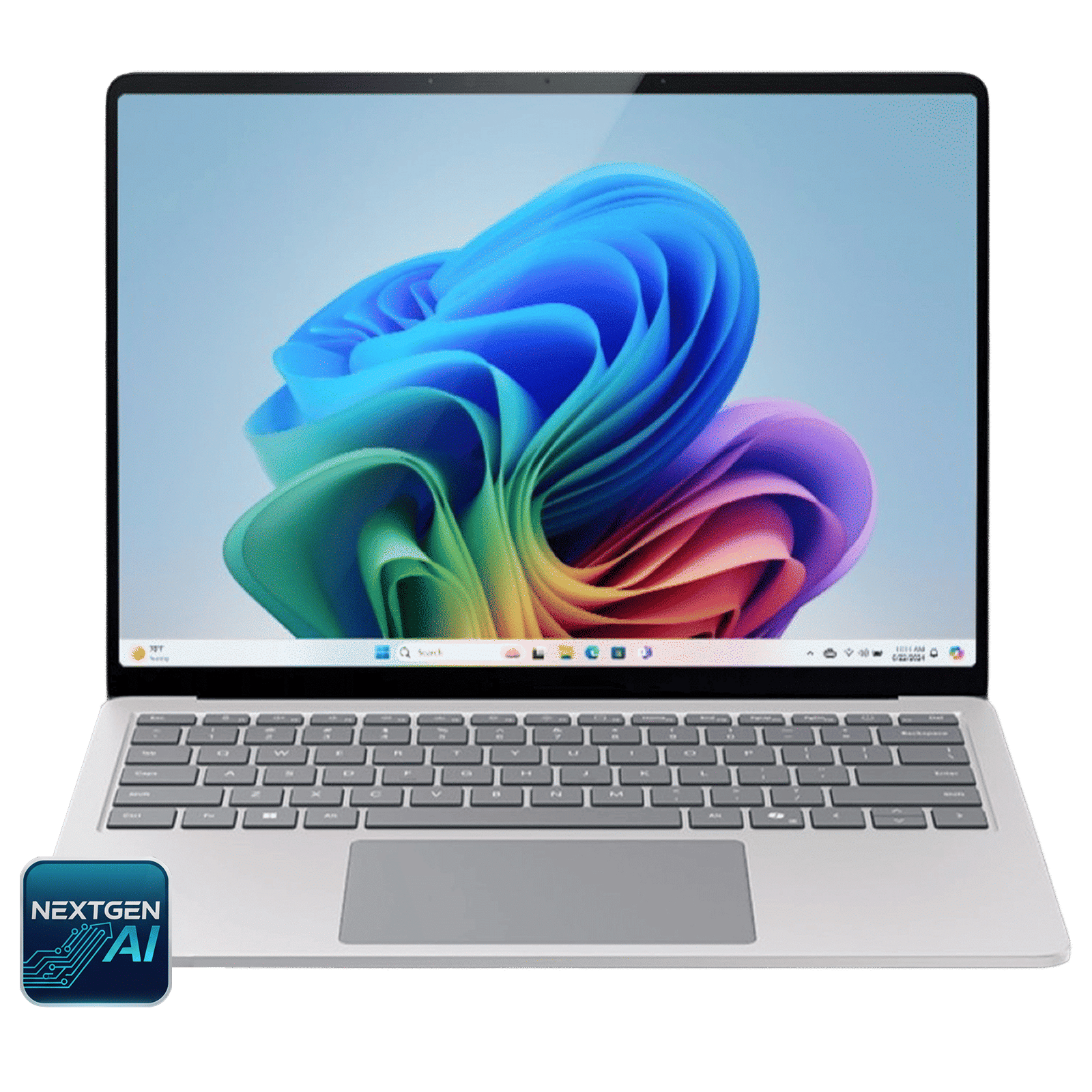

If you are someone who uses shortcuts in programs like Excel or PowerPoint then you need to enable function keys. Depending on your need, you can permanently change the behaviour through BIOS or use Fn Lock for a temporary change.

Unleash your inner geek with Croma Unboxed
Subscribe now to stay ahead with the latest articles and updates
You are almost there
Enter your details to subscribe

Happiness unboxed!
Thank you for subscribing to our blog.
Disclaimer: This post as well as the layout and design on this website are protected under Indian intellectual property laws, including the Copyright Act, 1957 and the Trade Marks Act, 1999 and is the property of Infiniti Retail Limited (Croma). Using, copying (in full or in part), adapting or altering this post or any other material from Croma’s website is expressly prohibited without prior written permission from Croma. For permission to use the content on the Croma’s website, please connect on contactunboxed@croma.com
- Related articles
- Popular articles
Karthekayan Iyer
Comments