







G-sync is a feature that minimises or completely eliminates screen tearing in video games. Normally when your GPU attempts to render an image on your display, it’ll often do so as fast as it can. The problem is that this rendering happens line-by-line from the top of the screen to the bottom of it. Sometimes the data at the bottom gets updated at a slower speed than the data at the top, which results in a fraction of a newer image being rendered after a bit of the old image, resulting in an effect where the image looks “torn”.
Most GPUs and displays eliminate this issue with a feature called V-sync, where the GPU only renders complete frames at a fixed rate. V-sync is normally set in increments of 30 Hz (30, 60, 90, 120, and so on), which can cause issues if your GPU can’t maintain a stable frame-rate.
ALSO READ: Best gaming laptops for beginners for under Rs 70,000
G-Sync, a feature designed by Nvidia for use with Nvidia GeForce GPUs and G-Sync desktop and laptop monitors uses proprietary software and, in some cases, proprietary hardware, to force the monitor to draw complete frames, but without locking the monitor to a fixed refresh rate. The result is an image that looks clean but without any of the stutter and other artefacts you’d get from only using V-sync.
Early versions of G-sync required a certified G-sync monitor with dedicated hardware. Today, most monitors are “G-sync compatible” i.e. they support a variable refresh rate using an open standard (VESA adaptive sync or FreeSync) that works with a G-sync capable Nvidia GPU.
ALSO READ: What are NVIDIA drivers and how do you download them?
To enable G-Sync, you require an Nvidia GPU and a monitor that is either G-Sync branded or G-Sync compatible. You can verify your monitor’s compatibility on the manufacturer’s website.
Once you have the right hardware, you can enable G-Sync by heading to the Nvidia control panel. You may open this panel by either searching for it in the Windows start menu, or right-clicking on the Nvidia icon in your system tray and selecting ‘Nvidia Control Panel’.
Head to ‘Manage 3D settings’, disable V-sync, and enable G-Sync. Disable V-sync in your games as well. It’s important to disable V-sync as the feature can interfere with G-sync if both are enabled simultaneously.
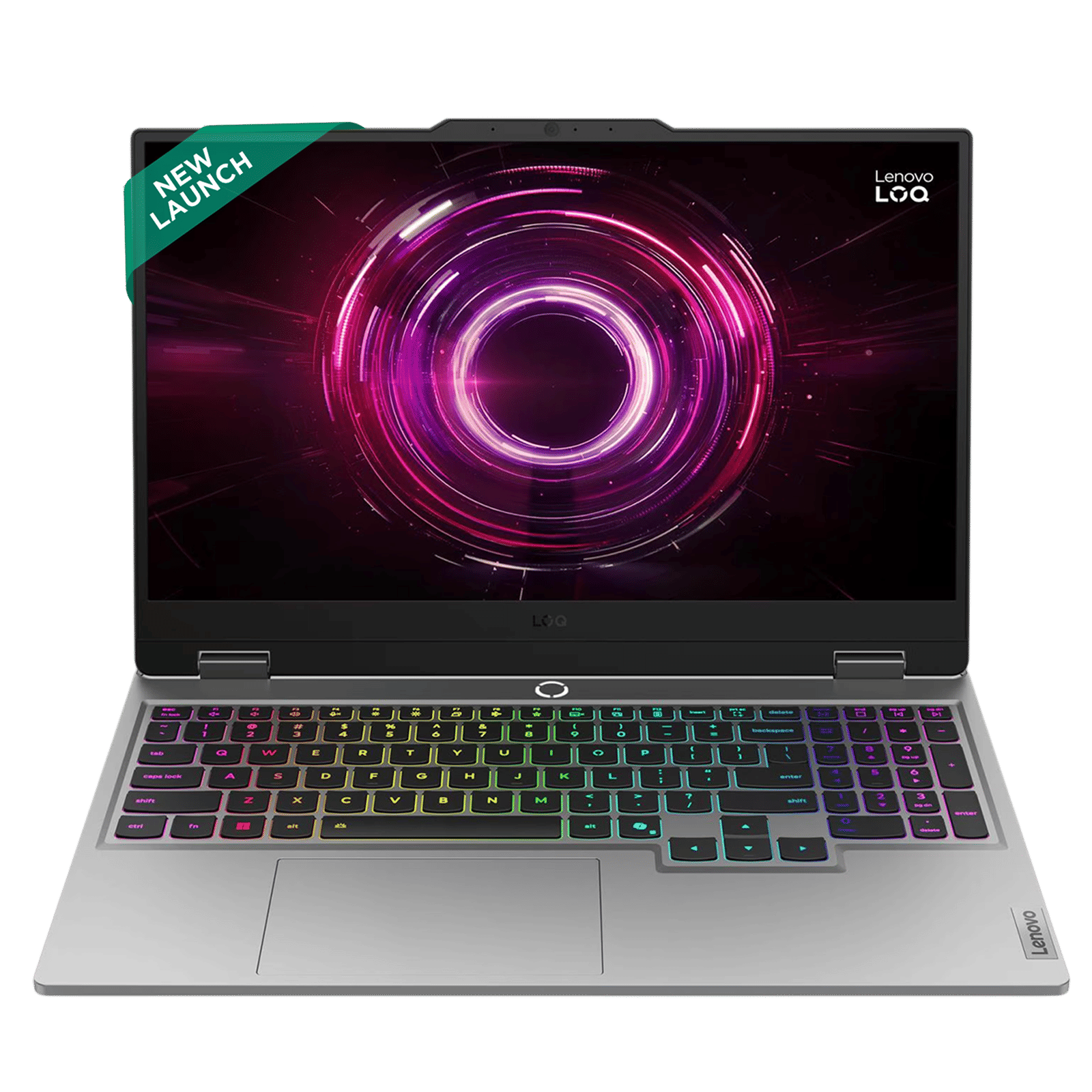
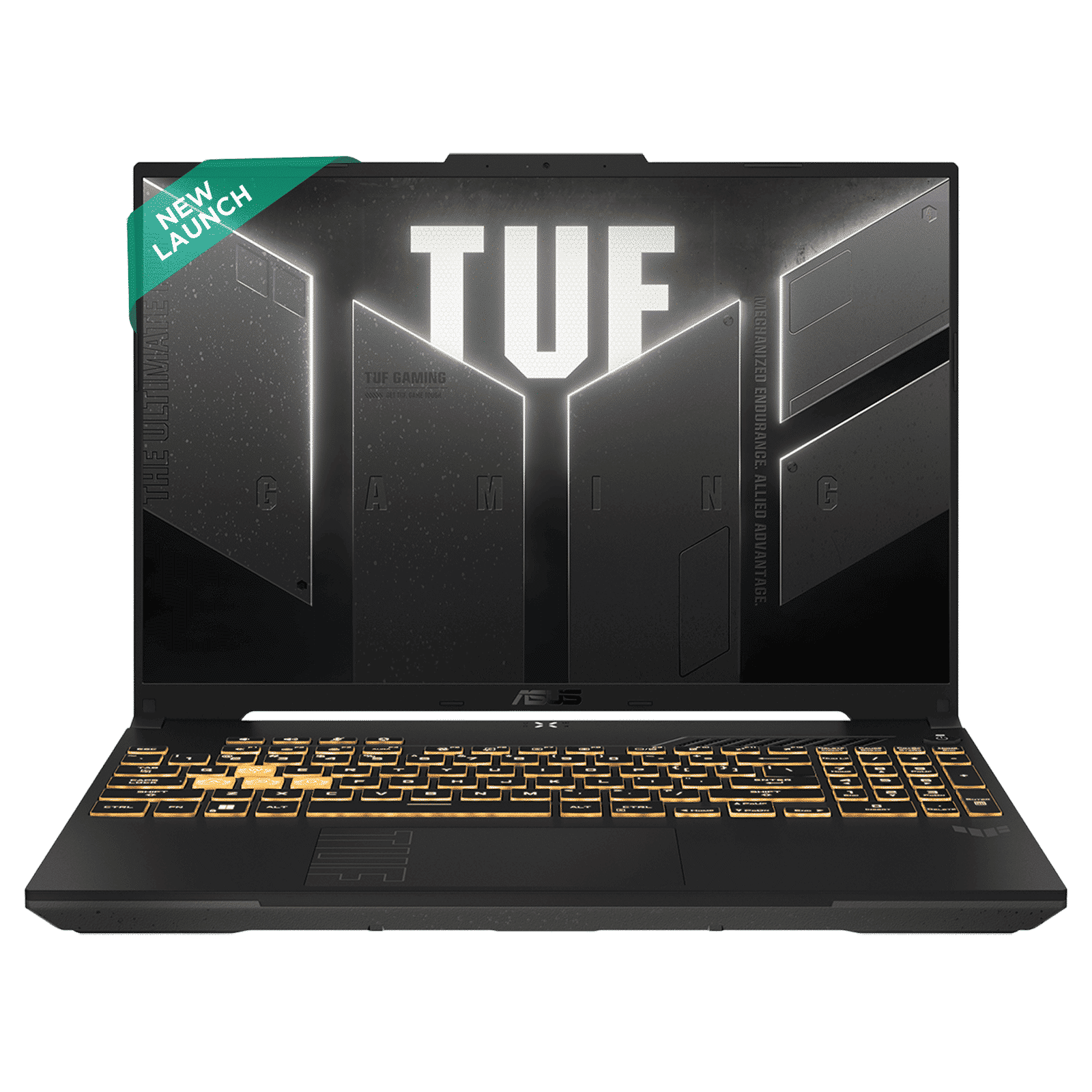
Is it worth getting a dedicated G-sync monitor over a compatible one? No. A G-sync branded monitor will offer you the best image quality in theory, but even G-sync compatible monitors are so good today that you won’t find any issues with one. Note that G-sync branded monitors tend to support a wider range of frame-rates, which can be helpful if you play especially demanding games.

Unleash your inner geek with Croma Unboxed
Subscribe now to stay ahead with the latest articles and updates
You are almost there
Enter your details to subscribe

Happiness unboxed!
Thank you for subscribing to our blog.
Disclaimer: This post as well as the layout and design on this website are protected under Indian intellectual property laws, including the Copyright Act, 1957 and the Trade Marks Act, 1999 and is the property of Infiniti Retail Limited (Croma). Using, copying (in full or in part), adapting or altering this post or any other material from Croma’s website is expressly prohibited without prior written permission from Croma. For permission to use the content on the Croma’s website, please connect on contactunboxed@croma.com
- Related articles
- Popular articles
Anirudh Regidi
Comments