







When we were younger, gaming on a TV was refreshingly uncomplicated. You plugged in a console, selected the right input, and hoped your disc was not scratched or your cartridge not dusty. That was about as technical as things got.
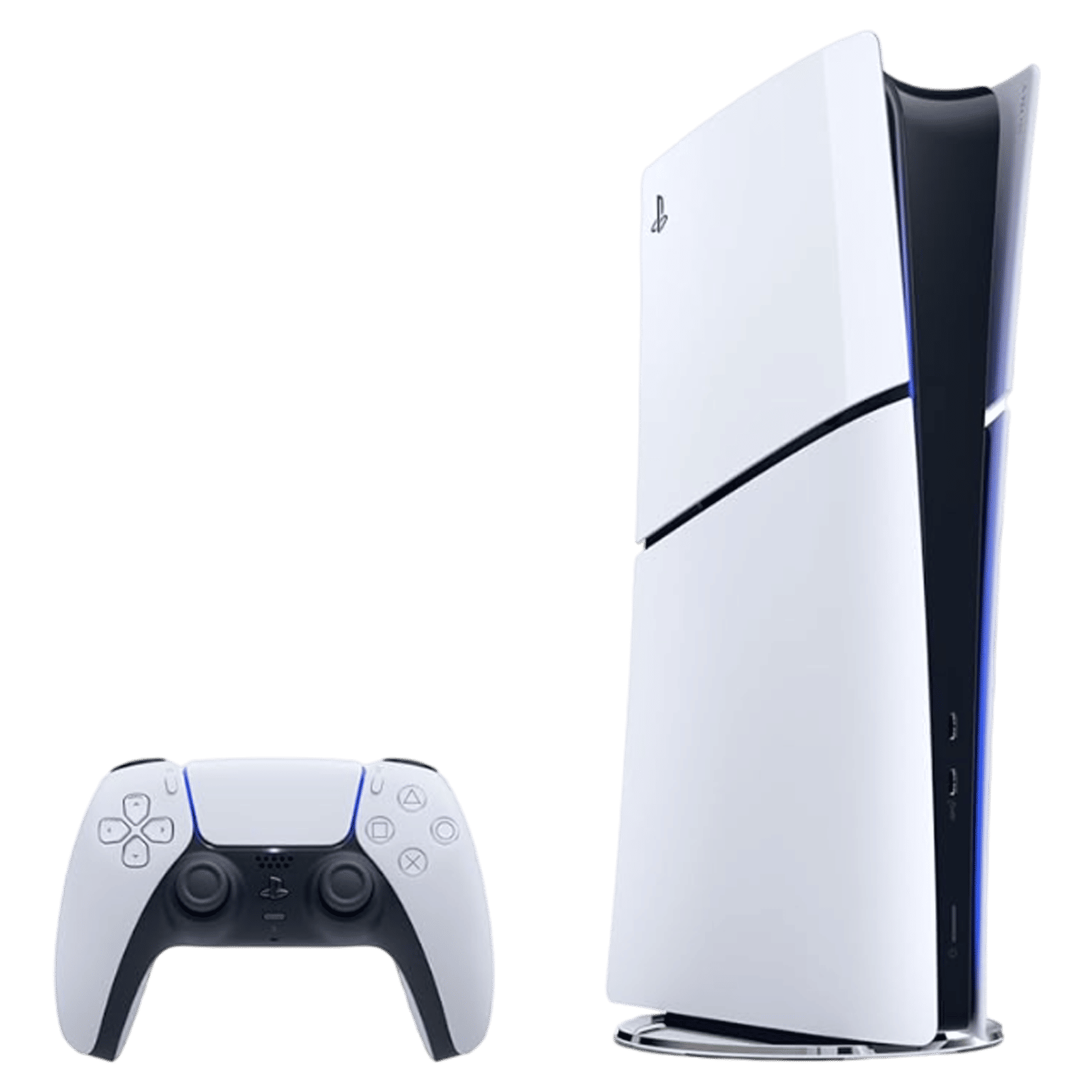
Fast forward to now, and modern consoles are closer to compact gaming PCs than simple living room toys. They push high frame rates, complex lighting effects, and massive open worlds; all while expecting your TV to keep up. The catch is that most TVs still prioritise movies and TV shows out of the box, not games.
ALSO READ: LG turns your smart TV into a gaming console with Xbox Cloud support in India
If you want your console to feel as fast and responsive as it should, a few TV settings need attention. These are not obscure calibration tricks. They are practical changes that make a real difference the moment you pick up a controller. Let’s delve right in.
Start with Game Mode
Game Mode is the single most important setting for console gaming, and also the most misunderstood. On most TVs, picture processing is always running in the background. It sharpens edges, smooths motion, and adjusts colours to make films look cinematic. That extra processing takes time.
In games, that time becomes input lag. Press a button, wait a fraction of a second, then see the action happen on screen. That delay might be invisible while watching a film, but it feels instantly wrong when you are dodging attacks or lining up a shot.
Game Mode strips away that extra processing and prioritises speed. Your controller inputs reach the screen faster, and the game feels tighter and more responsive as a result.
Many modern TVs enable Game Mode automatically when a console is detected, but it is worth checking. Make sure it is active for the HDMI port your console is using. If your TV allows Game Mode per input, that is even better, as it will not affect movie streaming devices.
Enable variable refresh rate
Games rarely run at a perfectly locked frame rate. Even powerful consoles dip and spike depending on what is happening on screen. When your TV refreshes at a fixed rate and the console delivers frames unevenly, you can see stutter or screen tearing.
Variable Refresh Rate, or VRR, solves this by allowing the TV to adjust its refresh rate in real time to match the console’s output. The result is smoother motion and fewer visual distractions, especially in fast-paced games.
ALSO READ: 10 new games coming to PS5 in 2026
Not every TV supports VRR, and it is usually found on models with higher refresh rates. You will also need a newer HDMI connection to take advantage of it. If your TV does support VRR, make sure it is turned on. If it does not, you can still play perfectly well, but you may notice occasional judder during demanding scenes.
Turn off motion smoothing
Motion smoothing is a feature designed for sports broadcasts and certain types of video, but not games. It works by generating artificial frames to make motion appear smoother. In practice, it often makes games feel sluggish and introduces visual oddities that were never intended by the developers.
There is also the aesthetic issue. Motion smoothing can give everything a hyper-real, almost plastic look that many people find distracting. In games, it adds input lag on top of that.

Game Mode often disables motion smoothing automatically, but do not assume it always does. Dig into your picture settings and turn off anything labelled motion enhancement, action smoothing, or picture clarity. Your games will look more natural and respond more quickly.
Be careful with power-saving features
Energy-saving options are generally a good idea, but gaming is one area where they can work against you. Some TVs aggressively dim the screen or reduce contrast to save power, which can make darker scenes harder to read and details easier to miss.
Automatic brightness adjustments based on room lighting can be useful, but they should be tested carefully. If the screen dims noticeably during gameplay, it is better to disable the feature. The same goes for auto power-off settings that might mistake a long cutscene or menu for inactivity.
Once you know how a game looks and feels without these restrictions, you can selectively turn features back on if they do not interfere with play.
ALSO READ: GTA 6 launch delayed yet again; here’s when it’s finally coming
Optimising your TV for console gaming is not about trying to achieve perfect calibration charts. Instead, it is about removing obstacles between you and the game. Game Mode reduces lag. VRR smooths out performance. Disabling motion smoothing keeps things honest. Sensible power settings ensure you can actually see what is happening. Will you try out these settings? Drop a comment with your thoughts.

Unleash your inner geek with Croma Unboxed
Subscribe now to stay ahead with the latest articles and updates
You are almost there
Enter your details to subscribe

Happiness unboxed!
Thank you for subscribing to our blog.
Disclaimer: This post as well as the layout and design on this website are protected under Indian intellectual property laws, including the Copyright Act, 1957 and the Trade Marks Act, 1999 and is the property of Infiniti Retail Limited (Croma). Using, copying (in full or in part), adapting or altering this post or any other material from Croma’s website is expressly prohibited without prior written permission from Croma. For permission to use the content on the Croma’s website, please connect on contactunboxed@croma.com
- Related articles
- Popular articles
Dhriti Datta
Comments