







iPhones have always been fast and snappy, but their snappiness may end after years of usage. After all, like humans, smartphones aren’t immune to aging. But if your old iPhone is feeling a little too sluggish, and that’s infuriating you, thankfully, you don’t actually need to sell it.
Rather, you can try out two of the age-old methods of speeding up your phone. And, these methods also work on iPhones. So, without further ado, let’s see how you can make your old iPhone fast and snappy.
Clean up your mess
Okay, now this is the easiest way you can make your iPhone run like new. Remember the day you got this same iPhone? How fast and fluid it felt; the speed, the refinement—it was truly an experience to cherish. Now, just recall, why it might have felt snappy on day one.
You guessed it right, it’s the storage space. Your brand-new iPhone then didn’t have any mess. No extra apps or unwatched media, just some first-party apps and a couple of your daily-use apps that you installed to get you going.
We’ll have to turn your old iPhone clutter-free. You might have seen ‘iPhone Storage Full’ notifications, and now it’s time to actually go ahead and clear the storage.
– Delete unwanted apps (like some browser or a social media app that you thought you’d use, but you never did).
– Uninstall that game you thought you’d play with your friends, because you can’t anymore (they might be busy, or you don’t really have time off work).
– Delete duplicate photos by heading to Photos > Collections > Utilities > Duplicates. Now, just delete those duplicates, and you will see a lot of space being freed on your device.
ALSO READ: How to make the most of your iPhone
– Delete any downloads inside apps (like those episodes you never watched on Netflix or JioHotstar, but they still are sitting within your app’s downloads folder).
Clear cache and background apps
Another way that may make your iPhone be snappy again, is by clearing cache and background apps. Now, we are aware that unlike Android phones, you don’t get a direct ‘clear cache’ option for apps. But you can delete cache manually.
For instance, you can head to Settings > App > Safari, and then clear the history and website data. Similarly, you can go to different apps and delete cache.
– You can also kill Chrome or Safari tabs, as they take up a lot of data. Just open the browser you use, tap the window button, and you’d see 100s of tabs. I personally had 250 windows, and that was sucking out the power from my device. While this sounds simple, it’s effective.
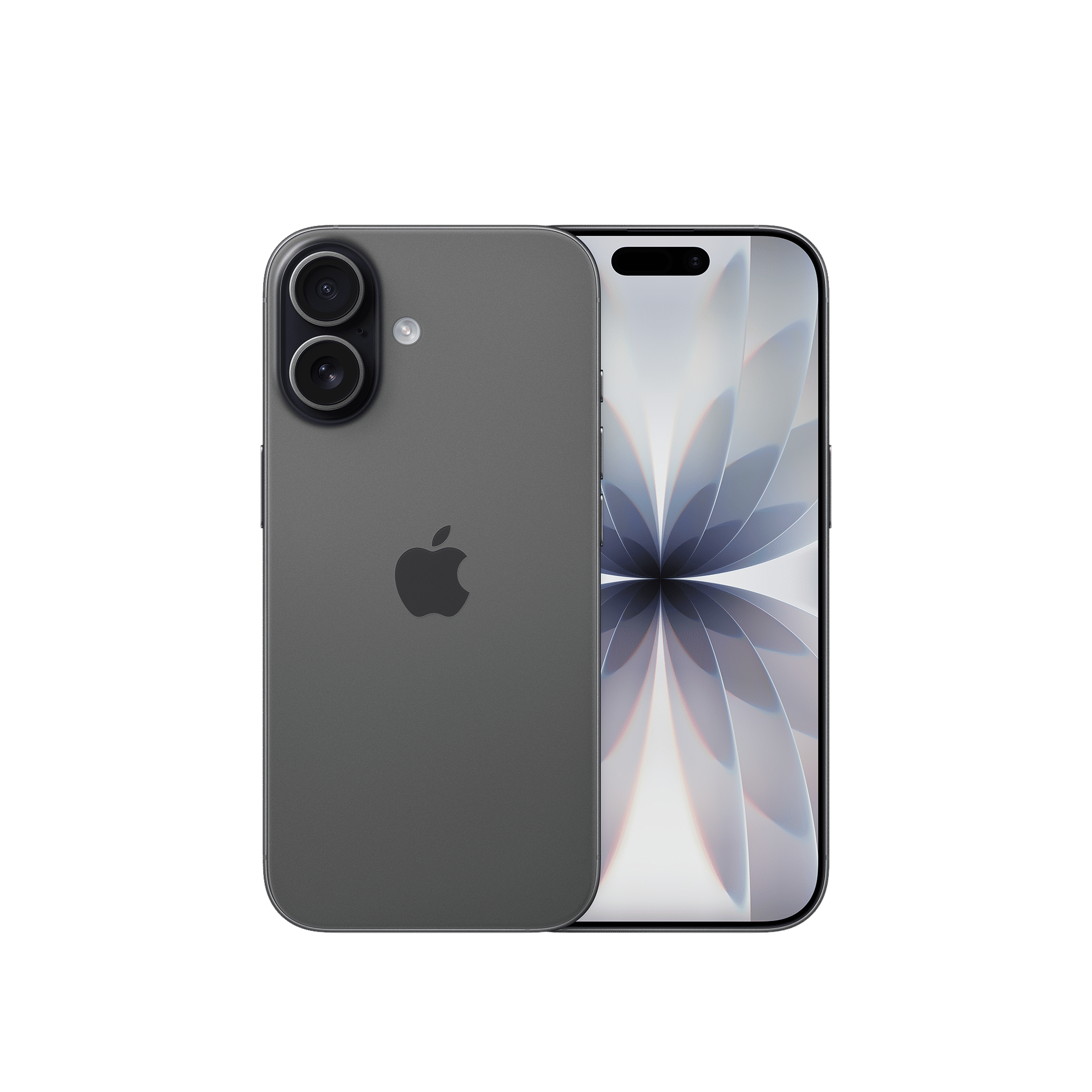
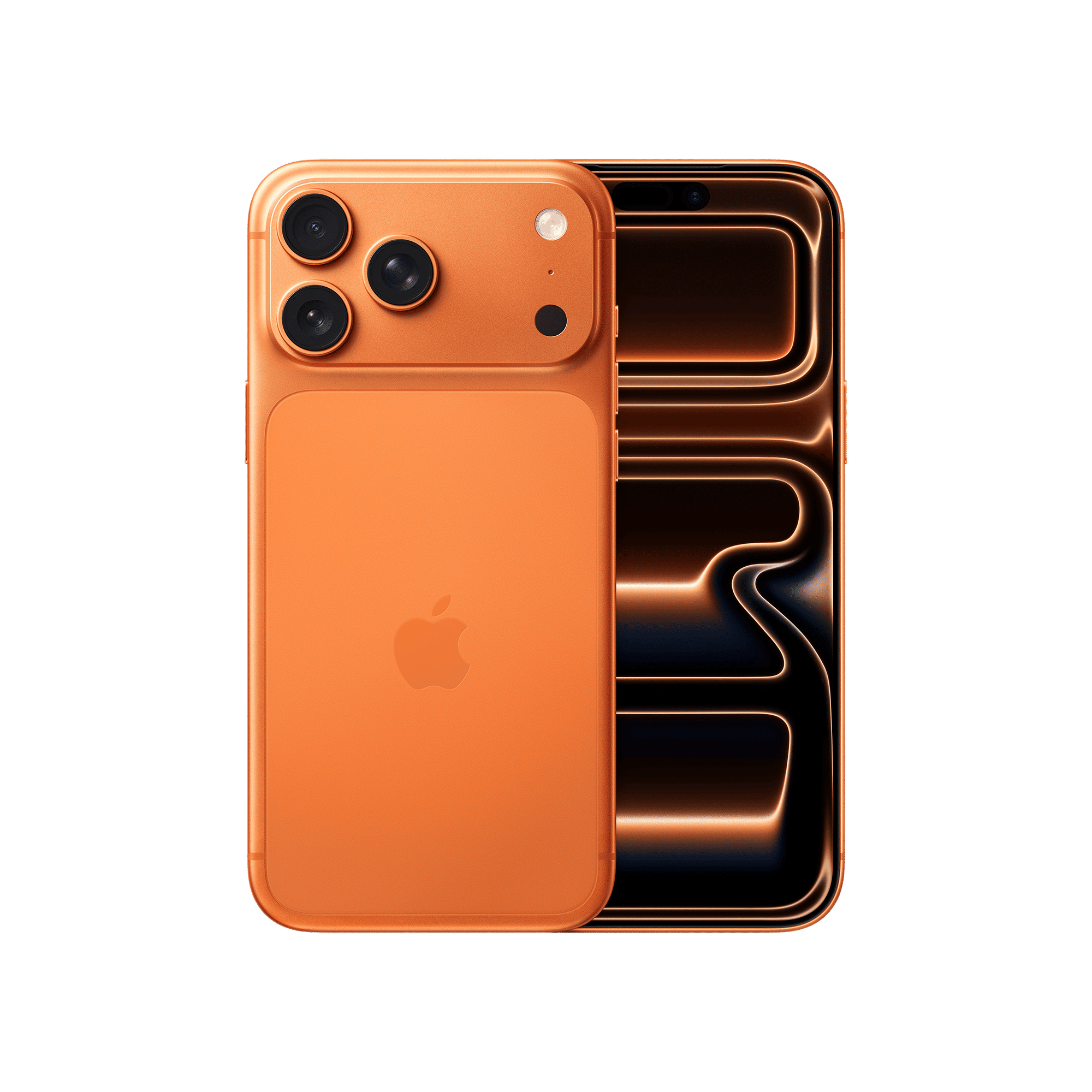
– In addition to clearing the cache, you can kill apps running in the background. How to do it? Just slowly swipe up from the bottom of the screen, and you should see the multi-tasking window. Just kill apps that you feel make continue to run in the background, like background downloads or games.
These are the two ways you can make your old iPhone run faster.

Unleash your inner geek with Croma Unboxed
Subscribe now to stay ahead with the latest articles and updates
You are almost there
Enter your details to subscribe

Happiness unboxed!
Thank you for subscribing to our blog.
Disclaimer: This post as well as the layout and design on this website are protected under Indian intellectual property laws, including the Copyright Act, 1957 and the Trade Marks Act, 1999 and is the property of Infiniti Retail Limited (Croma). Using, copying (in full or in part), adapting or altering this post or any other material from Croma’s website is expressly prohibited without prior written permission from Croma. For permission to use the content on the Croma’s website, please connect on contactunboxed@croma.com
- Related articles
- Popular articles
Pranav Sawant
Comments