







After a decade of updates, Windows 10 support officially ends today. That means no more feature updates or patches. Microsoft wants you to move on, and luckily, you can upgrade to Windows 11 for free. Here’s all you need to know about Windows 10’s support, and how you can upgrade to Windows 11.
Why you need to upgrade
Windows 10 served us well, and many users are still on it. Although the support is ending today, that does not mean you can’t continue to use it.
Once the support ends, Windows 10 machines become more vulnerable. No security updates means any new exploit could hit you. Having said that, it’s always best to upgrade to Windows 11. And the good thing is, you can upgrade to Windows 11 for free. Here’s how.
How to upgrade for free
Before you upgrade to Windows 11, you need to check its compatibility with your laptop/desktop. Follow the steps below to check whether your device is compatible with Windows 11.
Step 1: Download and install Microsoft’s PC Health Check app from the official Windows support page.
Step 2: Launch the app and tap ‘Check now’.
Step 3: You should see the results. Most recent laptops and desktops should support Windows 11.
Now to upgrade to Windows 11, can you head to Settings > Update & Security > Windows Update. Hit ‘Check for updates’ and you should see the Windows 11 update. Just install it and you are good to go.
ALSO READ: Microsoft launches a new 12‑inch Surface Pro as a compact Copilot+ PC
Before you update, note that you will need enough disk space. Also, always take a backup before upgrading.
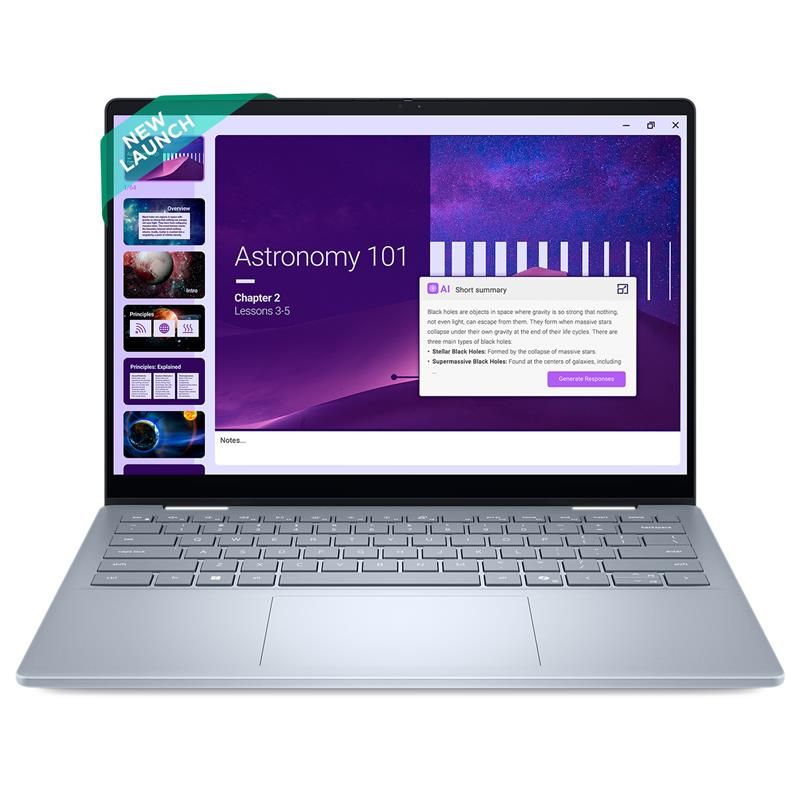
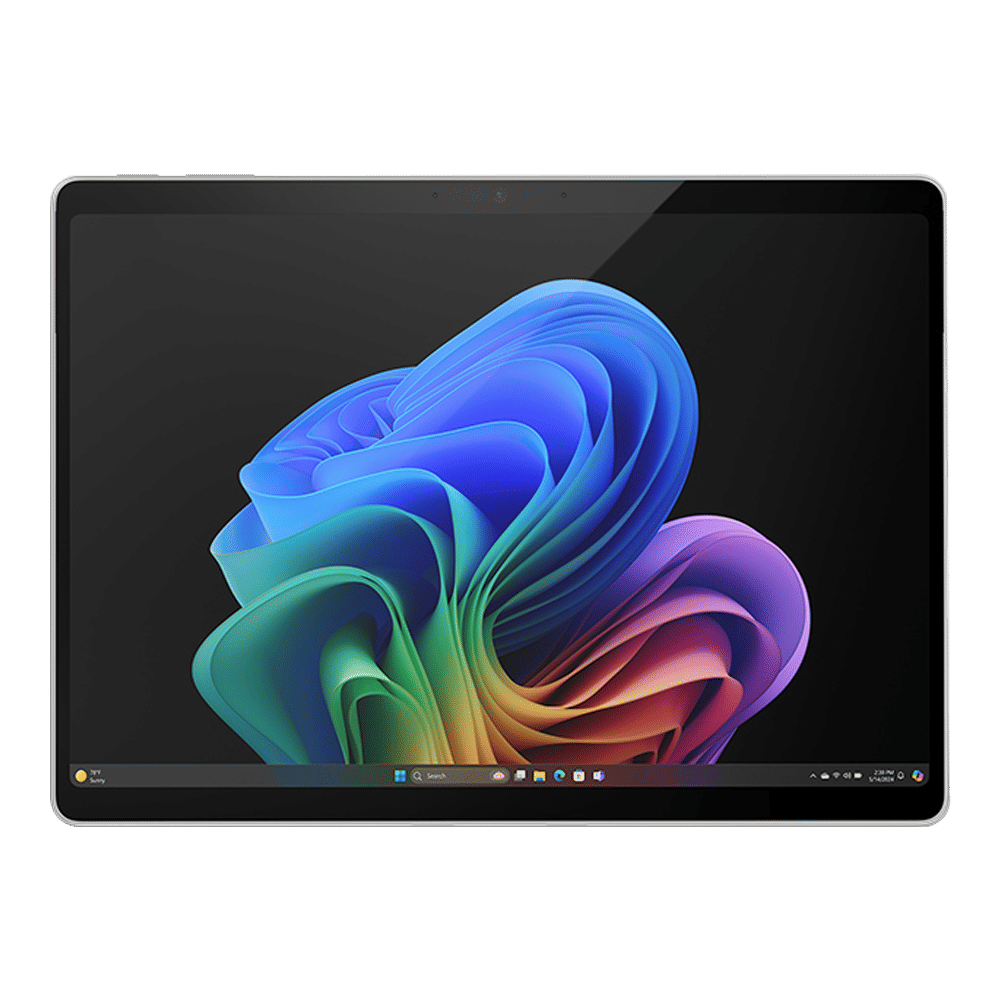
Other than this method, you can also use the manual installation method. For that, you need to download Windows Installation Assistant from the official Windows 11 page. Then install it and follow the steps on screen to install the latest software on your laptop/desktop.

Unleash your inner geek with Croma Unboxed
Subscribe now to stay ahead with the latest articles and updates
You are almost there
Enter your details to subscribe

Happiness unboxed!
Thank you for subscribing to our blog.
Disclaimer: This post as well as the layout and design on this website are protected under Indian intellectual property laws, including the Copyright Act, 1957 and the Trade Marks Act, 1999 and is the property of Infiniti Retail Limited (Croma). Using, copying (in full or in part), adapting or altering this post or any other material from Croma’s website is expressly prohibited without prior written permission from Croma. For permission to use the content on the Croma’s website, please connect on contactunboxed@croma.com
- Related articles
- Popular articles
Pranav Sawant
Comments