







Google Photos is undoubtedly the best photo-sharing platform right now, and you can cast your Google Photos directly to your TV. To do this, you will either need a Chromecast, Apple TV, or a smart TV with casting features. The process requires both your phone and TV to be connected to the same Wi-Fi network.
How to cast Google Photos to TV
Most smart TVs and streaming devices support the casting feature natively through built-in Google Cast or AirPlay technology, and the process varies depending on your device and TV setup. Here is a step-by-step guide to casting Google Photos to your TV:
Step 1: Enable Wi-Fi on both your phone and TV and connect both to the same Wi-Fi network.
Step 2: Open the Google Photos app on your smartphone.
Step 3: Navigate to the photo or album you want to cast to your TV.
Step 4: Look for the cast icon (rectangle with Wi-Fi symbol) in the top-right corner.
Step 5: Tap Cast and choose your TV from the list.
Your desired photo or video will appear on your TV screen immediately.
How to cast photos on TV
In addition to the above method, you can also cast photos on TV using the Google Home app or cast directly from your phone’s gallery app. If you have an Apple device, use AirPlay to cast to Apple TV or AirPlay-compatible smart TVs. Smart TV users can also download the Google Photos app directly on their TV and sign in with their Google account to view photos and videos without casting.
ALSO READ: Every TV type explained
FAQs
Q1: Can you cast Google Photos to TV without Chromecast?
A: You can cast Google Photos to a TV without a Chromecast if your TV or streaming device supports casting or screen mirroring features.
Q2: Why are my Google Photos not casting to TV?
A: If your Google Photos is not casting to TV, then it could either be because of Wi-Fi connection issues or Google Photos app permissions.

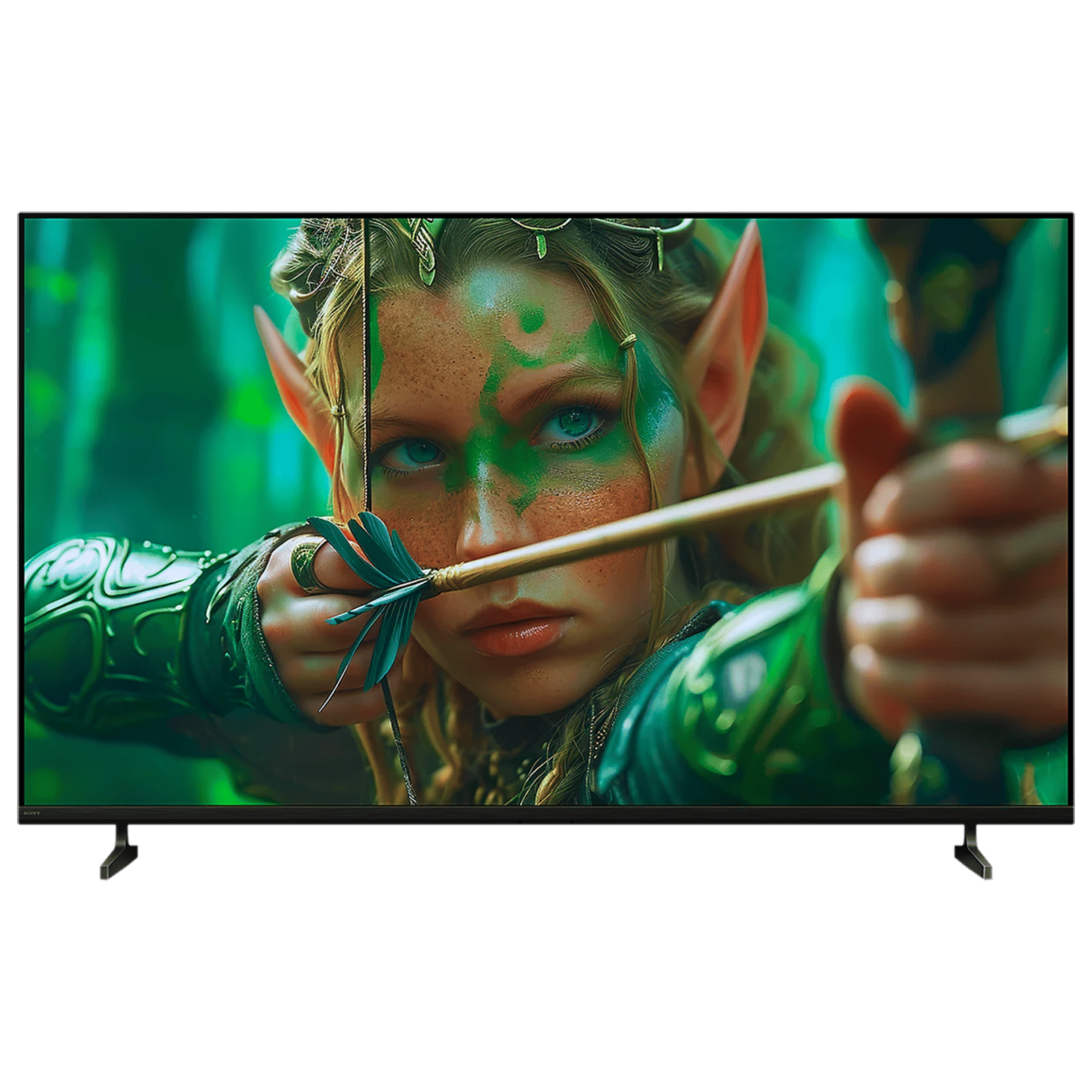
Casting Google Photos to your TV is not rocket science, and all you need is both devices connected to the same Wi-Fi network, the Google Photos app, and casting support. Once the basics are covered, you simply need to tap the cast icon and mirror your photos.

Unleash your inner geek with Croma Unboxed
Subscribe now to stay ahead with the latest articles and updates
You are almost there
Enter your details to subscribe

Happiness unboxed!
Thank you for subscribing to our blog.
Disclaimer: This post as well as the layout and design on this website are protected under Indian intellectual property laws, including the Copyright Act, 1957 and the Trade Marks Act, 1999 and is the property of Infiniti Retail Limited (Croma). Using, copying (in full or in part), adapting or altering this post or any other material from Croma’s website is expressly prohibited without prior written permission from Croma. For permission to use the content on the Croma’s website, please connect on contactunboxed@croma.com
- Related articles
- Popular articles
Karthekayan Iyer
Comments