







Modern MacBooks powered by Apple Silicon power on automatically when the lid is opened or connected to a power source. Additionally, they can also be booted by simply pressing a key or using the trackpad. The autoboot feature certainly offers convenience by providing quicker access to the device. However, many users find this quite annoying. Especially when you want to clean only the display or the keyboard without powering on the laptop.
While the Cupertino-based tech giant introduced the ability to turn on MacBooks automatically on Intel-based Macs, it also had a solution to turn off the feature. Unfortunately, the same did not work on M-series powered MacBooks until a few months ago, when Apple officially acknowledged a fix. The company published the solution on its official support page.
ALSO READ: MacBook Pro vs MacBook Air: Which Apple laptop should you get?
Sadly, Apple isn’t offering the solution in the form of a toggle to switch auto-power on or off in the Settings app. Users need to add a command in the Terminal app. Additionally, M-series powered MacBook users must ensure that their device is running on the latest macOS Sequoia software version.
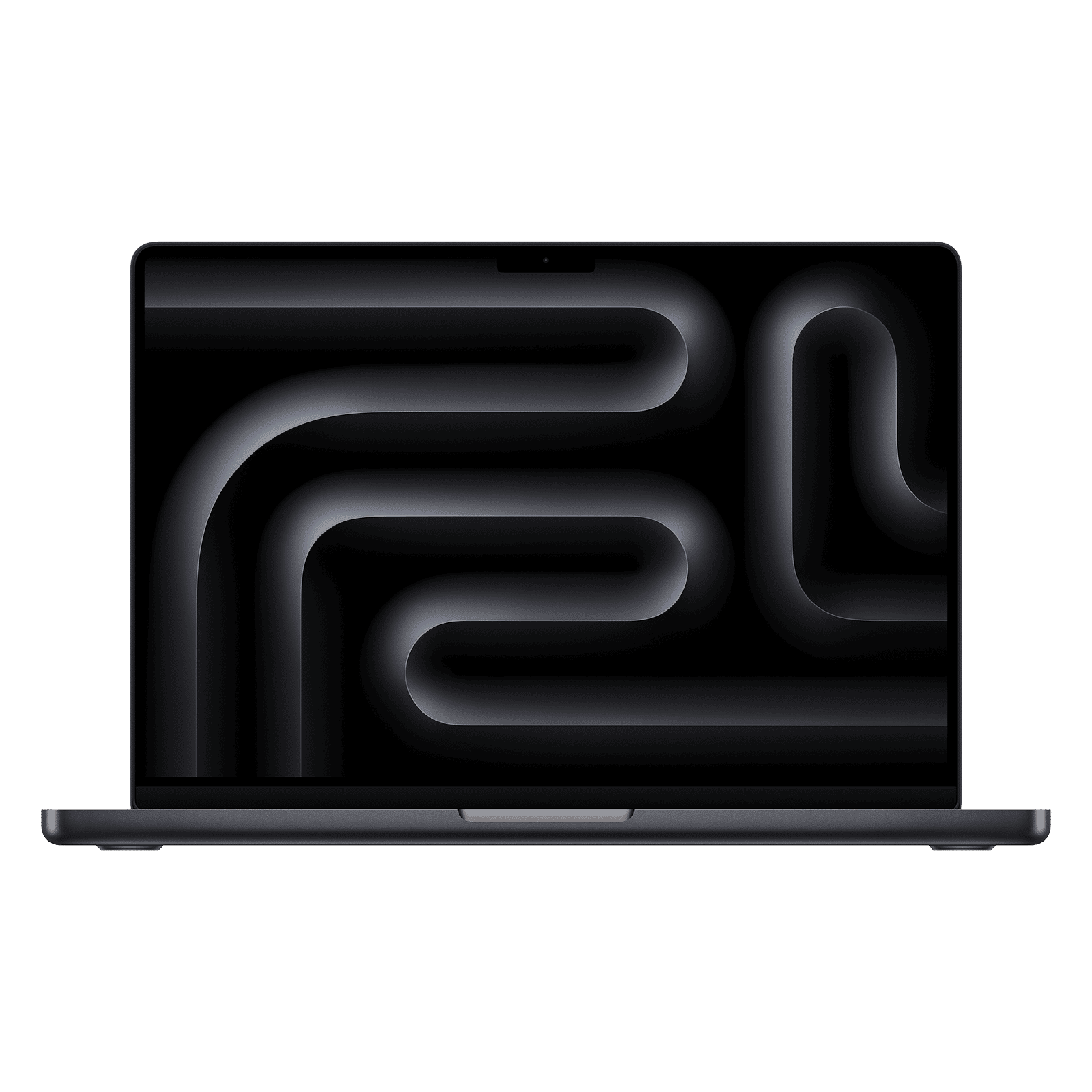
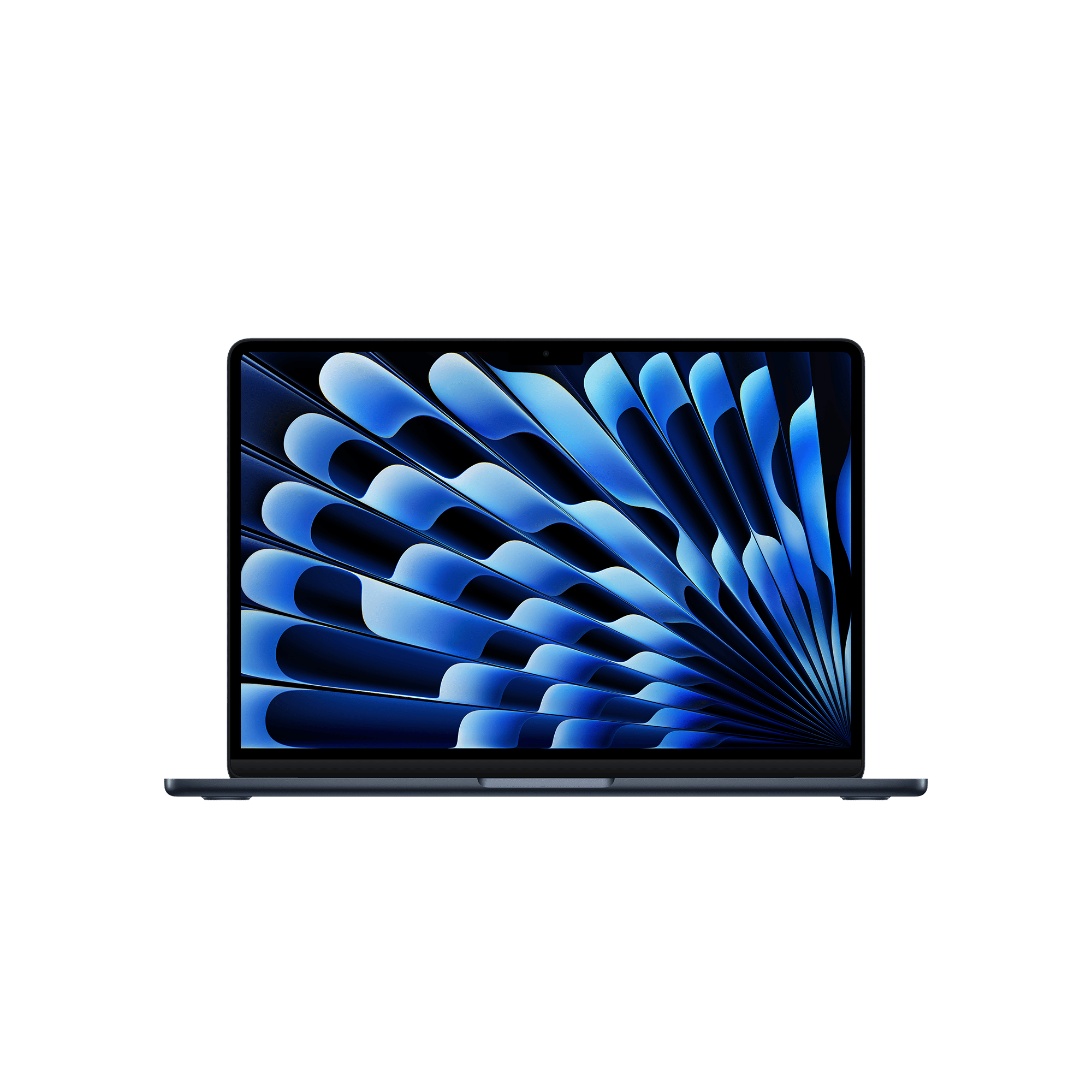
How to disable autoboot on MacBook
You can disable the auto power-on feature on a MacBook by following the steps below. Do note that there are three commands depending on what you want to disable.
Step 1: Launch the Terminal app on your MacBook (you can search for it using Spotlight)
Step 2: To prevent startup when opening the lid or connecting to power, copy and paste this code – sudo nvram BootPreference=%00
Step 3: If you want to disable the feature ONLY while opening the lid, use the code mentioned ahead – sudo nvram BootPreference=%01
Step 4: To stop your MacBook from turning on when connected to a power source, the code is – sudo nvram BootPreference=%02
Once the code is entered or copy-pasted, hit the return key on the keyboard. The Terminal will then prompt you to enter your admin password. When the password is typed, press Return again.
Using any of the aforementioned commands will prevent the MacBook from powering on automatically when you shut down the system and open the lid next time. If you want to undo this behaviour, you need to add this command – sudo nvram -d BootPreference in Terminal.
It’s worth noting that none of the commands disable the MacBook’s ability to be turned on by pressing a keyboard or using the trackpad. Also, autoboot can come in handy when the machine’s power button or keyboard is not working properly.

Unleash your inner geek with Croma Unboxed
Subscribe now to stay ahead with the latest articles and updates
You are almost there
Enter your details to subscribe

Happiness unboxed!
Thank you for subscribing to our blog.
Disclaimer: This post as well as the layout and design on this website are protected under Indian intellectual property laws, including the Copyright Act, 1957 and the Trade Marks Act, 1999 and is the property of Infiniti Retail Limited (Croma). Using, copying (in full or in part), adapting or altering this post or any other material from Croma’s website is expressly prohibited without prior written permission from Croma. For permission to use the content on the Croma’s website, please connect on contactunboxed@croma.com
- Related articles
- Popular articles
Viraj Gawde
Comments