







Did you know that many Android phones have a built-in split screen mode that you can access at any time? The process we’ve listed below should work on most supported devices, with minor, brand-specific variations here and there.
How to use split screen on your Android phone
The first thing you must do is open the recent apps interface. Depending on your device, this can be done by swiping up and holding or pressing the background apps button. Other phones might have other methods.
ALSO READ: Android vs iOS: Which is the best OS for you?
You should now be looking at a floating window of your app, something you’d normally swipe away when you want to close the app. In this case, tap the app icon at the top of the app window (you might need to press and hold on some devices), and select split-screen from the options window that pops up. The app will now be aligned to the top-half of the screen in portrait mode, and to the left in landscape mode.
Next, select an app from the interface that popped up in the bottom half or right of the screen depending on whether you’re in portrait or landscape.
Some phones might simply have a split-screen button hovering around the UI somewhere.
Congratulations! You’re now operating in split-screen mode. Note that you can sometimes move the divider between the apps to adjust how much screen real-estate they take up.
ALSO READ: What is stock Android?
You can scroll both apps independently and also interact with them independently. You will, however, only be allowed to type in one app at a time.
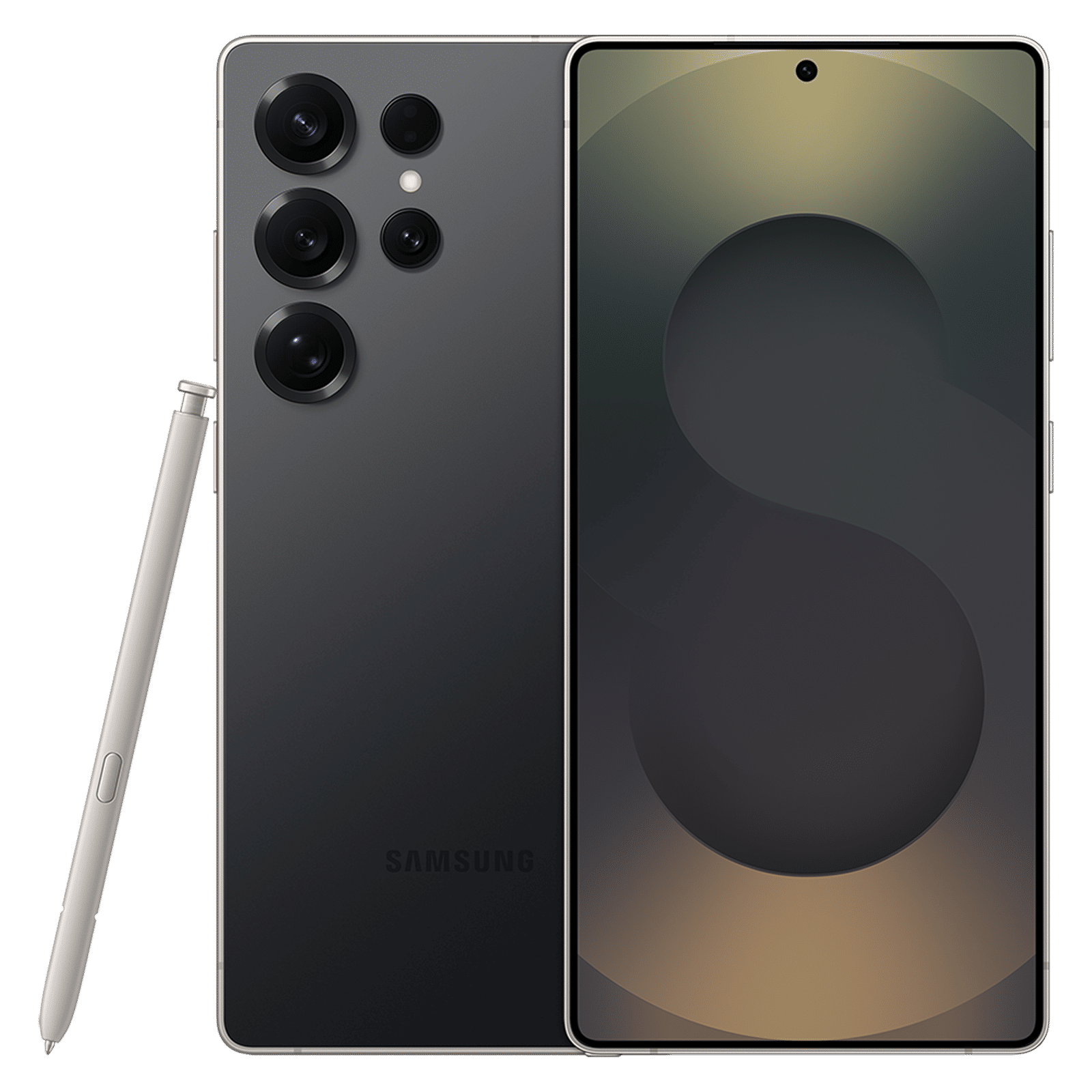

Split screen mode is very useful in a variety of scenarios, and can be especially useful when you’re recording video as you could, for example, have your script open alongside the camera interface.
Again, not all devices support split-screen mode so don’t get disappointed if your device doesn’t support it.

Unleash your inner geek with Croma Unboxed
Subscribe now to stay ahead with the latest articles and updates
You are almost there
Enter your details to subscribe

Happiness unboxed!
Thank you for subscribing to our blog.
Disclaimer: This post as well as the layout and design on this website are protected under Indian intellectual property laws, including the Copyright Act, 1957 and the Trade Marks Act, 1999 and is the property of Infiniti Retail Limited (Croma). Using, copying (in full or in part), adapting or altering this post or any other material from Croma’s website is expressly prohibited without prior written permission from Croma. For permission to use the content on the Croma’s website, please connect on contactunboxed@croma.com
- Related articles
- Popular articles
Anirudh Regidi
Comments