







Apple’s digital assistant Siri is easily the most recognisable name in that space. Limited capabilities notwithstanding, Siri was the first real AI voice that captured everyone’s imagination long before ChatGPT and Gemini and the like took over.
Siri has been an integral part of the Apple ecosystem for over a decade now, and it’s hard to imagine using an iPhone without Siri. If, for whatever reason, Siri stops working, there are some quick fixes you can try to get it going again:
Restart your phone
A tried and true remedy, restarting any device that’s acting up is a sure-shot fix for most issues. Restarting resets the system, clears out programs that are stuck, and boots into a fresh, clean state in which things function as they always should.
On an iPhone, you do this by swiping down on the top right to open the control centre, then pressing and holding the power icon in the top right. Then simply swipe right on the prompt that pops up. You can also hold the sleep/wake and volume down buttons to achieve the same result.
Check your settings
If Siri still isn’t responding, it’s possible that Siri was disabled. You can check Siri’s status by opening Settings>Siri and then ensuring that ‘Talk to Siri’ is enabled.
ALSO READ: Apple’s much-promised Siri upgrades may arrive in 2026
While here, also check that your language settings are set correctly as sometimes the wrong language pack may be installed, and Siri is simply unable to comprehend your requests.
Check your internet connection
Older versions of Siri required internet access to function. If you’re on an older model iPhone or running a much older version of iOS, check that your phone has internet access. Newer iPhones don’t have this issue, as Siri can be accessed in an offline mode and can perform basic tasks as well as run on-device Shortcuts.
Mic check
Sometimes the issue could be something as silly as gunk in your microphone port or a disabled microphone on your iPhone. Gunk you can clean out if you’re VERY careful (or give the device to a professional), and setting can be confirmed at Settings>Privacy and Security>Microphone. Check that it’s on and that Siri has been whitelisted to use the device.
ALSO READ: Apple’s much-promised Siri upgrades may arrive in 2026
You can also check if your mic is damaged by simply recording something in the Voice Memos app or making a phone call.
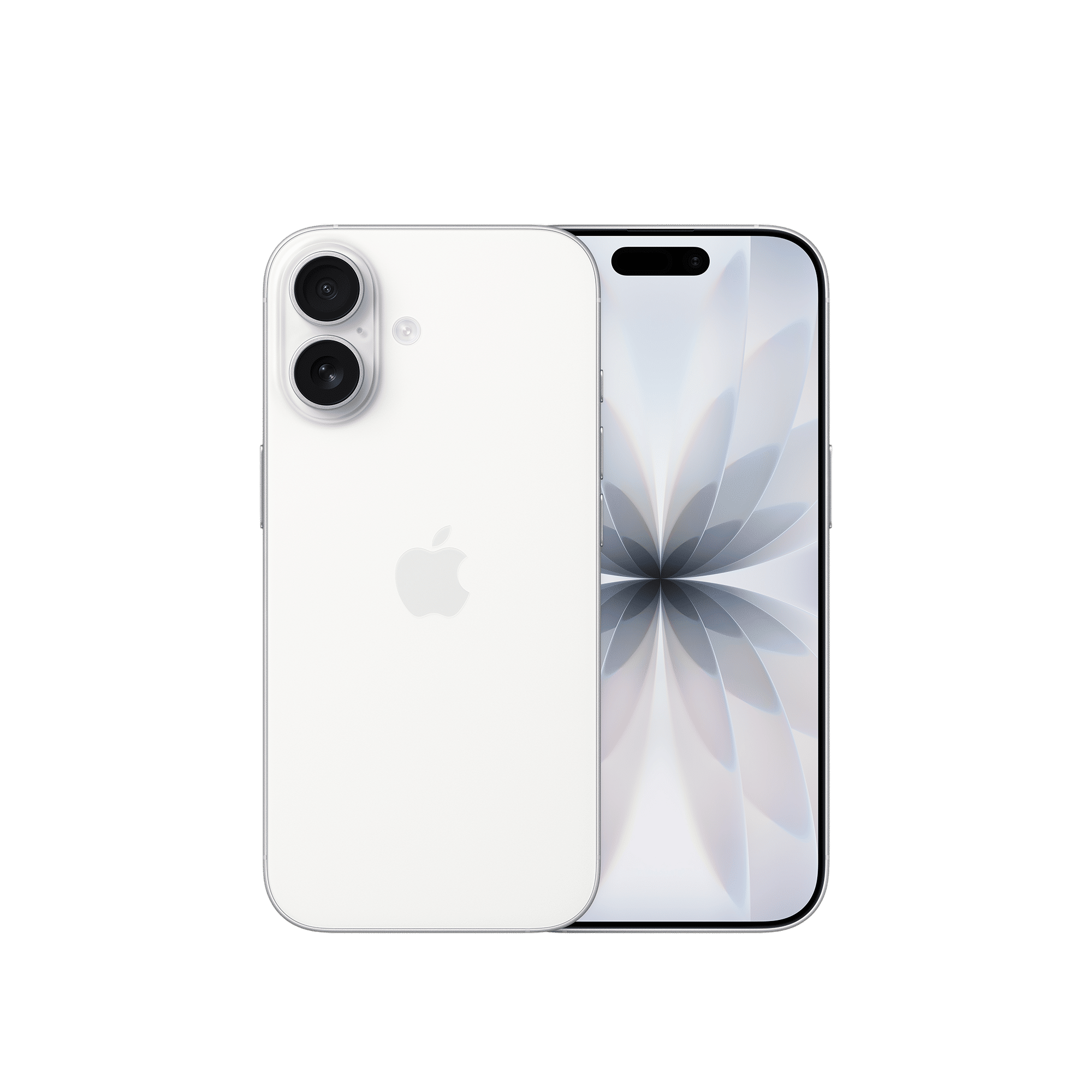
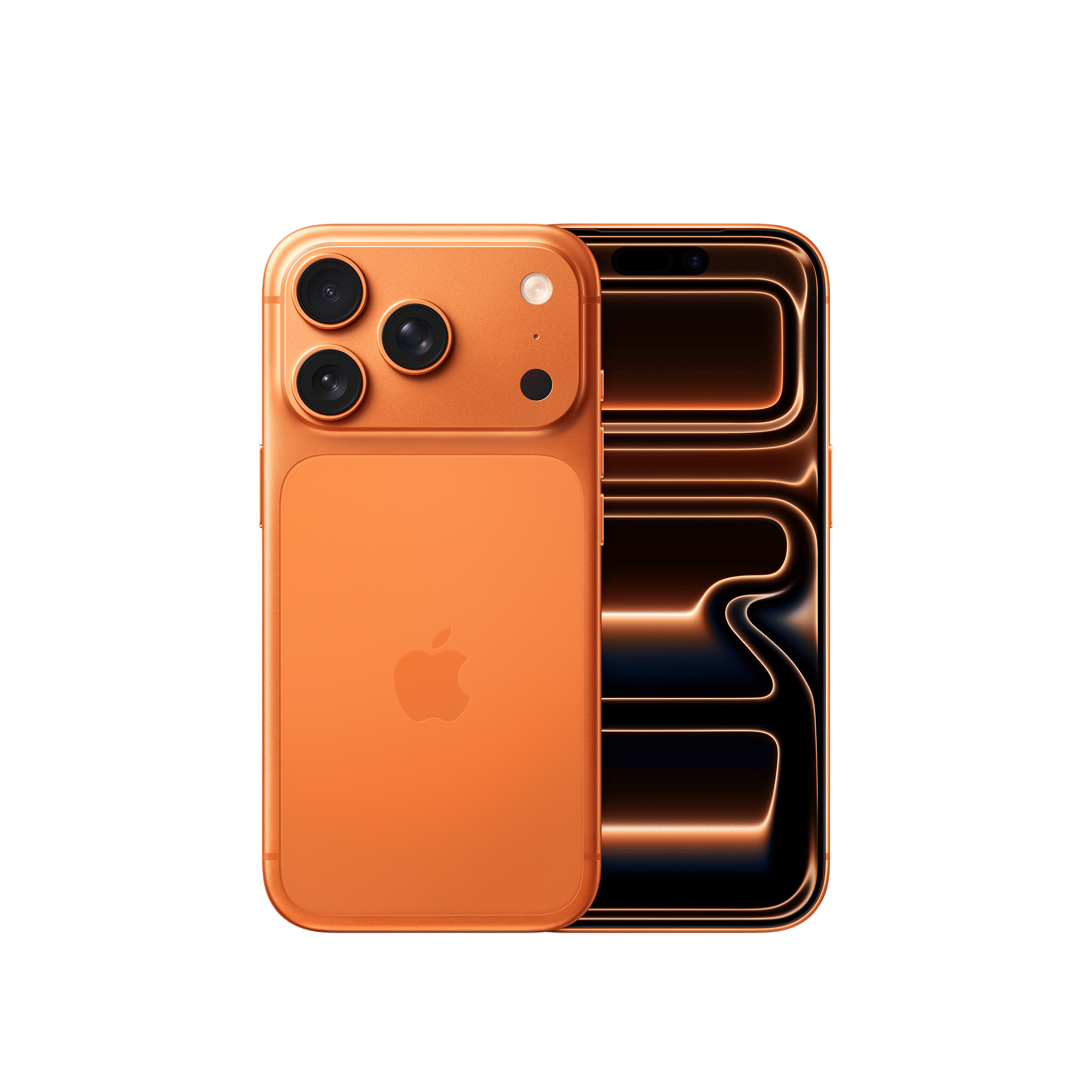
Assuming there’s no physical damage to the device, going through these fixes should get Siri up and running again. If not, you can always contact Apple Care for advice, or head to your nearest Croma store.

Unleash your inner geek with Croma Unboxed
Subscribe now to stay ahead with the latest articles and updates
You are almost there
Enter your details to subscribe

Happiness unboxed!
Thank you for subscribing to our blog.
Disclaimer: This post as well as the layout and design on this website are protected under Indian intellectual property laws, including the Copyright Act, 1957 and the Trade Marks Act, 1999 and is the property of Infiniti Retail Limited (Croma). Using, copying (in full or in part), adapting or altering this post or any other material from Croma’s website is expressly prohibited without prior written permission from Croma. For permission to use the content on the Croma’s website, please connect on contactunboxed@croma.com
- Related articles
- Popular articles
Anirudh Regidi
Comments