







Sadly, most laptops today use soldered RAM, and many, like Apple’s M series Macbooks and Intel’s 200 series Core Ultra processors build the RAM into the CPU die itself. These do have some advantages in the form of higher efficiency and better performance (in the latter case), but now you’re limited to the choices the manufacturer offers you, and upgrades are often exorbitantly priced.
That said, there are still a few laptops that offer upgradeable storage and RAM, especially some of the larger gaming laptops. Also, many older laptops offered the option as well and you’ll want to check on the manufacturer’s website.
ALSO READ: What can you upgrade in a laptop?
If you’re lucky enough to have one such laptop, here’s how you go about upgrading RAM. Before we start, do bear in mind that the process will vary from laptop to laptop so it’s best to check manufacturer guidelines before ripping your device apart.
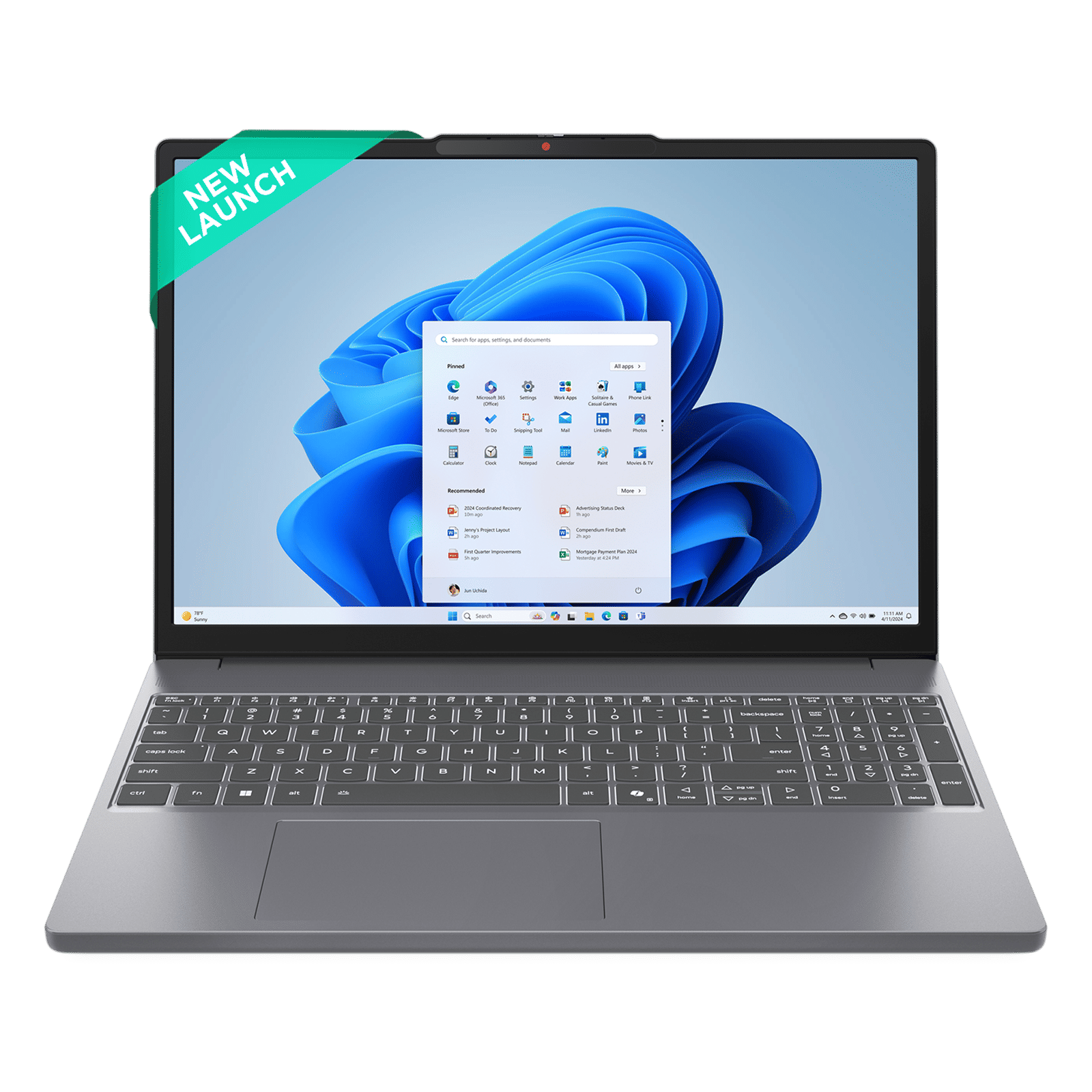

Do you need an upgrade?
Before you upgrade your RAM, be sure that you need an upgrade to begin with. Here are a few things to consider first:
HDD or SSD: If your laptop is still booting off a hard drive and not an SSD, upgrading to an SSD will give you a massive performance boost, even more than can be achieved by a RAM upgrade.
RAM: 16 GB RAM is plenty for gaming as well as everyday computing. It’s only when you’re into demanding workloads like video editing, 3D modelling and rendering, coding, AI, and other such tasks that you need more than 16 GB of RAM. Unless you’re involved in such demanding workloads, upgrading RAM will give you no tangible performance benefit. If you’re on a system with 8 GB RAM or less, upgrading is a no-brainer.
ALSO READ: Here’s when to upgrade your smartwatch
De-bloat Windows: If you have enough RAM but your PC is slow, you might want to look into uninstalling unnecessary apps, disabling wasteful startup apps, and more. Run an antivirus scan as well just in case. In the worst case, you might need to re-install Windows.
Old processor: If your laptop is especially old it could simply be that the processor is simply not fast enough for modern Windows. In such a case, consider switching to a lighter OS such as Linux.
Confirm that the laptop is upgradeable
Check the manufacturer’s website to confirm that your laptop’s RAM is indeed upgradeable. If it is, download the instruction manual and if possible, the exact specifications of the type of RAM being used. You’ll also want to check whether upgrading the RAM voids warranty, which can be a problem on newer devices.
Find the right tools
In most cases, upgrading RAM requires that you either room the entire back panel of the laptop, or a small flap. In either case, you’ll need the right screwdriver for the job. Most laptops will use standard phillips head screws, but some can use more unusual options.
It’s also a good idea to have an anti-static bracelet or to at least ground yourself before starting. There’s a very low risk of static charges frying components in your laptop, but it’s not a chance most people will want to take.
You need the right RAM
If you’ve managed to identify the exact specifications of the RAM module(s) your laptop already has, you’ll need to find an identical module to upgrade. Getting the wrong RAM stick can cause anything from system instability to a dramatic reduction in performance. Here’s what you need to know:
Case 1: Your laptop has a single RAM module – Assuming your laptop has a second RAM slot, get a RAM module that’s identical to the one already in your laptop, preferably one from the same manufacturer. If you have 8 GB 6400CL30 LPDDR5x from Kingston, then you need another 8 GB 6400CL30 LPDDR5x from Kingston and you’ll then have 16 GB of dual-channel memory. If you buy a different module, both RAM sticks will now operate at the speed of the slowest module. If the modules don’t have the same capacity, dual channel mode won’t work.
Case 2: Your laptop has two modules – If your laptop already has two RAM modules and you need to upgrade, your only option is to replace both modules with different ones. Simply swapping one module for another faster one will cause issues outlined in Case 1 above.
Case 3: One RAM module is soldered – In rare cases, one RAM module may be soldered and you’ll have a free RAM slot. This is a tricky one to deal with. Ideally, get another RAM module with the same specs as the soldered one, but if you can’t, then get one with similar specs and more capacity, so you may at least enjoy the benefits of having more RAM.
How to upgrade RAM in a laptop
Once you’re armed with the right tools and have the appropriate RAM modules, here’s how you increase RAM on your laptop.
Open the back panel or the RAM door cover as specified by the manufacturer. This usually involves removing some screws and plastic clips. You might sometimes have hidden screws and clips to deal with. Also, try and put the screws back in the same holes from which they were removed.
Once you can access your RAM slots, double-check to confirm the above three cases and that the RAM module in your laptop is identical to the one you’ve bought.
To remove an existing RAM module, look for two metal or plastic tabs. These will be at either end of the RAM stick and will need to be pressed outwards to pop the RAM stick out of the slot. Pull the stick out and replace it.
To install RAM, align the RAM stick correctly with the slot. The bottom of the RAM stick will have a gap which will align in only one direction with a corresponding protrusion in the RAM slot. Place the RAM correctly in the slot (it’ll usually go in at a 30-degree angle), and then press down so it lays flat and the metal or plastic tabs on either side can lock.
ALSO READ: Why you should upgrade to energy-efficient home appliances, and how to get started
You’ll know the RAM has been properly installed if there’s no play and the two tabs are locked in place on either side.
Once done, simply replace the door or the back panel as needed.
Boot up your system. If all goes according to plan, the system will boot normally and you’ll be able to check RAM capacity and speed in the Task Manager (press Ctrl+Alt+Del) -> click Task Manager -> open the performance tab -> Select Memory.
If you can access your laptop’s BIOS, you might want to do that instead to check that the RAM is installed correctly and operating at the right speed.
If you’re facing issues such as a failure to boot or system instability, repeat the process and ensure that the RAM is installed correctly. If issues persist, you might have a faulty or incompatible RAM stick.
Congratulations on your RAM upgrade. Have fun gaming or doing whatever else it is that you’re doing on the laptop!

Unleash your inner geek with Croma Unboxed
Subscribe now to stay ahead with the latest articles and updates
You are almost there
Enter your details to subscribe

Happiness unboxed!
Thank you for subscribing to our blog.
Disclaimer: This post as well as the layout and design on this website are protected under Indian intellectual property laws, including the Copyright Act, 1957 and the Trade Marks Act, 1999 and is the property of Infiniti Retail Limited (Croma). Using, copying (in full or in part), adapting or altering this post or any other material from Croma’s website is expressly prohibited without prior written permission from Croma. For permission to use the content on the Croma’s website, please connect on contactunboxed@croma.com
- Related articles
- Popular articles
Anirudh Regidi
Comments