







One of the best ways to increase productivity, whether for work or school, is to connect your laptop to an external display. These displays tend to be both larger and better quality than the ones attached to most laptops, but it’s still the size that has the biggest impact on productivity. More screen real estate translates to more room for arranging windows and for consuming information.
An external display also tends to force users to adopt a better posture as they’re not hunched over and squinting at miniscule text on their tiny laptop screens. This sounds great, but there are some caveats. Not all laptops support all types of external displays, and many, especially older Macs, have an unnecessary convoluted list of requirements that must be met before you can use an external display, especially when you intend to use that display with the laptop lid shut.
Using an external display on Windows
On Windows laptops, simply search for lid settings in Windows search and enable the toggle on the setting that says the laptop stays on when the lid is shut. This setting is called “Choose what closing the lid does” and set it to “Do nothing” when plugged in. When set up like this, the laptop will remain turned on when the power is connected and the lid is shut.
ALSO READ: Laptops for online classes: What you need to keep in mind when buying one
Plugging in an external display will automatically switch to that display. Do ensure you connect peripherals as well.
If you connect a display via USB-C or Thunderbolt and said display can deliver power (and your laptop supports USB-C power), simply plugging in the monitor via USB-C or Thunderbolt will keep the laptop powered on with the lid shut.
Note that this can also work on battery power, but the laptop might go to sleep automatically after a period of inactivity. Pressing a button on an external keyboard or moving the mouse will wake it up.
Using an external display on a Mac
Macbooks, especially older models do not stay awake when the lid is shut unless they’re connected to power, at least one mouse (USB or wireless), and an external display. You should have no issues once the above criteria are met, and as with Windows laptops, using an external display that delivers power via USB-C will be a very convenient option.
Using an external display on Linux
The experience on Linux can be mixed. Popular distros do usually have a setting that you’ll need to toggle to enable the use of external displays when the lid is shut, but sometimes even popular distros like Ubuntu are missing the feature and you’ll need to dig into settings or consult forums to figure out how to enable the feature.

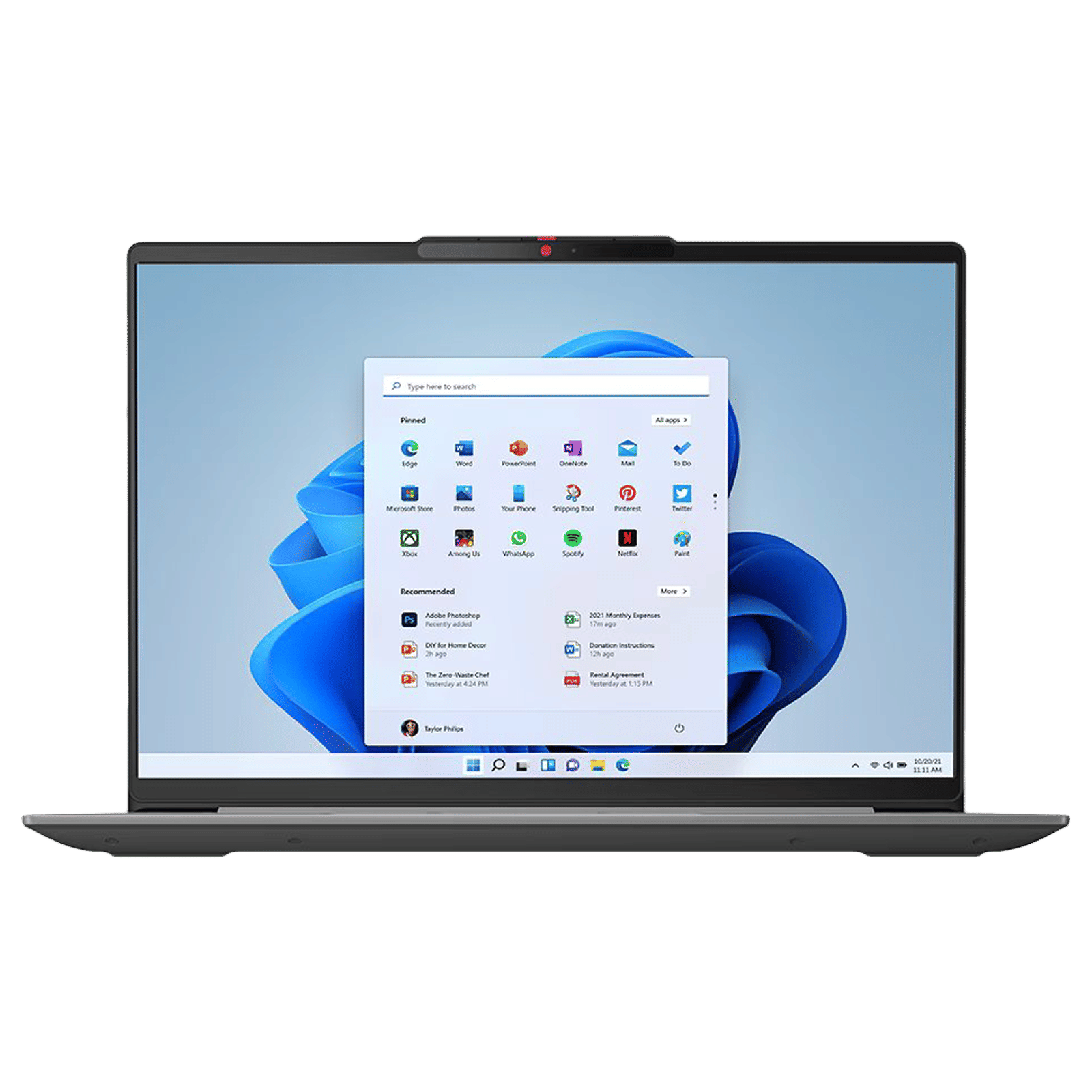
As you can see, setting up an external display for your laptop is a simple enough process once you’re aware of the criteria and settings for doing so.

Unleash your inner geek with Croma Unboxed
Subscribe now to stay ahead with the latest articles and updates
You are almost there
Enter your details to subscribe

Happiness unboxed!
Thank you for subscribing to our blog.
Disclaimer: This post as well as the layout and design on this website are protected under Indian intellectual property laws, including the Copyright Act, 1957 and the Trade Marks Act, 1999 and is the property of Infiniti Retail Limited (Croma). Using, copying (in full or in part), adapting or altering this post or any other material from Croma’s website is expressly prohibited without prior written permission from Croma. For permission to use the content on the Croma’s website, please connect on contactunboxed@croma.com
- Related articles
- Popular articles
Anirudh Regidi
Comments